TABLE OF CONTENTS
The Non-Destructive Test (NDT) function allows you to testing details for rim assets, helping you track condition, compliance, and repair history. NDTs can be added for any rim, regardless of disposition, and can also be recorded at the time of creating a rim asset.
Steps to Add an NDT
1. Access the NDT Option
Locate the rim asset in your Assets list.
Hover over the asset row to display the action icons.
Click the Non-Destructive Test icon
as shown below:

2. Fill in the NDT Details
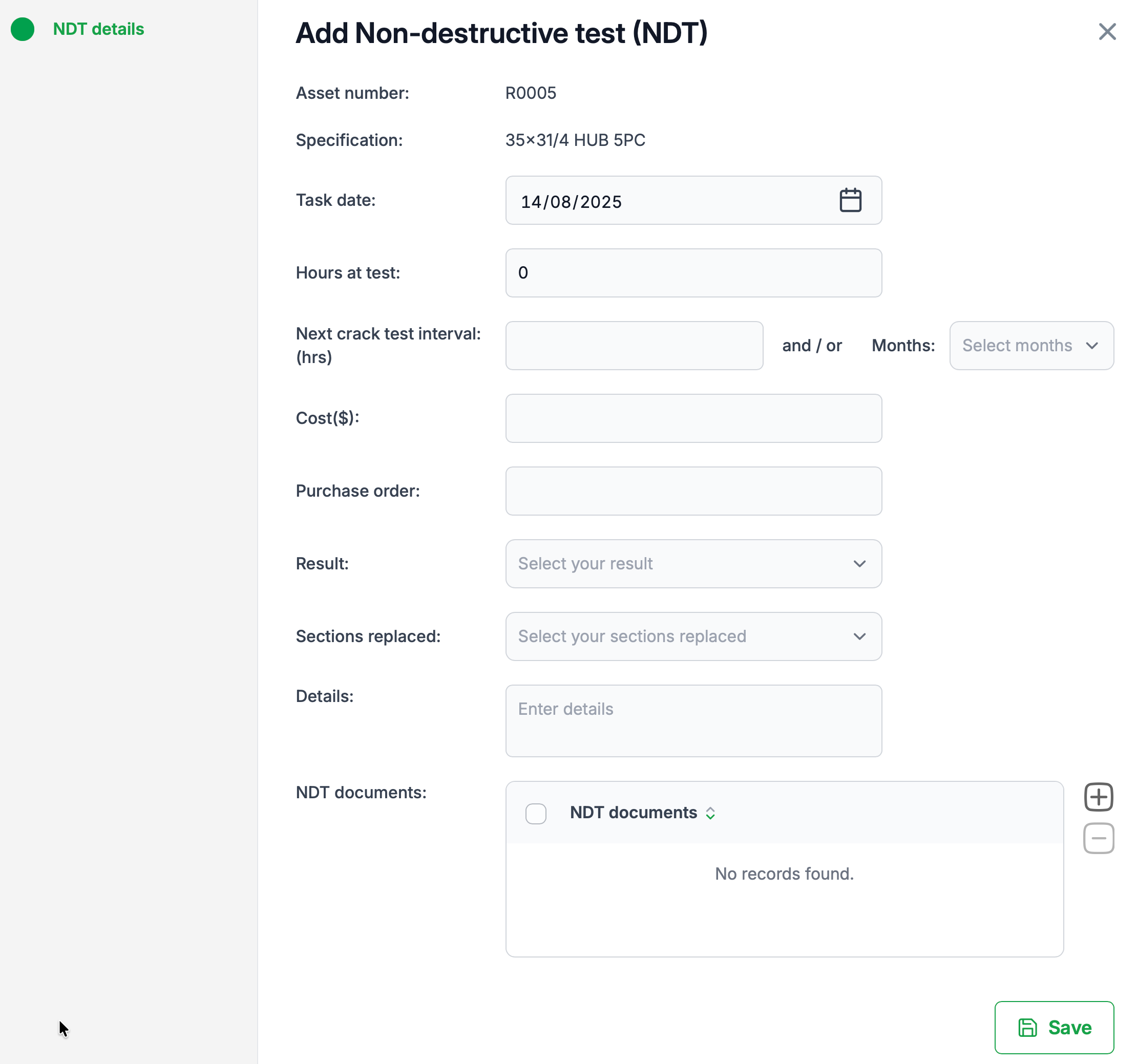
The Add Non-Destructive Test (NDT) dialog will appear. Here you can record:
Task date – Date the NDT was performed.
Hours at test – Total asset hours at the time of testing.
Next crack test interval –
Hours: The number of hours before the next test is due.
Months: The number of months before the next test is due.
Cost ($) – The cost of the NDT.
Purchase order – Related purchase order number (if applicable).
Result – Select from:
Passed
Failed
Pending
Sections replaced – Choose from:
Back section
Gutter
Details – Enter any additional notes about the inspection or repairs.
NDT documents – Upload related files such as inspection reports or certificates.
3. Save the Record
Review all entries for accuracy.
Click Save to complete the NDT record.
Tips
Always enter both hours and months for the next NDT interval when possible to ensure accurate scheduling.
Upload supporting documents to keep a complete inspection history.
Use clear, specific notes in the Details field for future reference.
Was this article helpful?
That’s Great!
Thank you for your feedback
Sorry! We couldn't be helpful
Thank you for your feedback
Feedback sent
We appreciate your effort and will try to fix the article