This article explains how to create a vehicle inspection and how it appears in the Inspections tab. Vehicle inspections in TMaSS Mobile are designed for non-managed vehicle assets (i.e. vehicles not held in the TMaSS asset register).
1. Start a Vehicle Inspection
Open the Inspections tab.
Tap the Add (+) button on the bottom bar.
In the Add Inspection sheet, select Vehicle (see Image 1 – Add Inspection).
Image 1 – Add Inspection (Tyre / Vehicle picker)
This opens the Vehicle inspection – Company information screen.
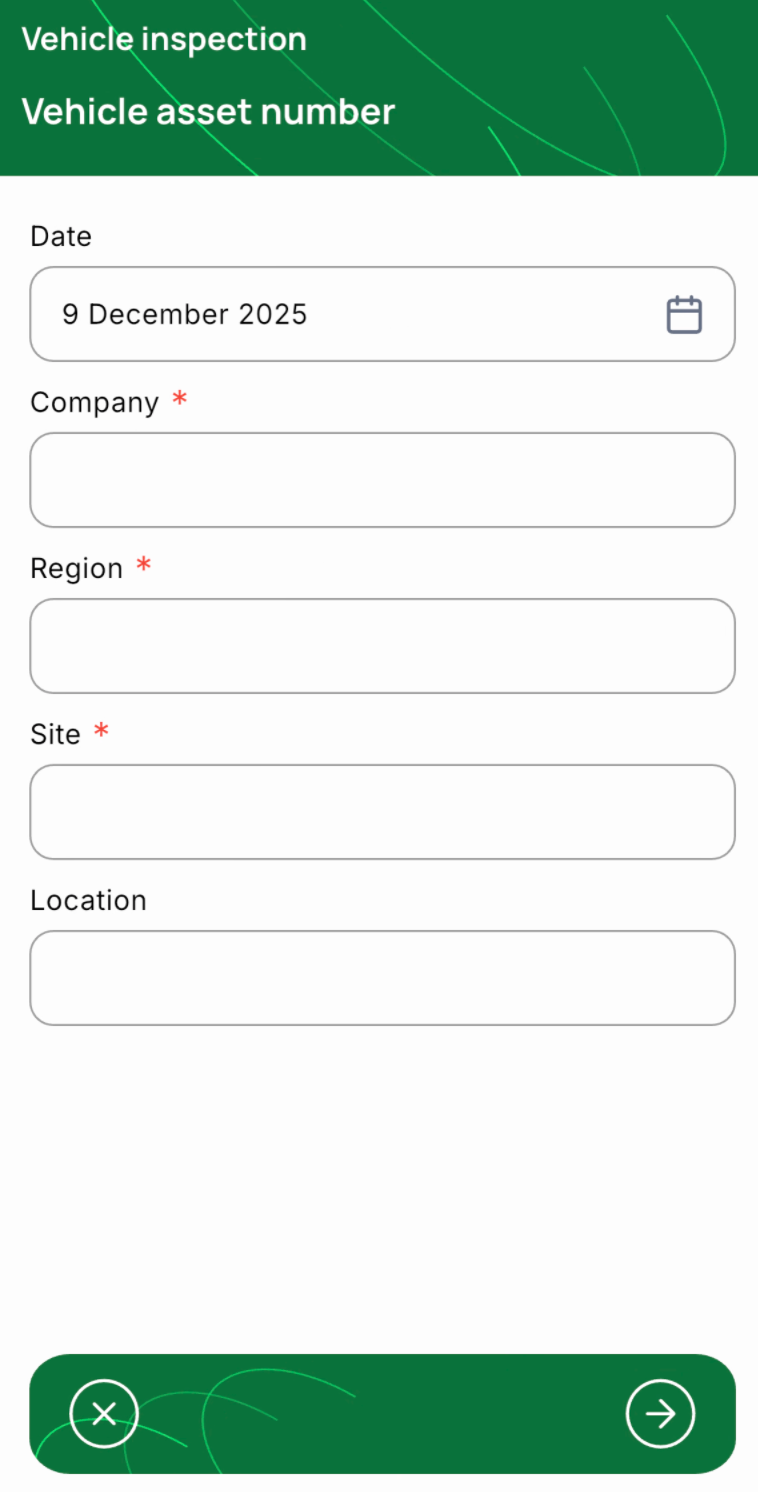
2. Enter Company Information
Because these inspections are for non-managed vehicles, TMaSS cannot pre-populate company details.
On the Company information page (see Image 2):
Date – defaults to today; tap the calendar icon to change if required.
Company* – select from the list of managed companies or type your own value.
Region* – select a managed region or type a custom region.
Site* – select from available sites or type your own.
Location – optional free text (e.g. “Workshop Bay 3”).
Image 2 – Company information
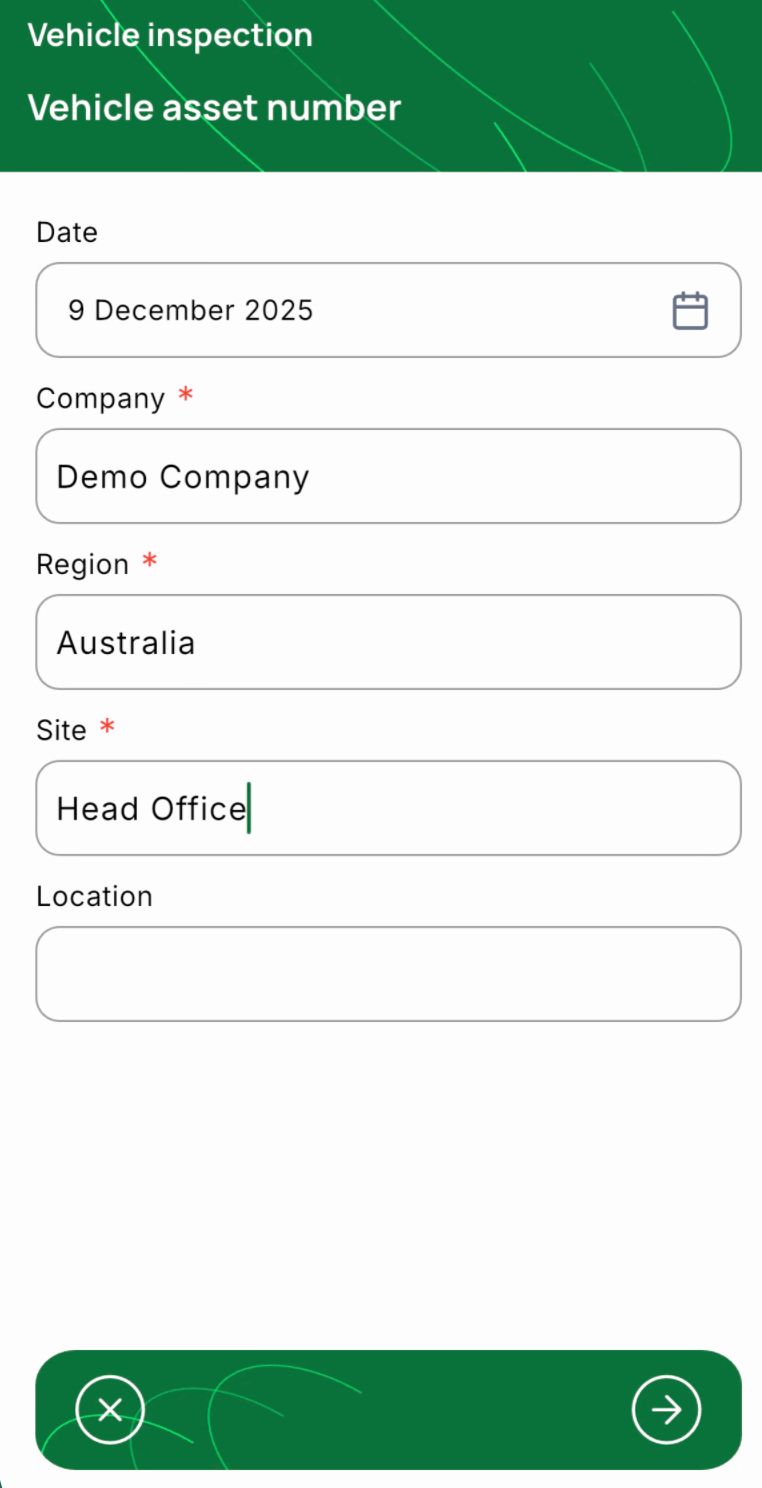
You can always override a selection by typing directly into the field.
Tap Next (→) to continue.
3. Vehicle Asset Information
The Vehicle asset information page asks for:
Inspection type – choose Rolling or Static.
Vehicle asset number – identifier for the vehicle being inspected.
Specification – choose from the list of available vehicle specs or type a new specification if it doesn’t exist.
Weather – select Dry or Wet.
Number of positions – number of wheel positions on this vehicle.
This setting determines how many positions will appear on the Positions page.
Hours – current vehicle hours.
Distance – current odometer or distance reading.
Production downtime – indicate whether there has been downtime (Yes/No).
Notes – any general comments about the vehicle for this inspection.
Tap Next (→) to move to the positions screen.
4. Positions Overview & Vehicle Image
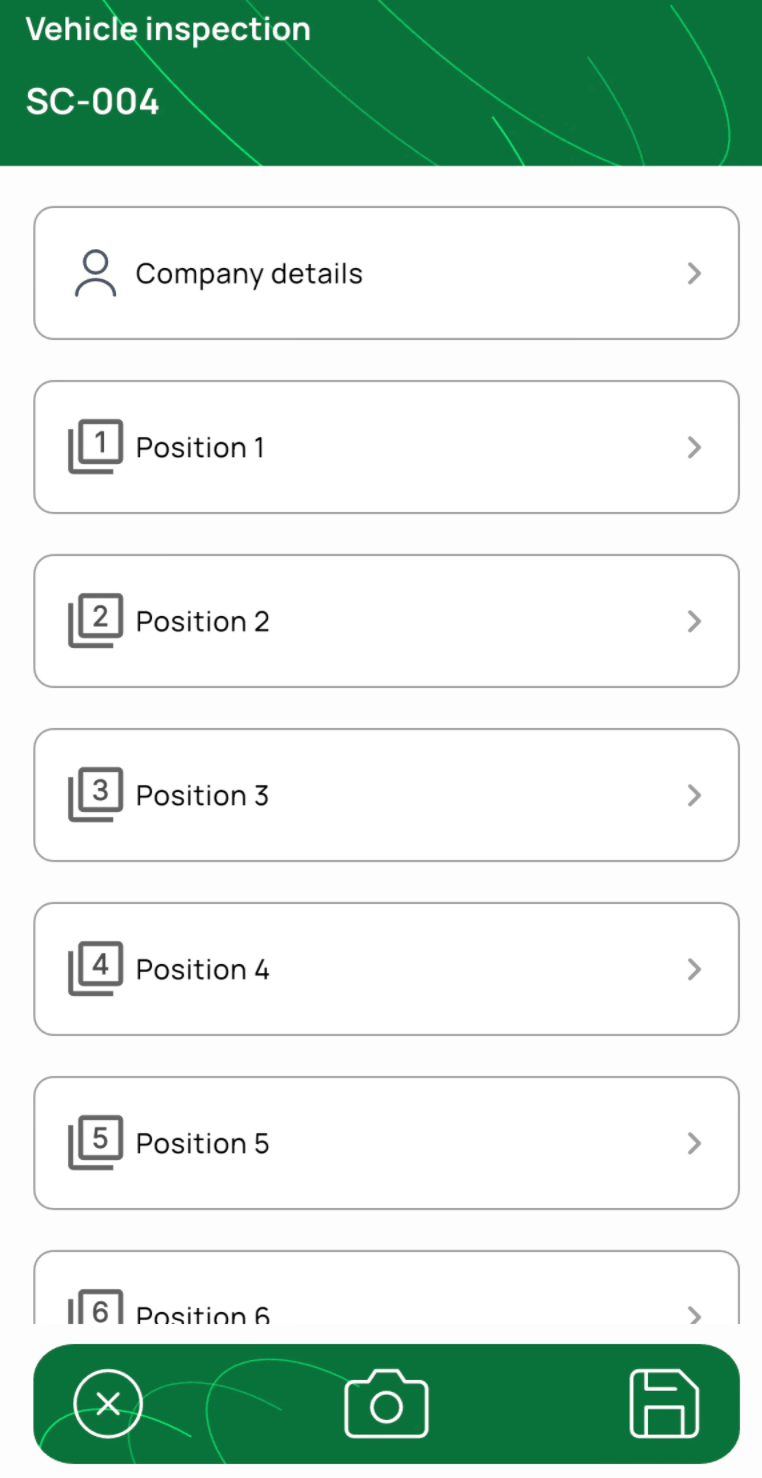
The Positions page shows a row for each position that can be inspected (based on the number entered in the previous step) – e.g. Position 1, Position 2, Position 3, etc. (see Image 3).
Here you can:
Tap Company details to review or edit header info.
Tap any Position row to record tyre-level details for that wheel.
Use the Camera icon on the bottom bar to add an overall vehicle image to the inspection.
Tap Save to save the inspection once you’ve completed the required position inspections.
Image 3 – Positions list
5. Enter Position Details
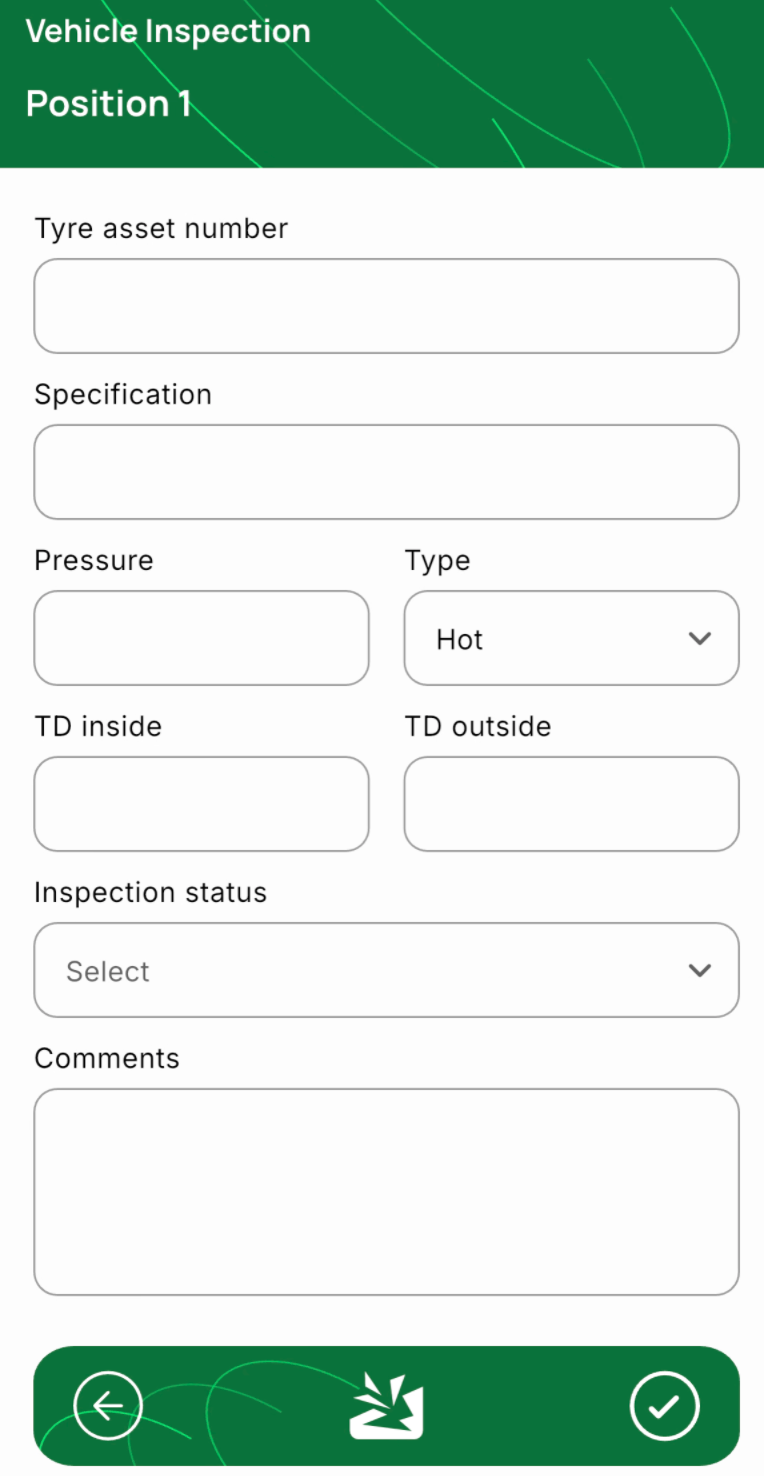
Tapping a position opens the Position detail page (see Image 4). For each position you can record:
Tyre asset number – if the tyre is managed, enter its asset number; otherwise use a local identifier.
Specification – select from the list or type a new specification.
Pressure – current pressure reading.
Type – select Hot or Cold to indicate how the pressure was taken.
TD inside / TD outside – inner and outer tread depth readings.
Inspection status – select the status for this tyre (e.g. In-Production, Requires Attention).
Note:
Inspection status is not the same as disposition.
It only describes the result of this inspection for the tyre, not its overall disposition in TMaSS.
Comments – enter any observations for that position (e.g. “Shoulder wear” or “Valve cap missing”).
From this page you can also add positional damage using the damage icon. Record details such as lug, depth, side, priority, and any notes, plus associated images if required.
When finished for that position, tap the Tick (✔) icon to return to the Positions list.
Image 4 – Position detail
Repeat this process for each remaining position as needed.
6. Save the Vehicle Inspection
Back on the Positions page:
Ensure all required positions have been updated. You can save an inspection without adding any positional information entires.
Tap Save (disk icon) on the bottom bar.
The vehicle inspection is now created and will appear in the Inspections tab list.
7. How Vehicle Inspections Are Displayed
In the Inspections tab:
Each card shows:
Inspection date
Asset number (vehicle asset number)
An orange damage icon when any damage was recorded during that inspection.
Inspections here are subject to:
The application retention policy (configured in Settings).
Sync status:
Unsynchronised inspections remain on the device regardless of the retention policy until they have successfully synchronised.
You can further refine the list using filters:
Tyres – show only tyre inspections
Vehicles – show only vehicle inspections
Damage found – show inspections with at least one damage record
Current week – show inspections created in the current week
By following these steps, users can efficiently capture detailed vehicle inspections in TMaSS Mobile, covering company context, vehicle configuration, tyre positions, damage and photographic evidence—all from within the Inspection workflow.
Was this article helpful?
That’s Great!
Thank you for your feedback
Sorry! We couldn't be helpful
Thank you for your feedback
Feedback sent
We appreciate your effort and will try to fix the article