This article explains how the TMaSS Mobile app automatically loads your managed tyre assets and how to view detailed information for each tyre.
TABLE OF CONTENTS
- 1. How tyres are downloaded on first login
- 2. Viewing the tyre asset list
- 3. Opening a tyre’s detailed view
- 4. Understanding the inspections list
- 5. Creating a new inspection from the tyre details screen
1. How tyres are downloaded on first login
When you log in to TMaSS Mobile for the first time:
The app identifies your selected company and site.
It automatically downloads all managed tyre assets for that company/site to your device.
These assets are then available offline.
If you change company or site, asset data is automatically downloaded if a wifi or cellular connection is detected.
You don’t need to manually request a sync on first login—this process happens in the background.
2. Viewing the tyre asset list
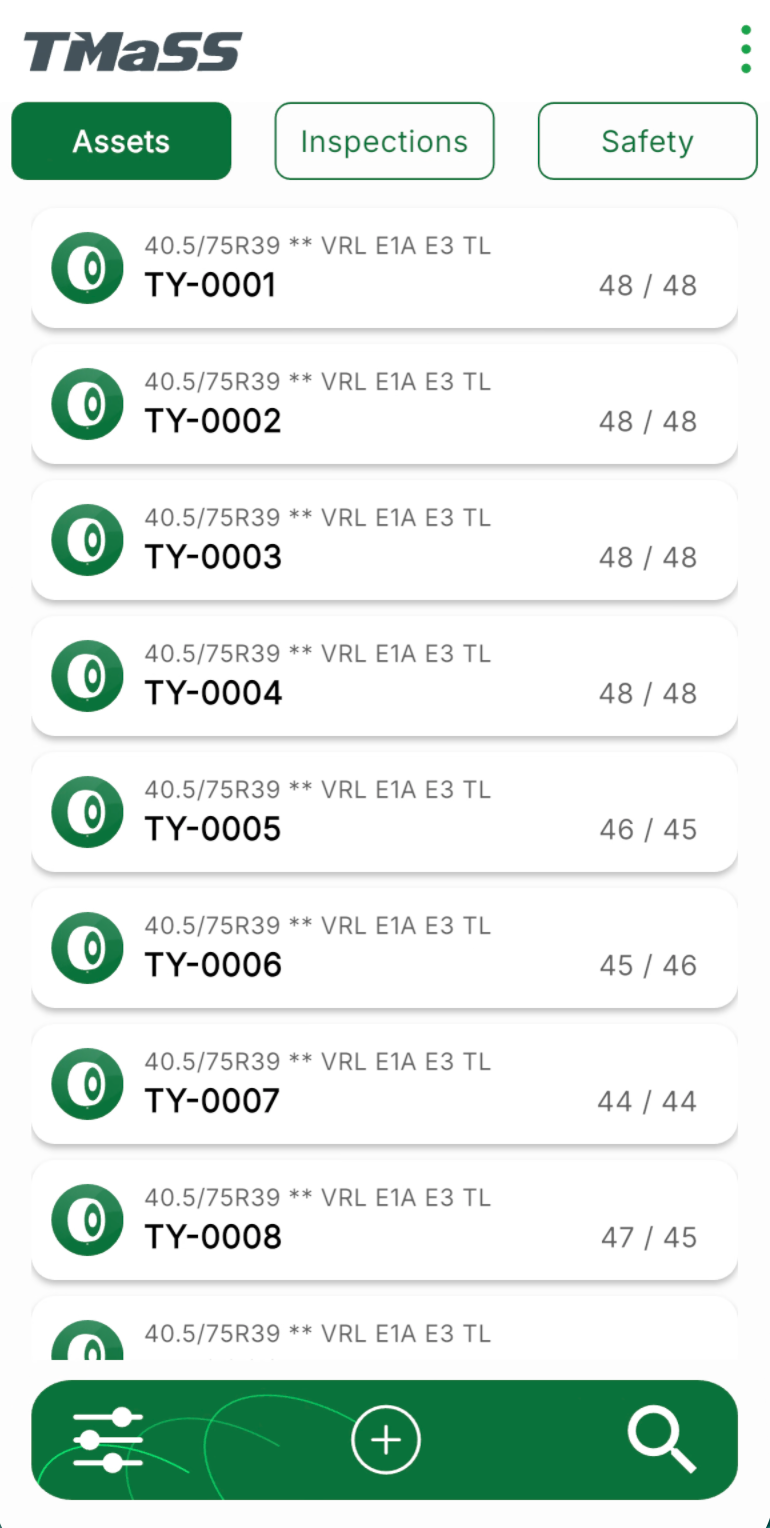
After login, the app opens on the Assets tab (see Image 1 – Tyre asset list).
For each tyre you’ll see:
Asset number (e.g.
TY-0001)Tyre specification (e.g.
40.5/75R39 ** VRL E1A E3 TL)Inner and outer tread depths (e.g.
48 / 48)
This list provides a quick scan of key information so you can immediately identify tyres that may need attention.
3. Opening a tyre’s detailed view
To see more information for a specific tyre:
Tap the tyre in the Assets list.
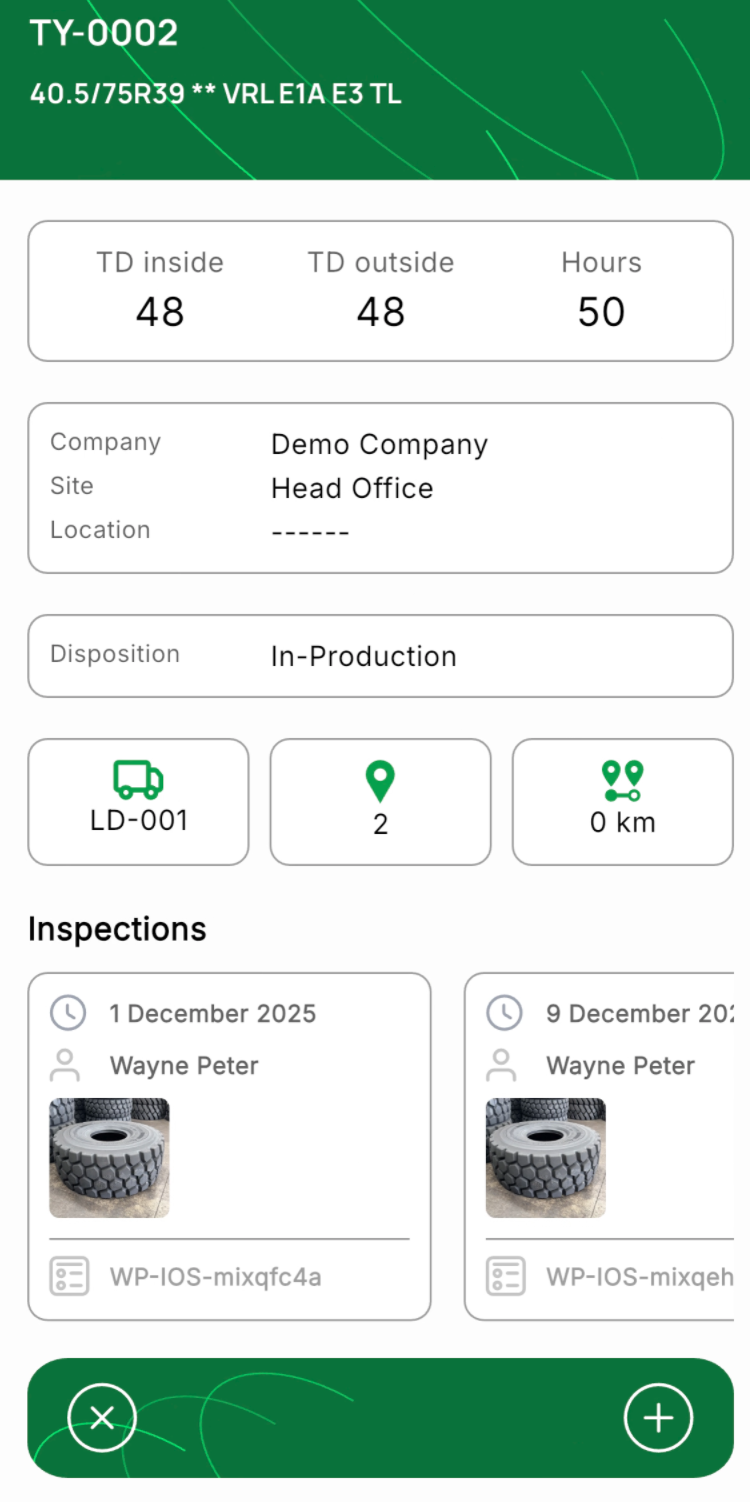
The Tyre details screen opens (see Image 2 – Tyre details).
On this screen you can view:
TD inside / TD outside – current inner and outer tread depths
Hours – accumulated operating hours for the tyre
Company / Site – where the tyre is currently managed
Disposition – current operational status (e.g. In-Production)
Vehicle – the vehicle the tyre is attached to
Position – the fitted wheel position on that vehicle
Distance – total distance travelled (where recorded)
Below this header information you’ll see an Inspections panel showing recent inspections for this tyre.
Image 2 – Tyre details
4. Understanding the inspections list
The Inspections section shows cards for inspections that are stored locally on the device, including:
Inspection date
Inspector name
Thumbnail image (if captured)
Inspection reference
Important:
The inspections displayed here are only those retained locally, in line with the data retention policy configured in Settings. Older inspections that fall outside the retention window may not be visible on the device, even though they remain stored in the main TMaSS system.
5. Creating a new inspection from the tyre details screen
From the Tyre details screen you can start a new inspection for that tyre:
Tap the Add (+) inspection button at the bottom of the screen.
The app opens the New Inspection workflow for the selected tyre, pre-filling relevant tyre details.
Complete the inspection, add any photos, and save.
The new inspection will appear in the Inspections list for that tyre (subject to your device’s data retention settings) and will be synchronised back to TMaSS when the device next syncs.
By automatically downloading all managed tyre assets on first login and exposing rich tyre detail and inspection history, TMaSS Mobile makes it fast and easy for technicians to access the information they need in the field.
Was this article helpful?
That’s Great!
Thank you for your feedback
Sorry! We couldn't be helpful
Thank you for your feedback
Feedback sent
We appreciate your effort and will try to fix the article