In TMaSS there are two types of tyre inspections that can be carried out, managed and unmanaged.
A managed inspection, as explained in this article, is an inspection carried out on a tyre asset that has been added in the system. While an unmanaged inspection, is an inspection that is carried out on a tyre that is not in the system.
You can add an inspection on a tyre regardless if it is attached to a vehicle or not. When adding an inspection, there user can update the tyres hours, tread depths, inspection status, add damage and photos.
Each inspection regardless of its type is given an inspection number. This number is uneditable, and searchable making it simple to find in the system.
Add a managed tyre inspection.
To add an inspection, navigate to the Assets module, find the desired tyre asset and click the inspection icon as highlighted in the image below.

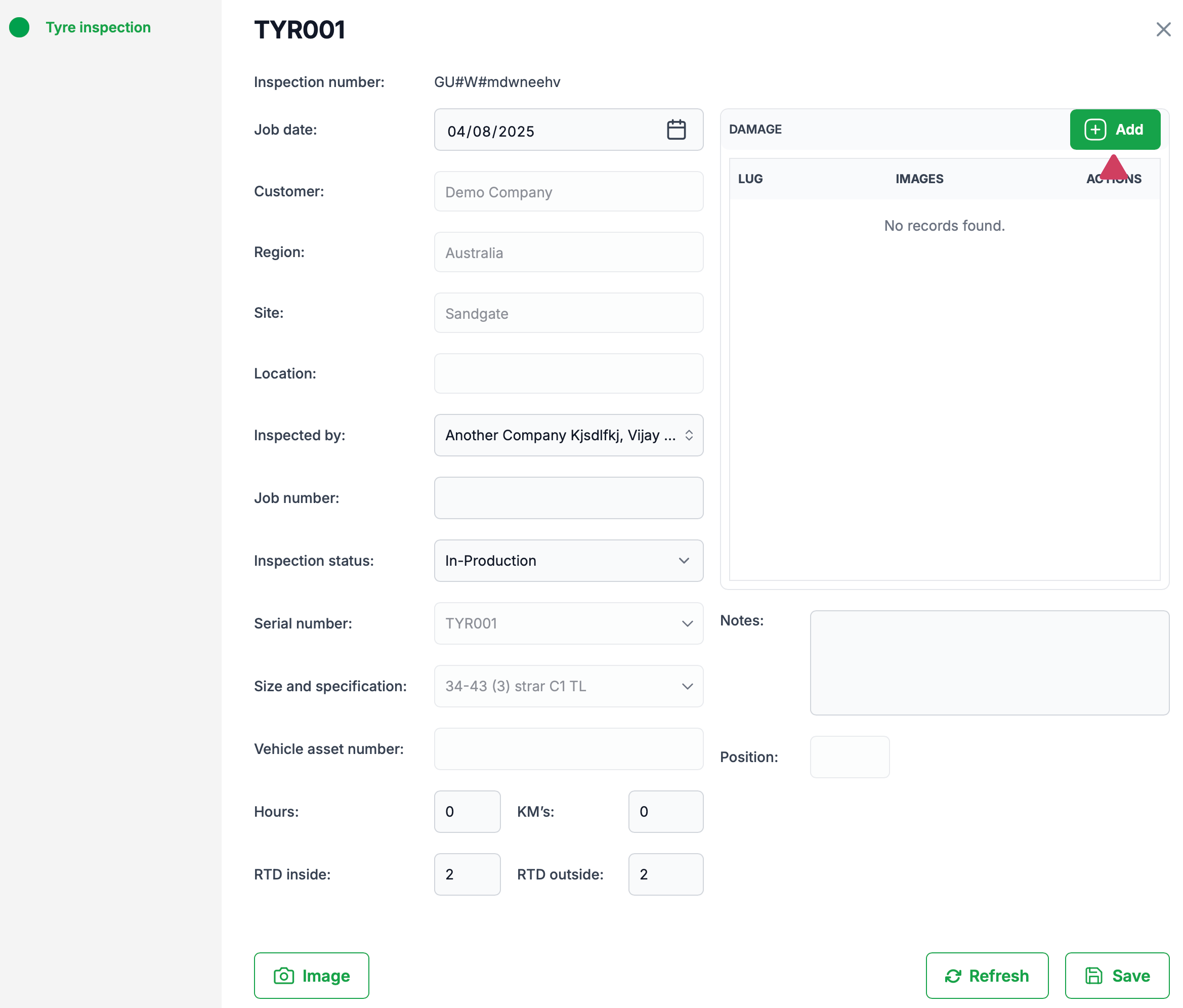
After clicking the inspection icon the 'Tyre Inspection' dialogue will be displayed. By default the customer, region and site information as well as the current tyre details will be displayed. From the 'Inspected by' dropdown, select a single or multiple users who carried out the inspection.
The inspection status can also be changed at this point, this is different to the assets disposition, and changing its status will not affect its disposition.
You can also update the Hours, KM's, inside and outside tread depths, although this is not mandatory.
Any photos taken on this dialogue will be associated with the tyre, while you can add specific tyre damage photos when adding damage.

Once you have added the required information, press save to save to your data and exit.
Adding Tyre Damage
Although not required by default, you can add as many damages as necessary. You can add damage at any time during the inspection process by pressing the 'Add' button.
The damage dialogue allows you to add the lug number, cut depth, the side of the wheel (A or B) the priority and any comments. You can also add multiple images of the damage. Adding images here are associated with the damage being added.

Press save to save the damage and exit to the inspection dialogue. Once you are happy with the inspection details press 'Save' to save your inspection and exit.

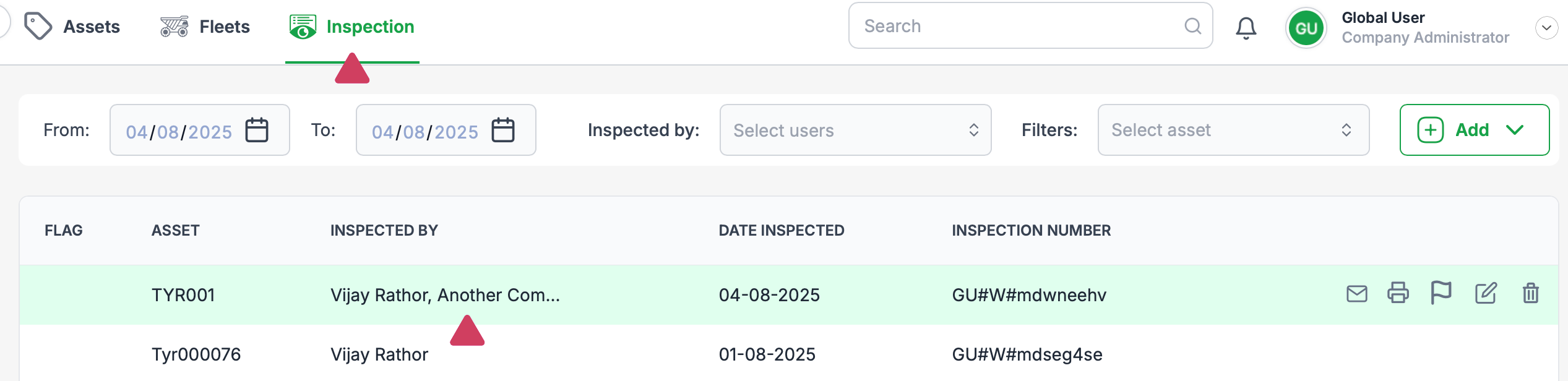
Once saved, your inspection will be saved in the 'Inspection' sub-module as shown in the below image.
Was this article helpful?
That’s Great!
Thank you for your feedback
Sorry! We couldn't be helpful
Thank you for your feedback
Feedback sent
We appreciate your effort and will try to fix the article