Flagging an asset allows you to highlight important items for tracking, prioritisation, or follow-up. Each flag includes a priority level, a colour indicator, and an optional comment to give context.
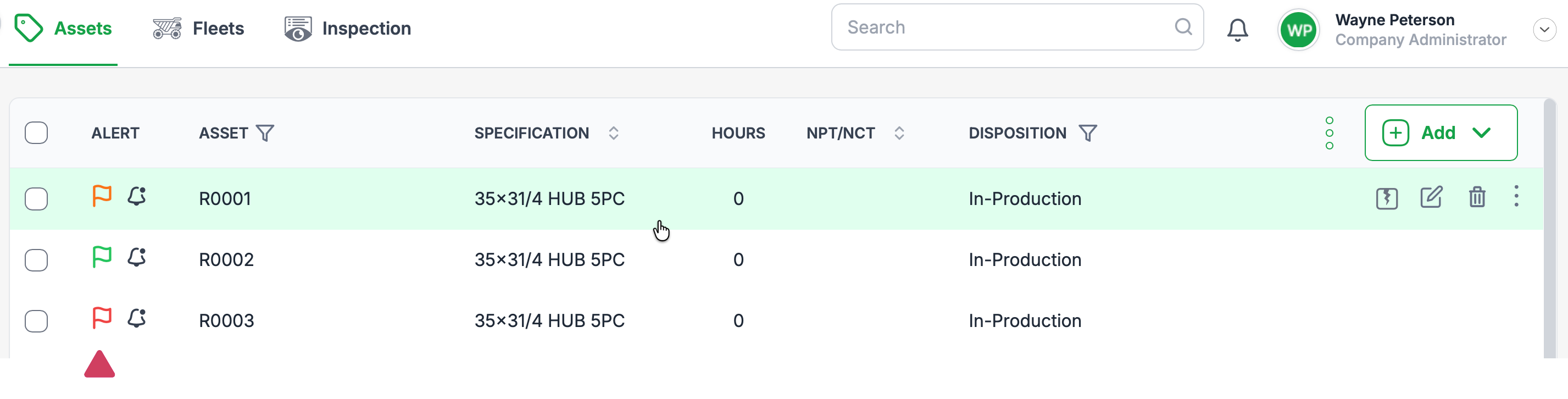
Flag Levels and Colours
Critical – ? Red
High – ? Red
Medium – ? Orange
Low – ? Green
Adding a Flag
Locate the asset you want to flag.
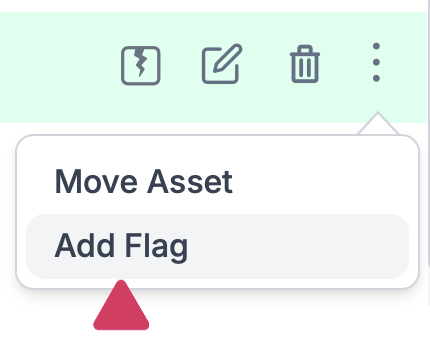
Hover over the object and click the three dots (
⋮) menu .Select Add Flag from the dropdown menu.
Choose the flag level (Critical, High, Medium, Low).
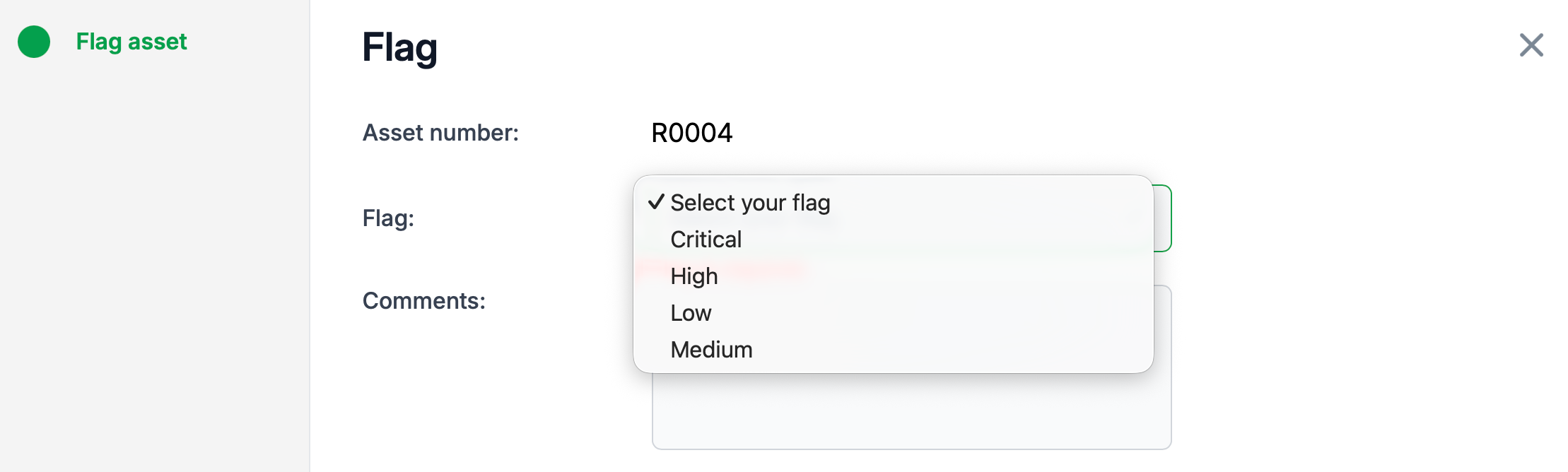
(Optional) Add a Comment to explain why the asset is flagged.
Click Save to set the flag.
Viewing a Flag
Click the flag icon next to the asset to see its level and any associated comment.
Removing a Flag
You can remove a flag in two ways:
From the menu:
Click the three dots (
⋮)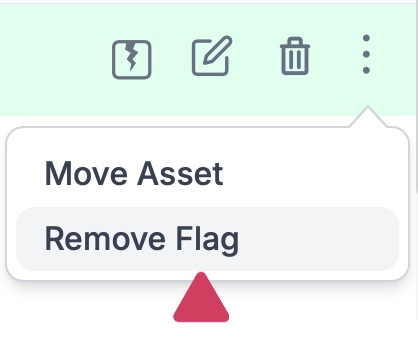
Select Remove Flag.
From the flag icon:
Click the flag icon.
Click Remove to confirm removal.
Quick Reference
| Action | Steps |
|---|---|
| Add a flag | ⋮ → Add Flag → Select level → (Optional) add comment → Save |
| View a flag | Click the flag icon |
| Remove a flag | ⋮ → Remove Flag or Click flag icon → Acknowledge removal |
Was this article helpful?
That’s Great!
Thank you for your feedback
Sorry! We couldn't be helpful
Thank you for your feedback
Feedback sent
We appreciate your effort and will try to fix the article