Editing a fleet allows you to update its details, adjust settings, or manage the vehicles assigned to it. This ensures your fleet remains accurate and aligned with operational requirements.
Steps to Edit a Fleet
1. Navigate to the Fleet Sub-Module
From the main menu, click on Fleets.
Locate the fleet you want to edit.
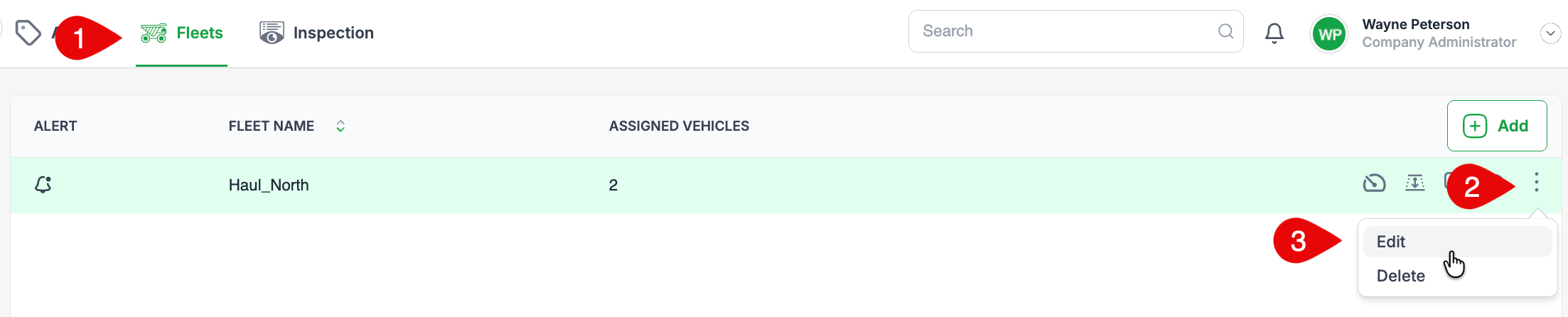
2. Access the Edit Option
Hover your cursor over the fleet row to display the three dots menu (
⋮).Click the menu and select Edit.
3. Edit Fleet Details
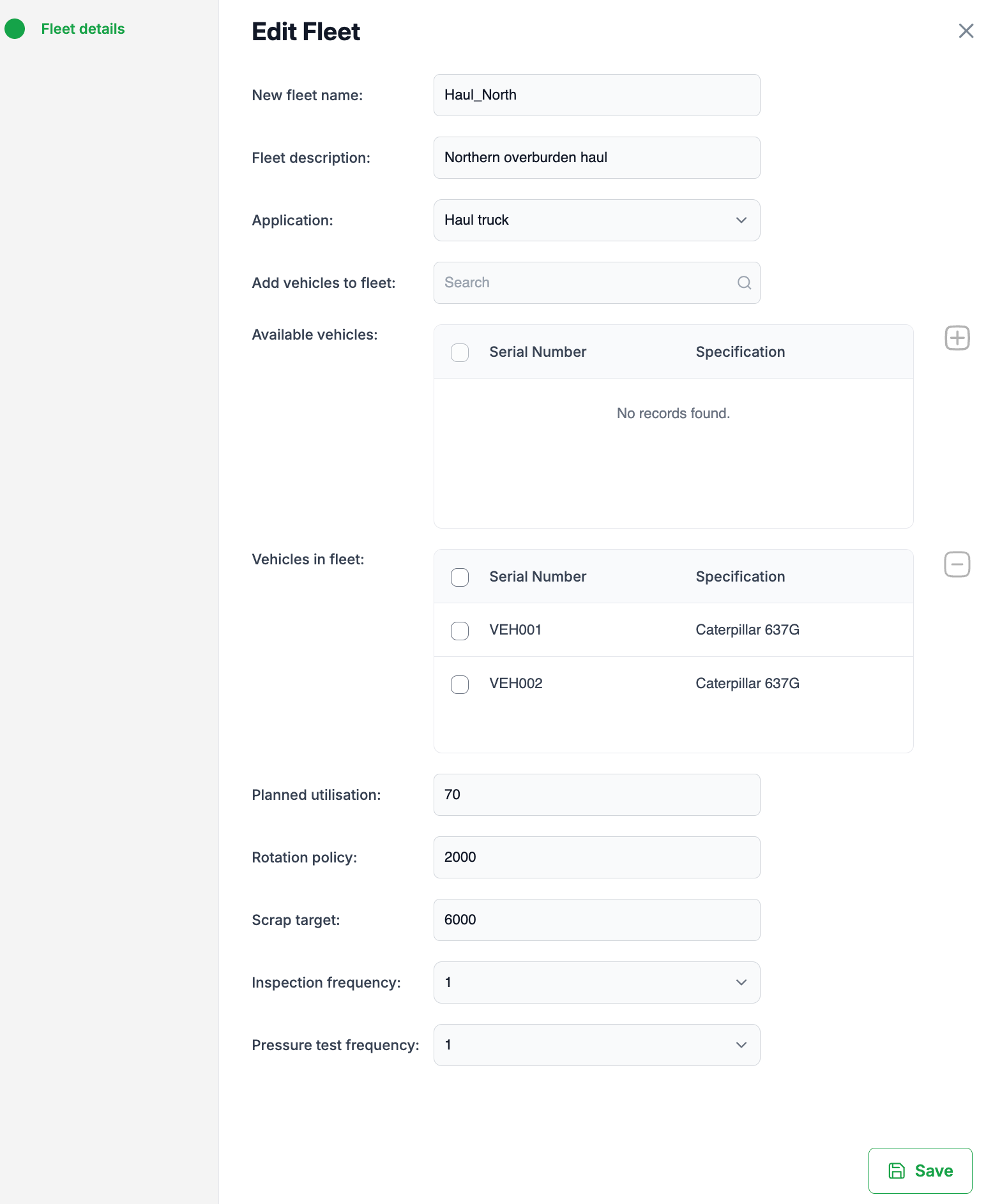
In the Edit Fleet screen, you can update all parameters of the fleet:
Fleet name – Update the name of the fleet.
Fleet description – Adjust or refine the description.
Application – Change the operational use case of the fleet.
4. Manage Vehicles
Add new vehicles by selecting from the Available vehicles list and clicking the plus (+) icon.
Remove vehicles by selecting them in the Vehicles in fleet list and clicking the minus (–) icon.
5. Adjust Fleet Parameters
You can also update:
Planned utilisation (%) – Target utilisation rate.
Rotation policy (hours) – Hours before tyres are rotated.
Scrap target (hours) – Target tyres hours before scrapping.
Inspection frequency – How often vehicles inspections should occur.
Pressure test frequency – How often pressure tests are scheduled.
6. Save Changes
Once updates are complete, click Save.
The fleet record will update with your changes.
Tips
Ensure that vehicles are only part of one fleet at a time.
Use meaningful fleet names and descriptions for clarity.
Regularly review fleet parameters to ensure operational accuracy.
Was this article helpful?
That’s Great!
Thank you for your feedback
Sorry! We couldn't be helpful
Thank you for your feedback
Feedback sent
We appreciate your effort and will try to fix the article