This article explains how to use the Fleets sub-module to update tyre pressures for multiple vehicles from a single dialogue.
Overview
From the Fleet pressure details screen you can:
Record pressure readings for every vehicle in a fleet
Update each tyre position on a vehicle
Choose Hot or Cold pressure type
Add a job number and comments
Cycle through all vehicles in the fleet using the Next button
1. Open the Fleet Pressure Details Screen
From the main navigation, select Fleets.
Find the fleet you want to update (e.g. Haul).
On the right side of the fleet row, click the Pressure icon
(see Image 1 – Fleets list (pressure icon)).
This opens the Fleet pressure details dialogue for that fleet.
Image 1 – Fleets list (pressure icon)

2. Set Job Date and Job Number (Optional)
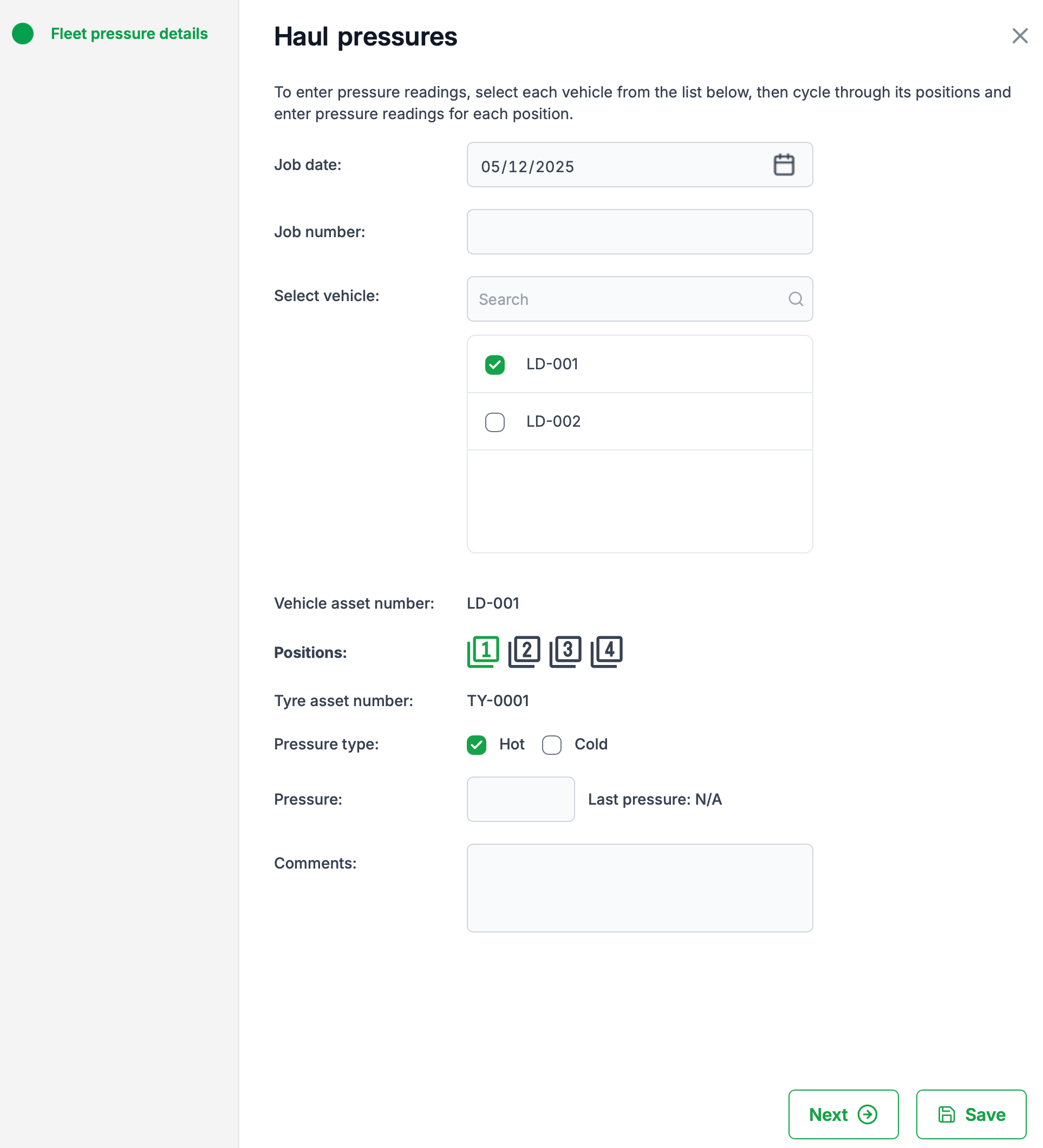
In the Fleet pressure details dialogue (Image 2 – Fleet pressure details):
Job date
Check the date at the top of the form.
To change it, click the calendar icon and select the required date
(for example, to back-date a job).
Job number (optional)
Enter a job number if you want to link these readings to a specific work order or task.
Image 2 – Fleet pressure details
3. Select a Vehicle
In the Select vehicle list, tick the checkbox for the first vehicle you want to update (e.g. LD-001).
Once selected, details for that vehicle appear below:
Vehicle asset number
Positions (e.g. 1, 2, 3, 4)
Tyre asset number for the currently selected position
4. Enter Pressure Readings by Position
For the selected vehicle:
Under Positions, click a position number icon (e.g. 1) to choose the tyre you’re updating.
Review the Tyre asset number displayed for that position.
Choose the Pressure type:
Tick Hot or Cold as appropriate.
In the Pressure field, enter the current pressure reading.
(Optional) Add any notes in the Comments field (e.g. “Valve cap missing” or “Slight sidewall damage”).
Repeat steps 1–5 for each remaining position on that vehicle by clicking each position number icon in turn.
5. Move to the Next Vehicle
After completing all required positions for the current vehicle, click Next (bottom-right of the dialogue).
The system will:
Store the pressure information you have entered for the current vehicle within this session.
Move to the next vehicle in the Select vehicle list so you can repeat the process.
You can continue this cycle until you’ve updated all the vehicles you want in the fleet.
6. Save and Exit
When you’re finished (whether you updated all vehicles or just some of them), click Save.
The system will:
Save all pressure readings entered during this session for every vehicle you updated.
Close the Fleet pressure details dialogue and return you to the Fleets list.
You do not have to complete every vehicle in the fleet in a single session. Any pressures entered and then saved will be retained, even if some vehicles were not updated.
Tips
Use the Search box in Select vehicle to quickly find a specific vehicle in large fleets.
Always check Pressure type (Hot/Cold) to keep data consistent with your site’s procedures.
Use Comments to capture any issues that might require follow-up maintenance.
By following these steps, you can efficiently record accurate tyre pressures for multiple vehicles from one streamlined interface.
Was this article helpful?
That’s Great!
Thank you for your feedback
Sorry! We couldn't be helpful
Thank you for your feedback
Feedback sent
We appreciate your effort and will try to fix the article