This article explains how to use the Fleets sub-module to complete inspections for multiple vehicles from a single workflow. You’ll start in the Fleet inspection details dialogue, then move into the Vehicle inspection details dialogue for each vehicle.
TABLE OF CONTENTS
- 1. Open the Fleet Inspection Details Screen
- 2. Configure Fleet Inspection Details
- 3. Complete the Vehicle Inspection Details
- 4. Recording Damage on a Tyre
- 5. Move to the Next Vehicle
- 6. Save and Exit
- Summary
- Tip
1. Open the Fleet Inspection Details Screen
From the main navigation, click Fleets.
Find the fleet you want to inspect (e.g. Haul).
On the right side of the fleet row, click the Inspections icon
(see Image 1 – Fleets list (inspections icon)).
This opens the Fleet inspection details dialogue for that fleet.
Image 1 – Fleets list (inspections icon)

2. Configure Fleet Inspection Details
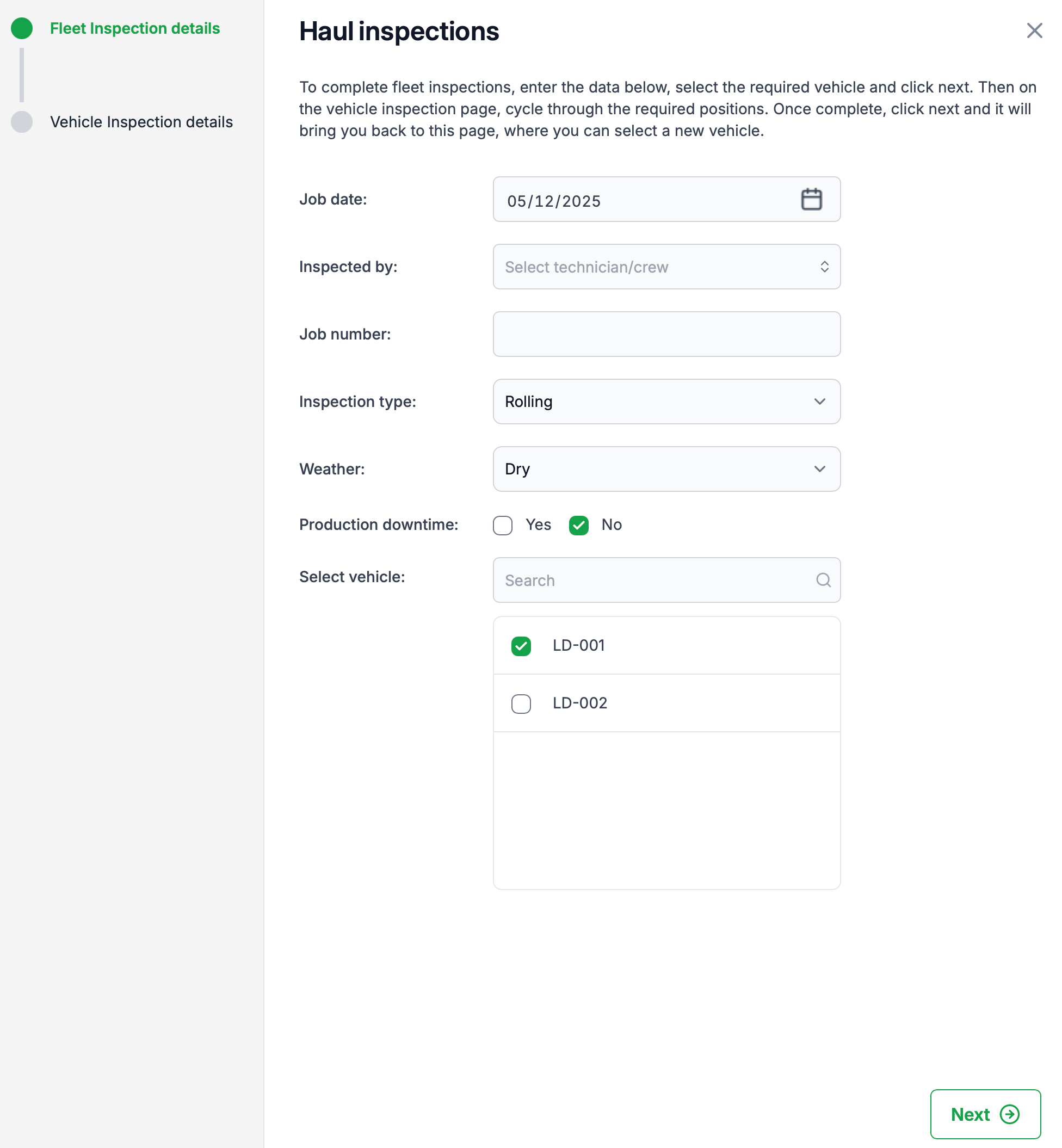
In the Haul inspections – Fleet inspection details dialogue (see Image 2), complete the header information:
Job date
Check the default date.
To change it, click the calendar icon and select the required date.
Inspected by
Select the technician/crew performing the inspection from the dropdown list.
Job number (optional)
Enter a job number if you need to link the inspection to a work order or maintenance job.
Inspection type
Choose Rolling or Static from the dropdown, depending on the type of inspection being performed.
Weather
Select Wet or Dry from the dropdown to record environmental conditions.
Production downtime
Select Yes or No to indicate whether production downtime is associated with this inspection.
Select vehicle
In the Select vehicle list, tick the checkbox for the first vehicle you want to inspect (e.g. LD-001).
Once the details are complete and a vehicle is selected, click Next to open the Vehicle inspection details dialogue for that vehicle.
Image 2 – Fleet inspection details
3. Complete the Vehicle Inspection Details
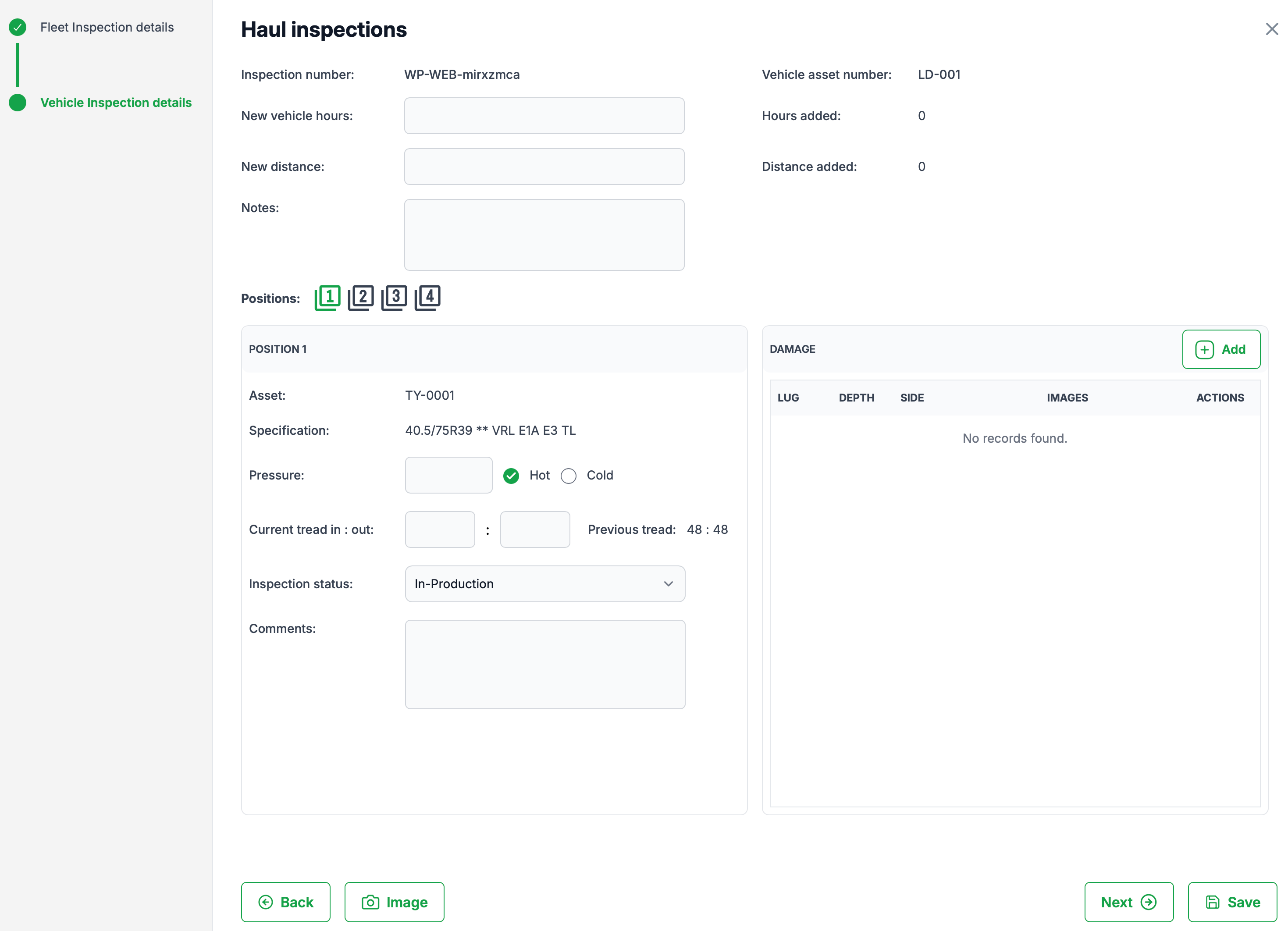
The Vehicle inspection details dialogue (see Image 3) is where you record the inspection for the selected vehicle.
3.1 Update Header Information
At the top of the vehicle inspection screen you can:
View the Inspection number and Vehicle asset number.
Enter New vehicle hours (hour meter reading).
Enter New distance (odometer reading).
Add Notes for any general observations about the vehicle.
3.2 Work Through Tyre Positions
Under Positions, click a position number icon (e.g. 1, 2, 3, 4) to select a tyre position.
For the selected position, you can view:
Asset (tyre asset number)
Specification (tyre size and pattern)
Enter inspection details for that position:
Pressure – enter the current pressure reading.
Hot/Cold – tick whether the pressure reading was taken Hot or Cold.
Current tread in : out – enter the inner and outer tread depth readings if required.
Review Previous tread values for comparison.
Inspection status – select the appropriate status (e.g. In-Production).
Comments – record any observations for this position.
Repeat steps 1–3 for each position, using the position number icons to move between positions.
Important:
Inspection status is NOT the same as disposition.
Changing the inspection status will not change the vehicle’s disposition in the system.
3.3 Add Images / Photos
Click Image at the bottom of the vehicle inspection screen to capture or attach a photo.
Any images added here are assigned to the vehicle and stored with this inspection record.
Image 3 – Vehicle inspection details
4. Recording Damage on a Tyre
You can capture detailed damage information for each tyre position.
In the Damage panel (on the right side of the vehicle inspection screen), click Add to open the Add Damagedialogue.
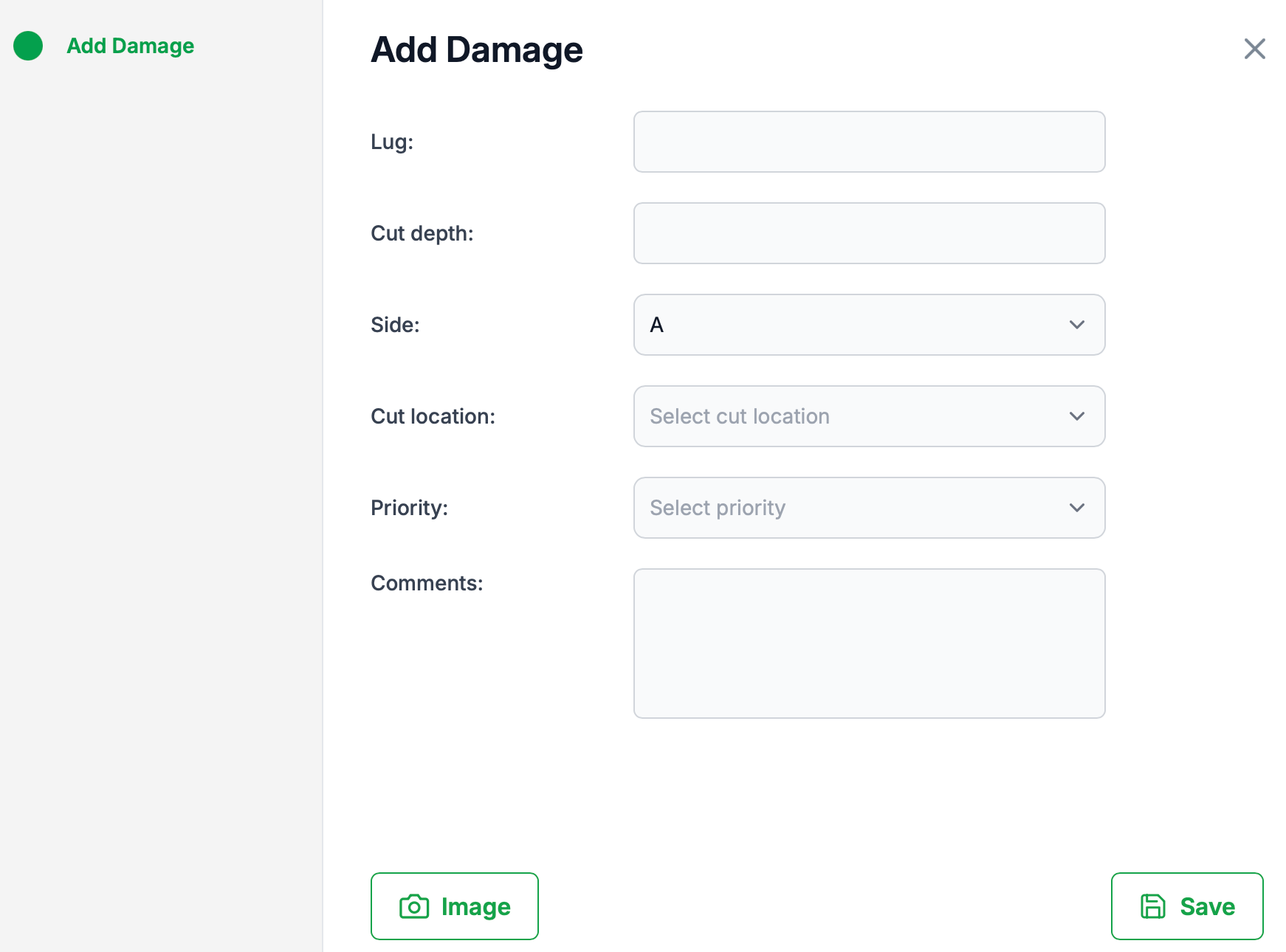
In the Add Damage dialogue (see Image 4), complete the fields:
Lug – record the lug number to indicate exactly where the damage is located on the tyre.
Cut depth – enter the depth of the cut or damage.
Side – select A or B to specify which side of the tyre the damage is on.
Cut location – choose the location of the cut from the dropdown (e.g. shoulder, centre).
Priority – select the appropriate priority level for repair or follow-up.
Comments – add any additional notes or context.
To attach a photo of the damage, click Image at the bottom of the dialogue.
Photos added in this dialogue are also assigned to the vehicle.
Click Save to return to the Vehicle inspection details screen, where the damage record is now listed.
Image 4 – Add Damage dialogue
5. Move to the Next Vehicle
After completing the inspection for the current vehicle (positions, damage, hours/distance, images and comments), click Next at the bottom right of the Vehicle inspection details screen.
The system:
Saves the inspection data for the current vehicle within the session.
Returns you to the Fleet inspection details view where you can select the next vehicle and repeat the process.
You can continue in this way to complete inspections for all vehicles in the fleet.
6. Save and Exit
When you have finished inspecting all required vehicles:
From either the Fleet inspection details or Vehicle inspection details screen, click Save.
The system will:
Save all inspection data (hours, distance, pressures, tread depths, damage records, comments and images) entered in this session.
Exit the inspection workflow and return you to the Fleets list.
You do not have to complete inspections for every vehicle in the fleet in one session. Any inspections you have worked on and saved will be retained, even if some vehicles were left uninspected.
Summary
Using the Inspections icon in the Fleets sub-module allows you to:
Configure common inspection settings once for the fleet
Step through each vehicle and each tyre position from a single workflow
Record hours, distance, pressure, tread depths, inspection status, damage, comments and images
Efficiently complete inspections for multiple vehicles while keeping all information linked to each vehicle and tyre position.
Tip
Opening and saving an inspection without updating any data will save an inspection record. This is helpful when you have limited time and completing visual inspection only and not taking pressure and tread details.
Was this article helpful?
That’s Great!
Thank you for your feedback
Sorry! We couldn't be helpful
Thank you for your feedback
Feedback sent
We appreciate your effort and will try to fix the article