The Safety tab in TMaSS Mobile is used to record and review Safety Observations for staff in the field.
TABLE OF CONTENTS
- 1. Creating a Safety Observation
- 2. What you see in the Safety list
- 3. Retention policy & synchronisation
- 4. Filtering Safety Observations
1. Creating a Safety Observation
Open the Safety tab from the top navigation.
Tap the Add (+) button in the bottom bar.
Complete the Safety Observation form and tap Save.
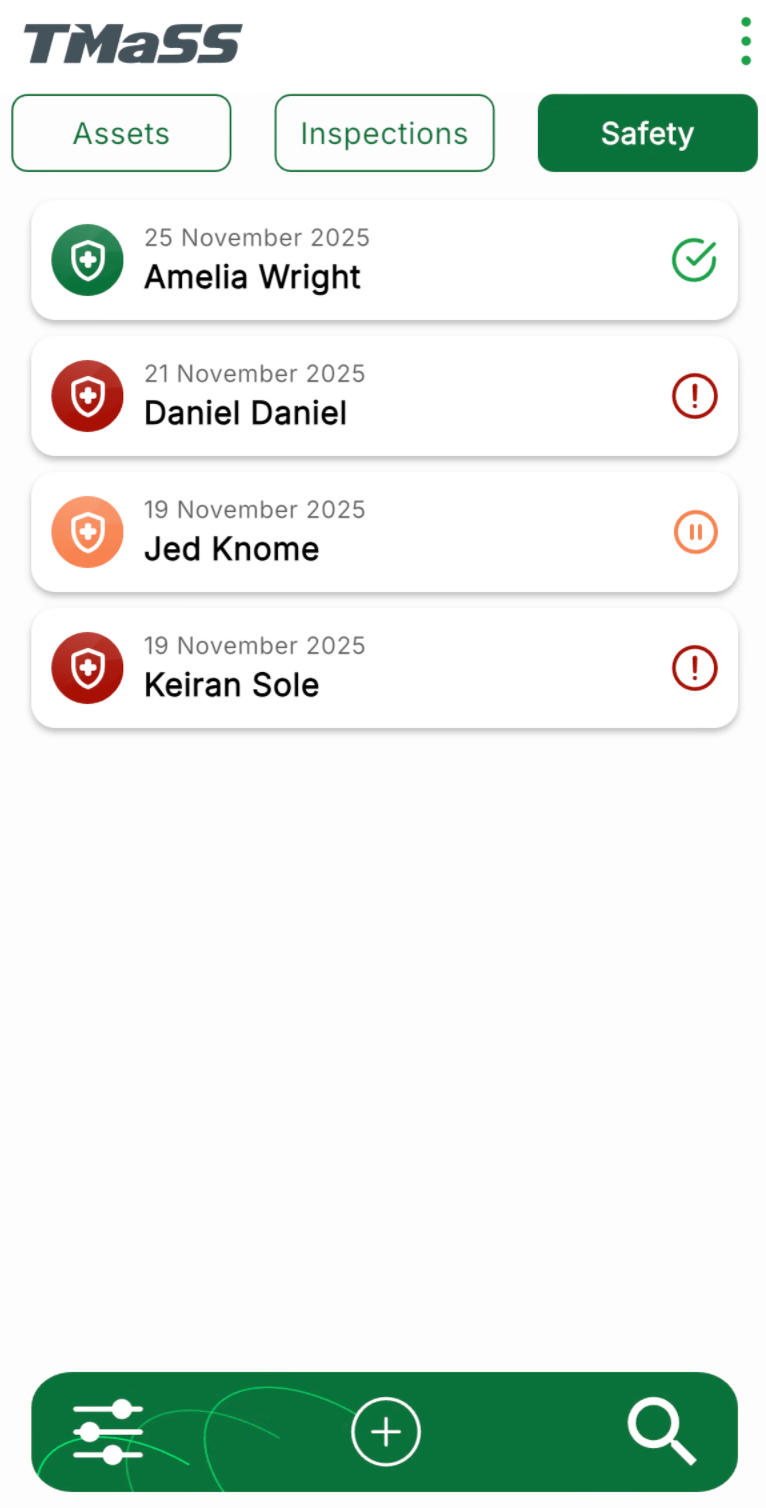
Once saved, the observation appears in the Safety list (see Image 1).
Image 1 – Safety Observation list
2. What you see in the Safety list
Each Safety Observation card displays:
Date of the observation
Staff member the observation was conducted on
A status icon showing the outcome:
Status icons:
Green tick – No non-conformances found
Red exclamation (!) icon – At least one non-conformance was observed
Orange pause (||) icon – Observation paused and not completed
If the observation was paused, opening it again allows the user to resume and complete it. Once finished and saved, the status icon will update according to the outcome.
3. Retention policy & synchronisation
Safety Observations shown in the Safety tab are controlled by:
The application data retention policy (configured in Settings).
Sync status:
Unsynchronised safety observations remain on the device regardless of the retention policy until they are successfully synchronised.
After synchronisation, observations may be removed from the device when they fall outside the retention window, but they remain stored in the main TMaSS system.
4. Filtering Safety Observations
To narrow down the list:
Tap the Filter (sliders) icon in the bottom bar.
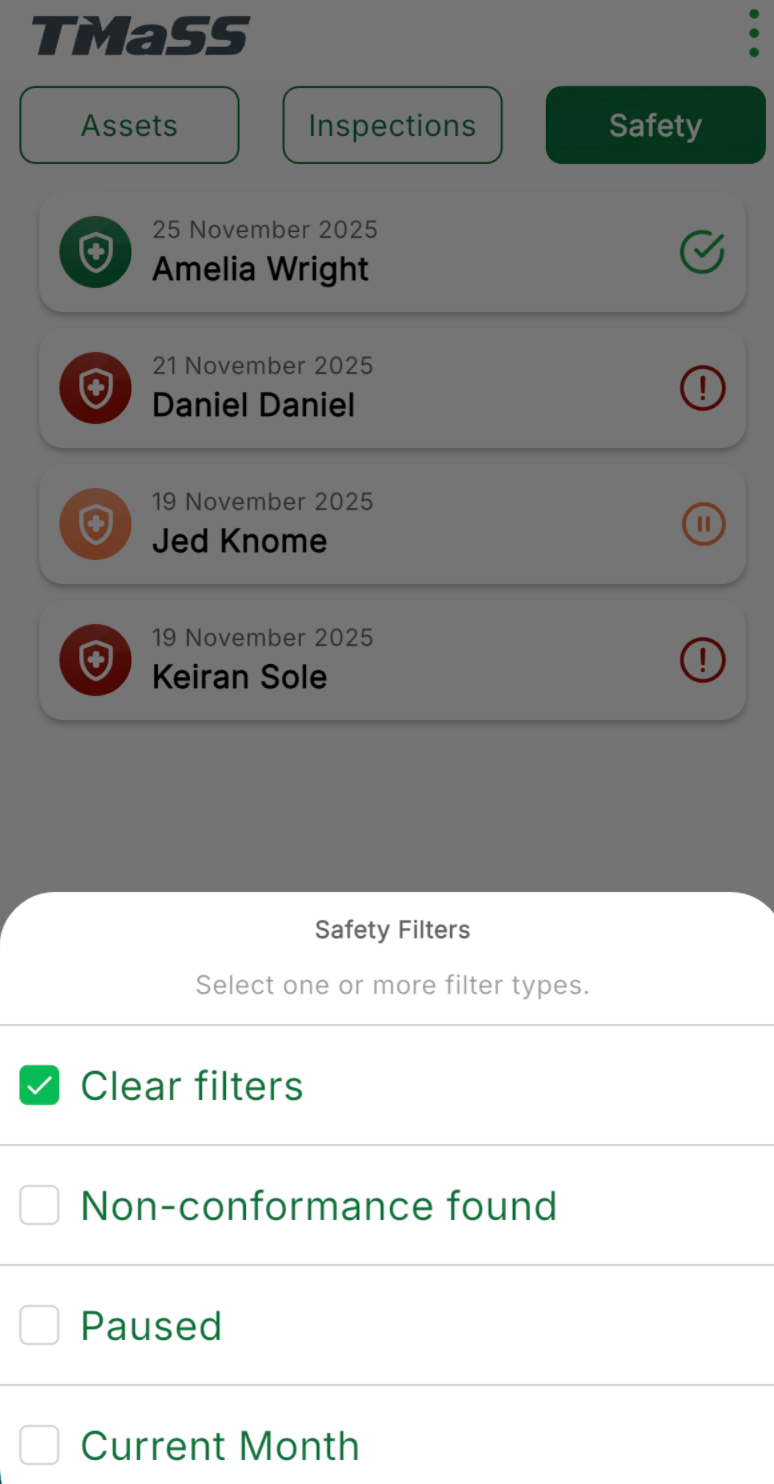
The Safety Filters drawer opens (see Image 2).
Select one or more filters:
Non-conformance found – shows only observations where a non-conformance was recorded.
Paused – shows only observations that are currently paused.
Current Month – shows only observations conducted in the current calendar month.
Tap Clear filters to return to the full list.
Image 2 – Safety filters
Using the Safety tab, supervisors and technicians can quickly record observations, see which staff have open non-conformances or paused checks, and apply filters to focus on the most relevant safety activity.
Was this article helpful?
That’s Great!
Thank you for your feedback
Sorry! We couldn't be helpful
Thank you for your feedback
Feedback sent
We appreciate your effort and will try to fix the article