The Safety module allows you to complete and manage Safety Observations for single or multiple staff members using either the web application or TMaSS Mobile (iOS & Android).
For step-by-step mobile instructions, see the “Safety tab – TMaSS Mobile (iOS & Android)” article in the TMaSS online help centre.
1. What a Safety Observation captures
A Safety Observation records:
Task being performed
Required documentation – e.g. work tickets, risk assessments, permits
Acts observed – safe and at-risk behaviours
Non-conformances – specific issues that need follow-up
Sign-off details – observer, date/time, sign-off signatures
Manager review and approval status
Observations can be completed on one or multiple staff members in a single form (see Image 2).
2. Safety Home Screen (web)
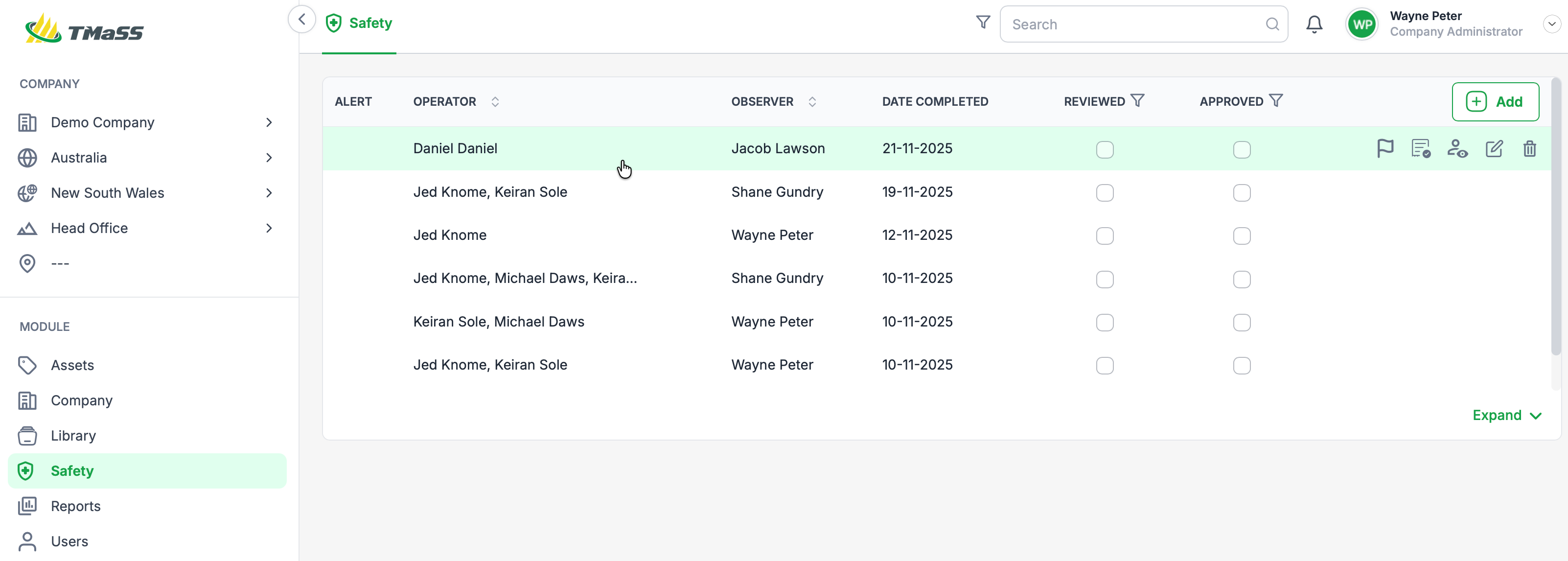
The Safety Home Screen (Image 1) lists all Safety Observations for the selected company / site.
For each observation you can see:
Operator(s) observed
Observer (who conducted the observation)
Date completed
Whether it has been Reviewed
Whether it has been Approved
Flags and alert icons highlight observations that require additional attention (e.g. non-conformances, outstanding approvals).
Image 1 – Safety Home Screen (web)
(All completed observations with review/approval status.)
3. Context actions on an observation
When you hover over a row on the Safety Home Screen:
The row is highlighted green.
A set of context icons is displayed on the right (Image 3):
Icons (left to right):
Flag – mark an observation for follow-up.
Manager Review – mark the observation as reviewed.
Approve – mark the observation as approved (once review is complete).
Edit – reopen the observation to update details.
Delete – remove the observation (subject to permissions).
Image 3 – Observation row with context icons

You can also apply filters at the top of the Reviewed and Approved columns to show only:
Reviewed observations
Approved observations
This makes it easy to find items that still need action.
4. Viewing Safety Observation details
To see full details:
Click the relevant observation in the list.
The Safety Observation details page opens (Image 2).
The details page shows:
Where the observation was completed: company, site, shift, date, and location
Who completed it: observer and any sign-offs
On whom it was completed: operator(s) and offsiders observed
Tasks being performed – with ticked items indicating what was observed
Documentation – e.g. tickets or assessments attached
Acts observed – compliance / non-compliance
Checklists – any checklist items and whether they were met
Non-conformance pane – clearly highlights all recorded non-conformances, with notes and attachments for quick review
Manager reviewed and Approved status – including reviewer name and date, where applicable
Image 2 – Safety Observation details
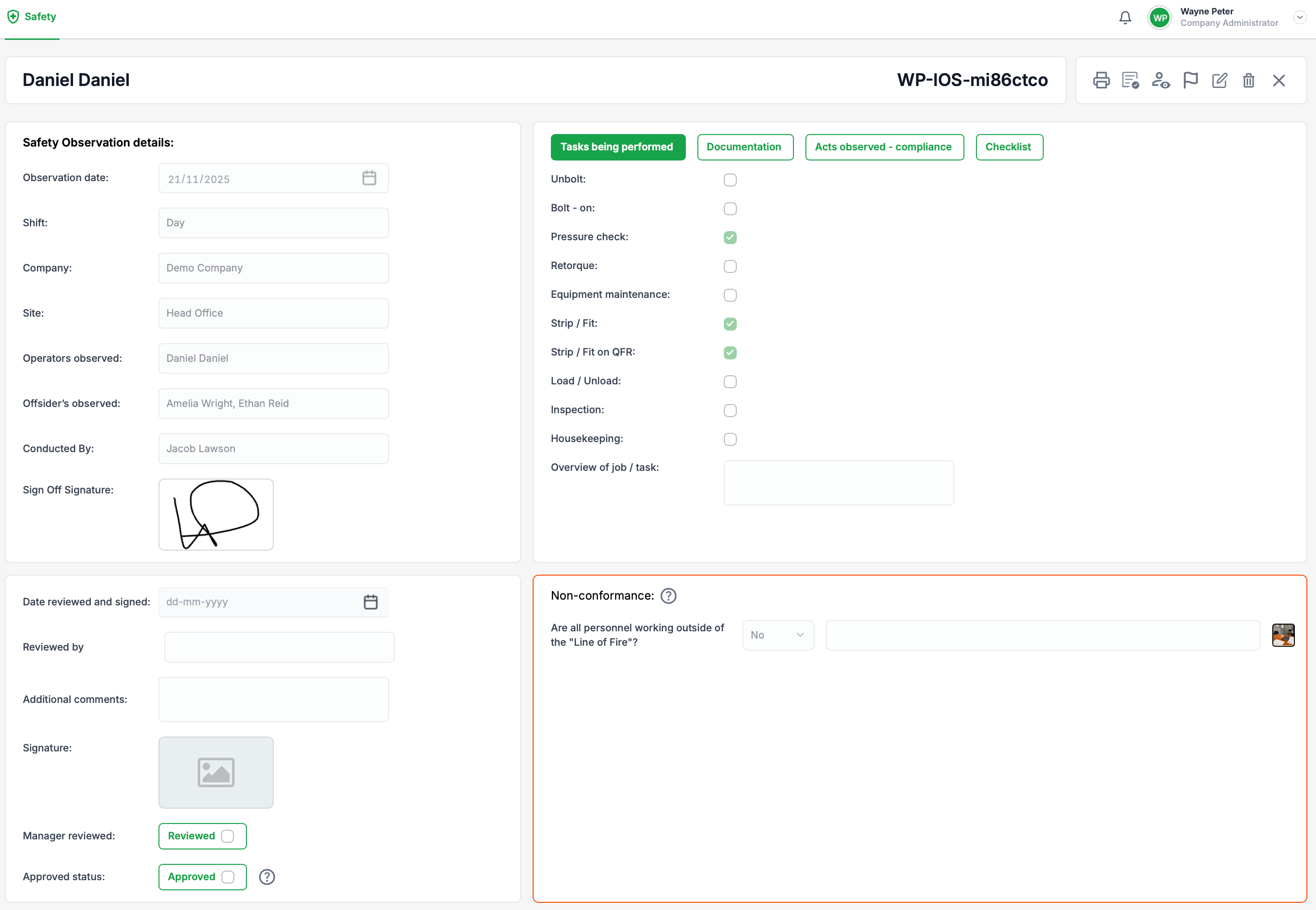
Managers can use this page to confirm that corrective actions have been identified and to complete the Reviewed and Approved steps.
5. Mobile Safety Observations
The same Safety Observations can be created and completed in TMaSS Mobile (iOS & Android):
Observers record tasks, acts observed, documentation and non-conformances in the field.
Completed mobile observations sync back to the web Safety module and appear on the Safety Home Screen with the same review and approval workflow.
See the dedicated mobile help article “Safety tab – TMaSS Mobile (iOS & Android)” for screenshots and step-by-step mobile instructions.
By using the Safety module across web and mobile, supervisors can capture high-quality observations, quickly identify non-conformances, and maintain a clear, auditable record of safety performance and follow-up actions.
Was this article helpful?
That’s Great!
Thank you for your feedback
Sorry! We couldn't be helpful
Thank you for your feedback
Feedback sent
We appreciate your effort and will try to fix the article