The Licensing sub-module is where company and licensing administrators manage your TMaSS subscription, plans and billing.
Accessing the Licensing sub-module
Go to the Company module in the left navigation.
Select the required company.
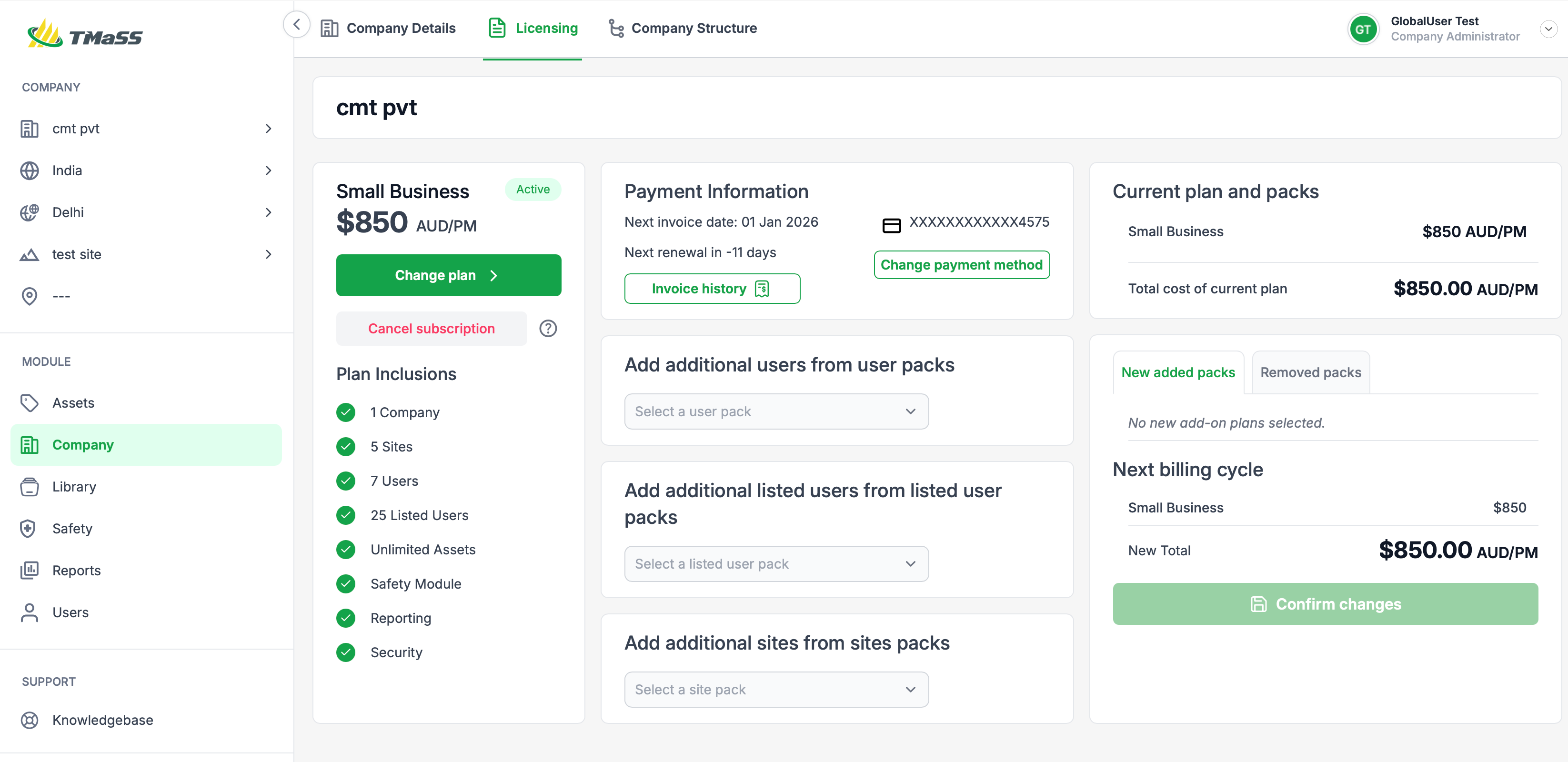
Click the Licensing tab at the top of the page (see Image 1).
Overview of the Licensing page
The main Licensing page summarises your subscription (Image 1):
Current plan & inclusions
Plan name and price – e.g. Small Business – $850 AUD/PM.
Status – Active / Inactive.
Plan inclusions – company, site and user limits, listed users, modules (Safety, Reporting, Security, etc.).
From here you can:
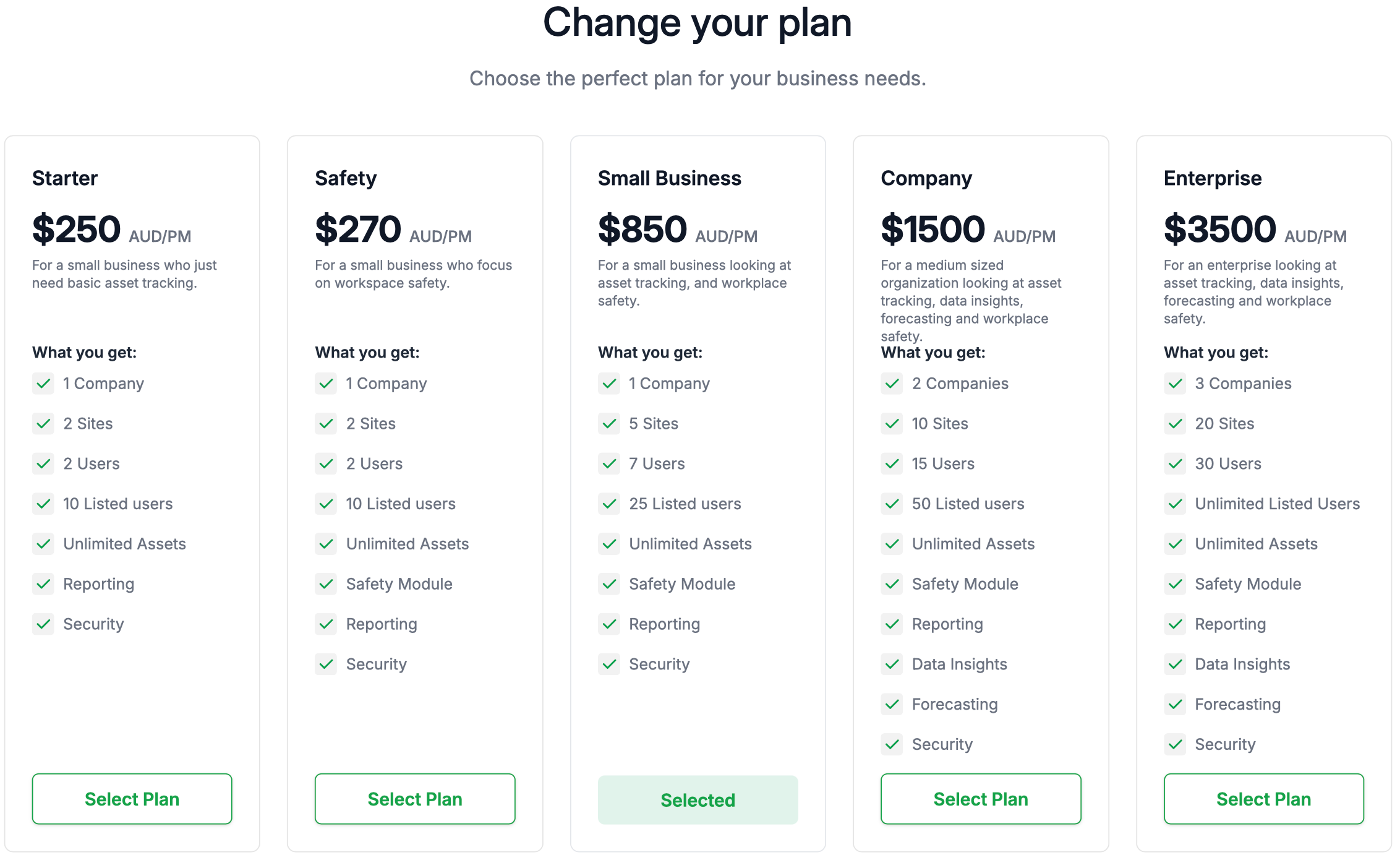
Change plan – opens the Change your plan screen (Image 2). Image below is for reference only and not indicative of pricing or inclusions.
Cancel subscription – opens the cancellation options (Image 6).
Payment information
Next invoice date and next renewal countdown.
Current payment method (masked card number or PayPal).
Buttons to:
Invoice history – view and download previous invoices.
Change payment method – open the payment screen (Image 5).
Adding user and site packs
The centre panels allow you to add capacity to your existing plan (Image 3):
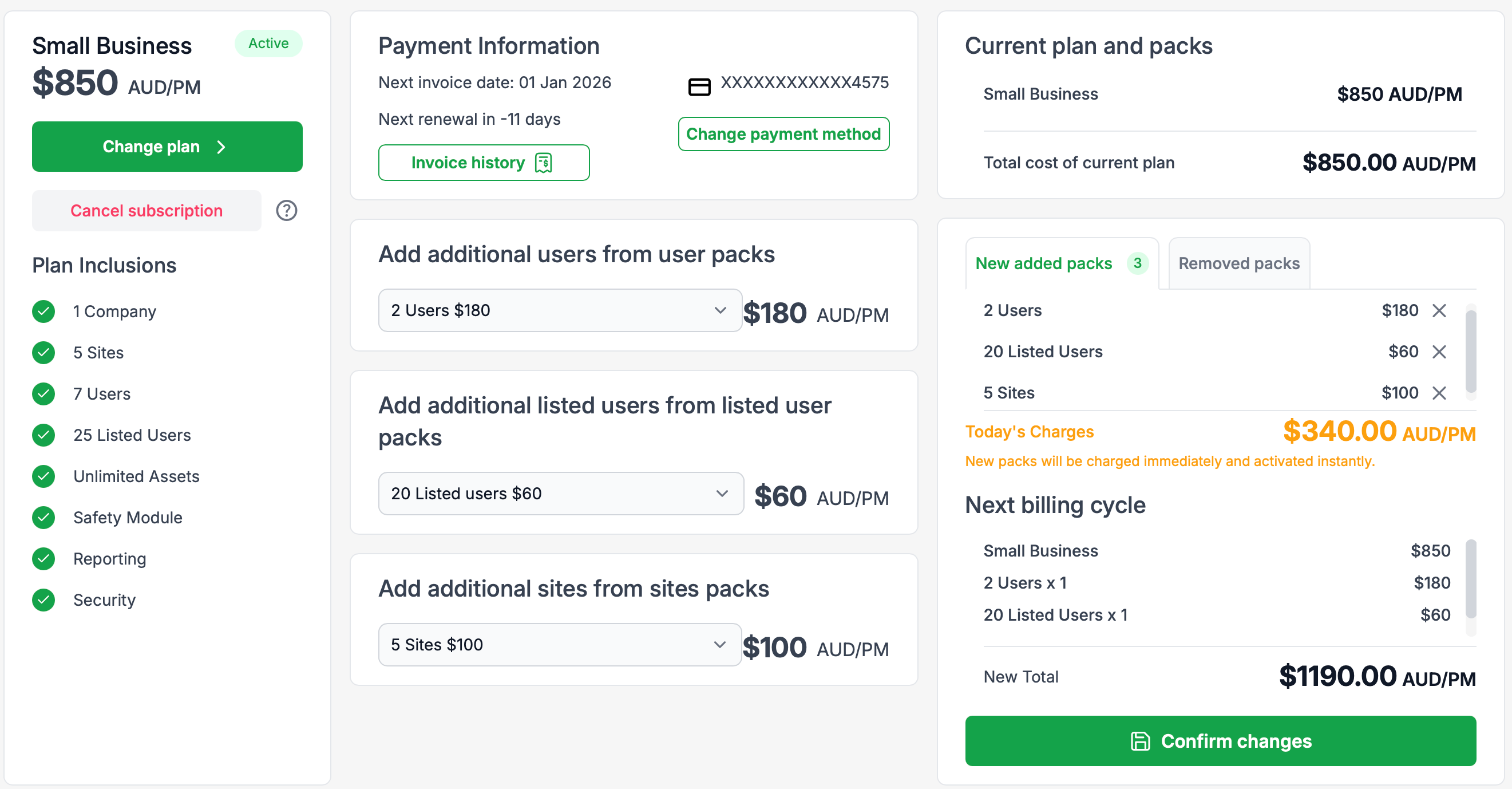
Add additional users from user packs
Add additional listed users from listed user packs
Add additional sites from sites packs
Select the desired pack from each dropdown. As you add packs:
The New added packs list (top-right) shows each pack and its monthly price.
Today’s Charges shows any pro-rata amount that will be charged immediately.
Next billing cycle shows the updated monthly total for the next invoice.
The Current plan and packs card shows the combined cost of your base plan plus add-ons.
Click Confirm changes to apply the new packs.
Note: Adding packs and changing plans is only available for subscriptions using PayPal or Credit Card payment methods.
For customers on Direct payment (manual invoicing), please contact TMaSS Support to update your plan.
Changing your plan
On the Licensing page, click Change plan.
The Change your plan screen (Image 2) displays all available plans (Starter, Safety, Small Business, Company, Enterprise) with:
Monthly price
Included companies, sites, users and listed users
Included modules and features.
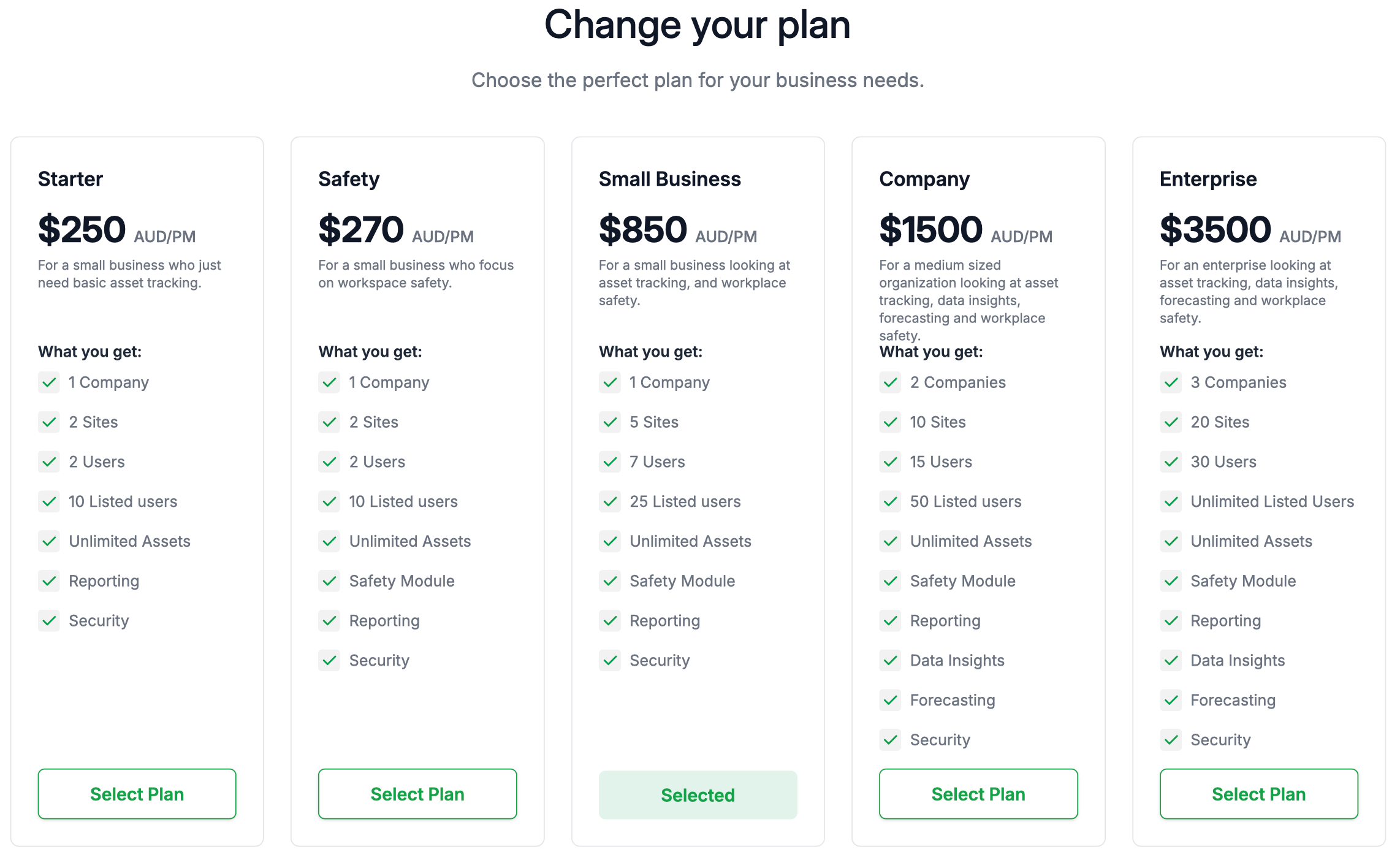
Click Select Plan on the desired option, then follow the prompts to confirm.
Any change shows an updated total on the main Licensing screen, including how it will affect the next billing cycle.
Changing your payment method
On the Licensing page, click Change payment method in the Payment Information panel.
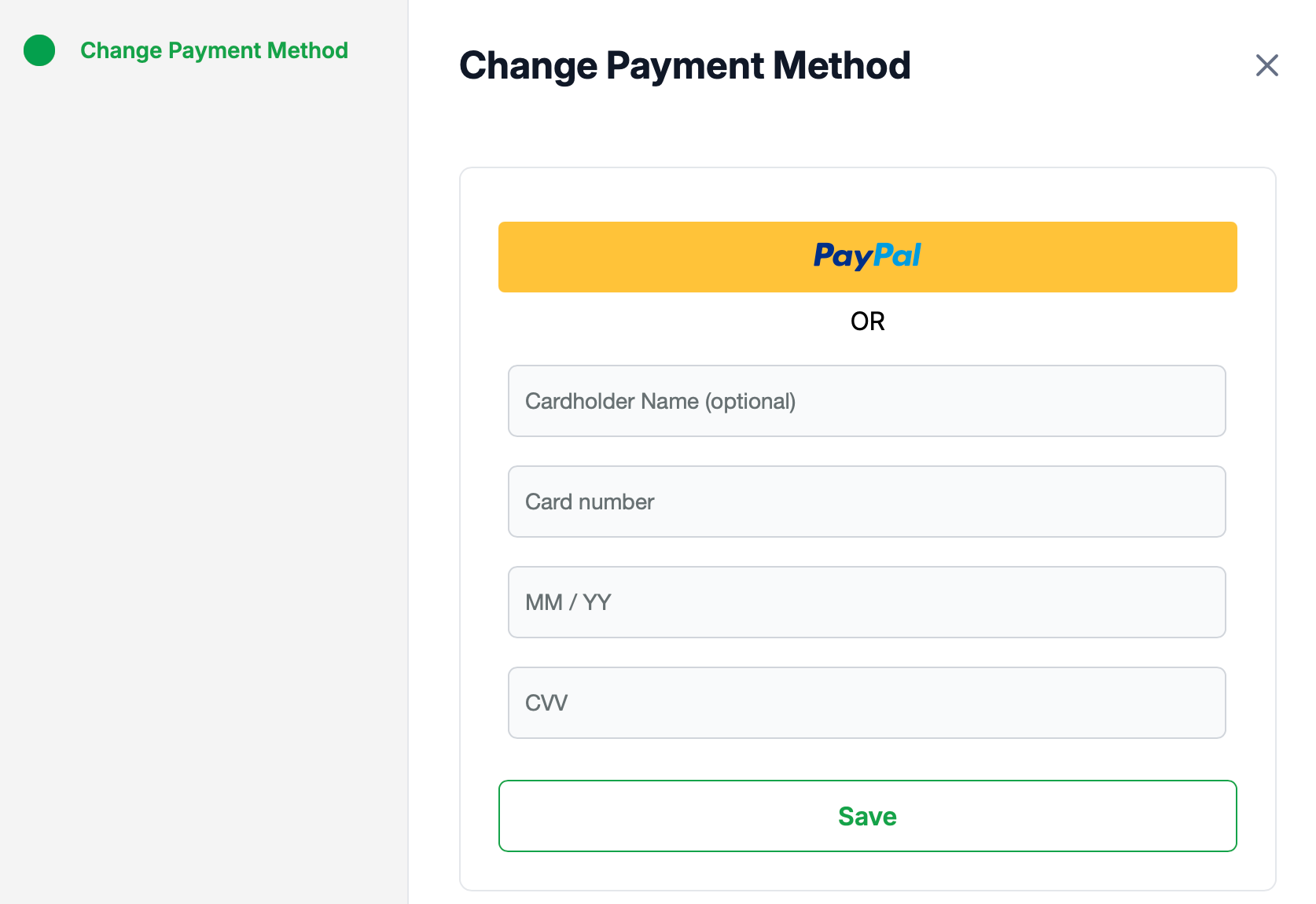
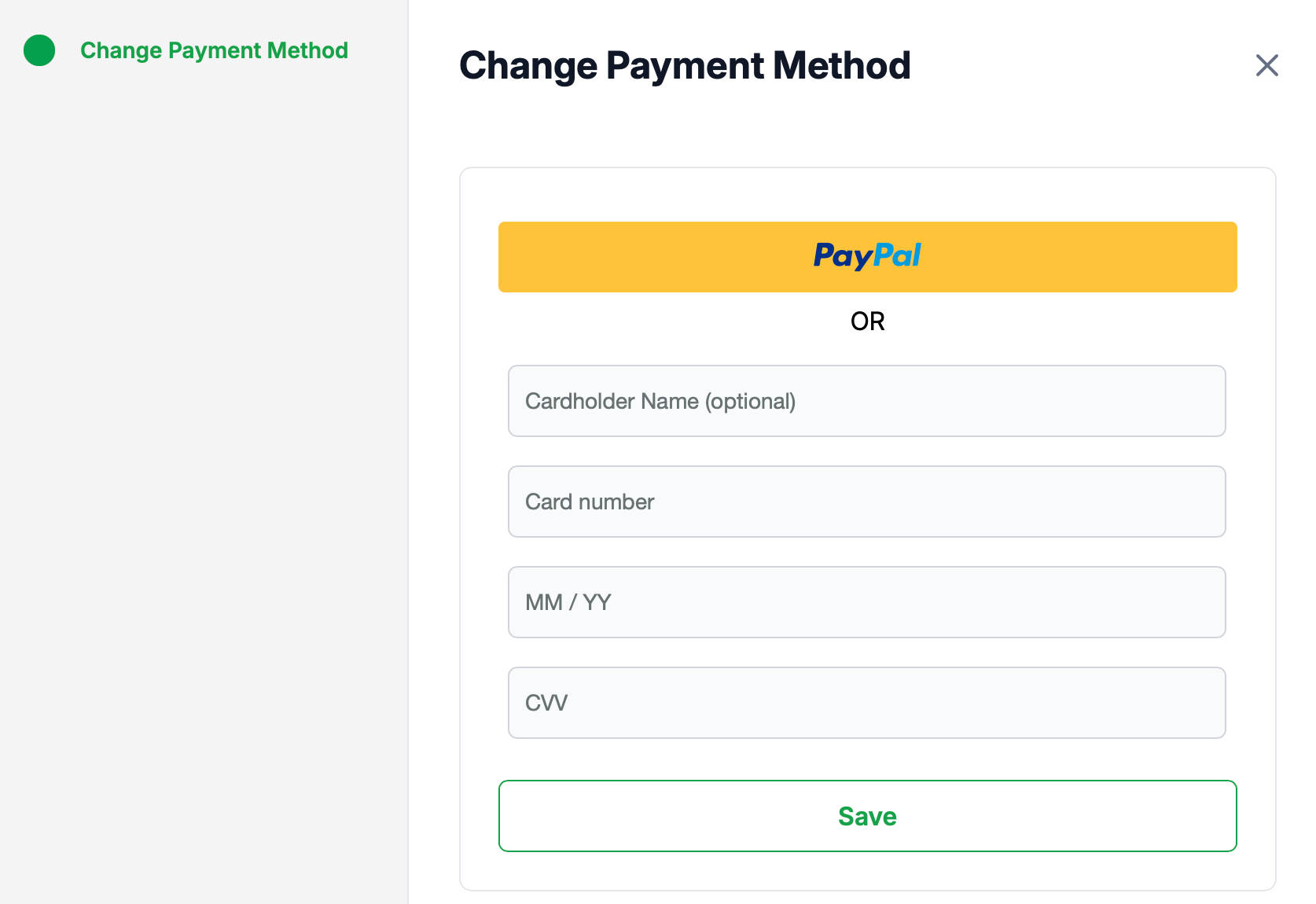
The Change Payment Method dialogue opens (Image 5).
Choose either:
PayPal, or
Credit Card (cardholder name, card number, expiry, CVV).
Click Save to apply the new payment method.
Viewing invoice history
Click Invoice history in the Payment Information panel.
A list of past invoices is displayed, where you can open or download individual invoices for your records.
Cancelling your subscription
On the Licensing page, click Cancel subscription (Image 1).
The Cancel subscription dialogue opens (Image 6) with two options:
Option 1 – Retain read-only access
Keeps all company, user and asset data.
Provides a single read-only user with access to previous modules and reports (excluding Insights / AI assistants where applicable) for 1 year from cancellation.
No data can be changed, but the subscription can be resumed during this period.
After the read-only period, all company data (including user and asset specific data) is deleted.
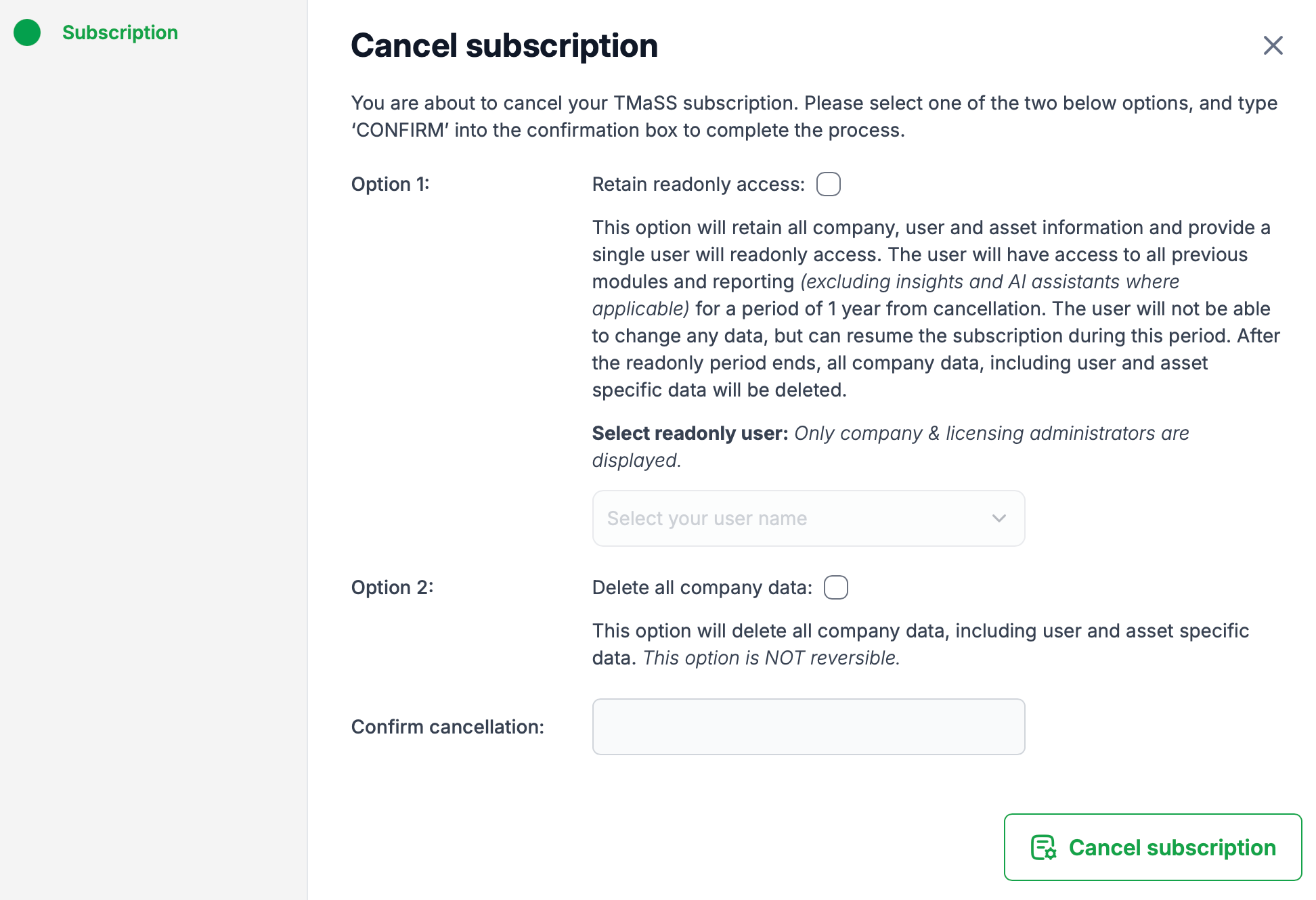
Option 2 – Delete all company data
Permanently deletes all company, user and asset data from TMaSS.
This option cannot be reversed.
For either option, follow the instructions on screen and type CONFIRM in the confirmation field.
Click Cancel subscription to complete the cancellation.
Permissions
Only users with the appropriate Company / Licensing Administrator security roles can:
Change plans
Add user, listed user or site packs
Change the payment method
View invoice history
Cancel the subscription.
If you do not see these controls, contact your internal TMaSS administrator for access.
Was this article helpful?
That’s Great!
Thank you for your feedback
Sorry! We couldn't be helpful
Thank you for your feedback
Feedback sent
We appreciate your effort and will try to fix the article