TABLE OF CONTENTS
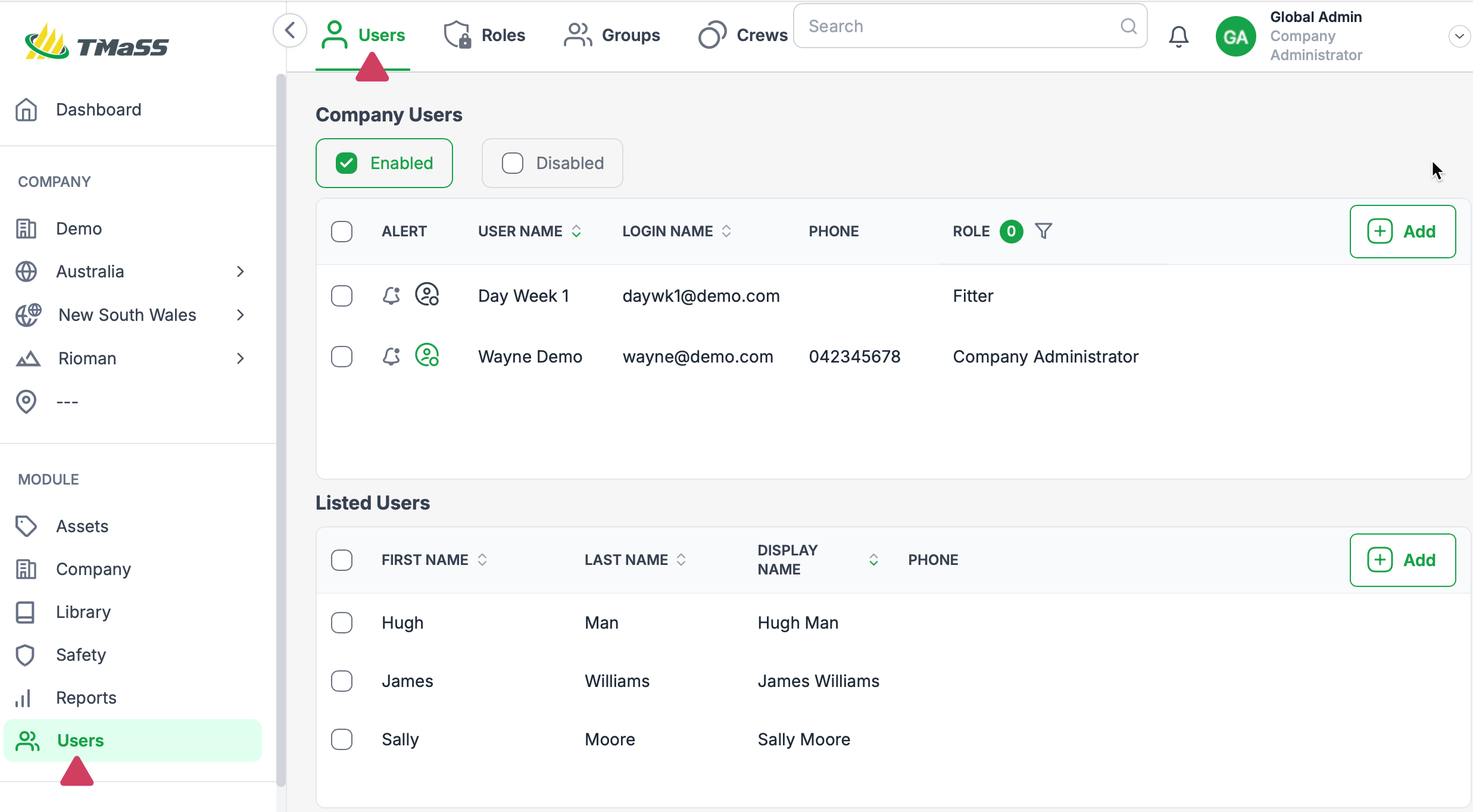
- Step 1: Navigate to the Users module and Users sub-module.
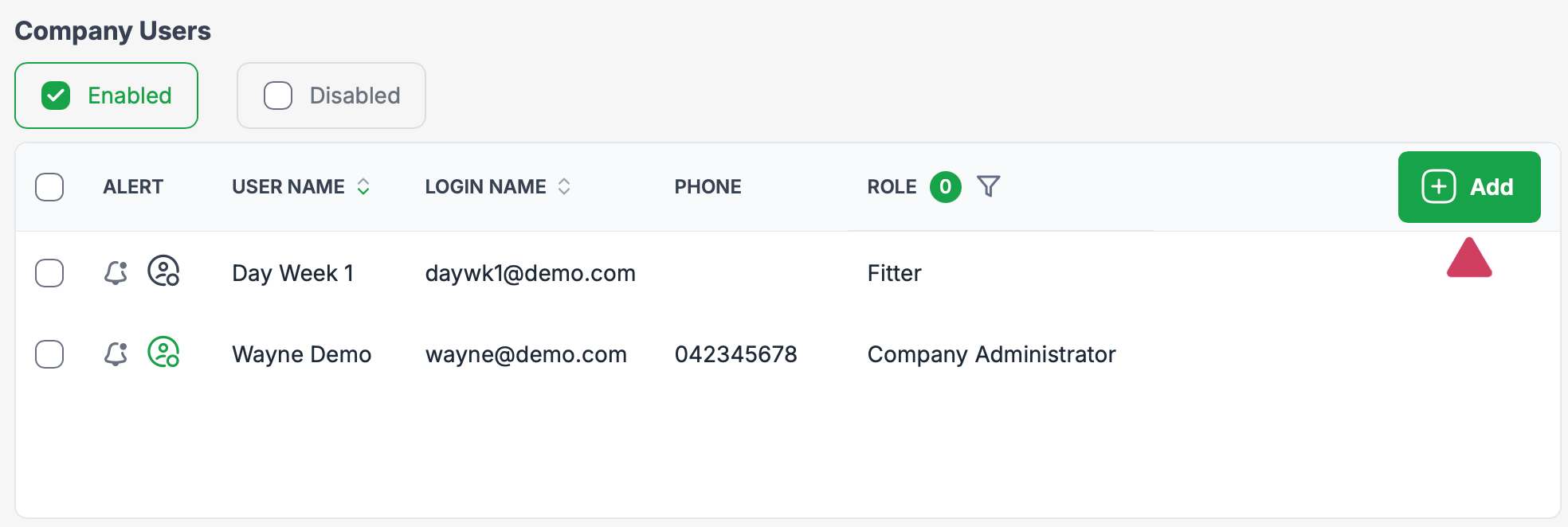
- Step 2: Click the 'Add' button to start the Add User wizard.
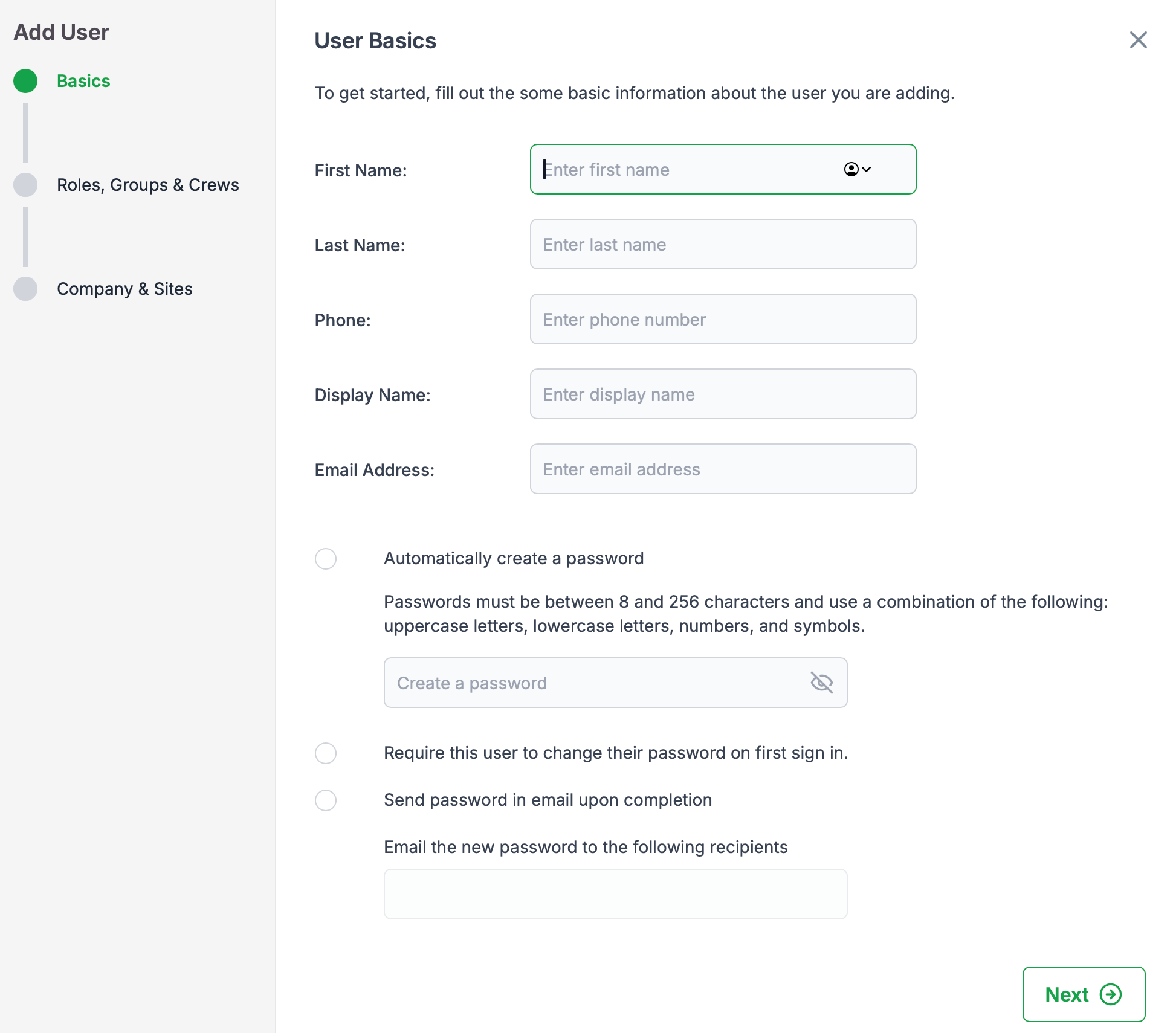
- Step 3: Basics wizard page
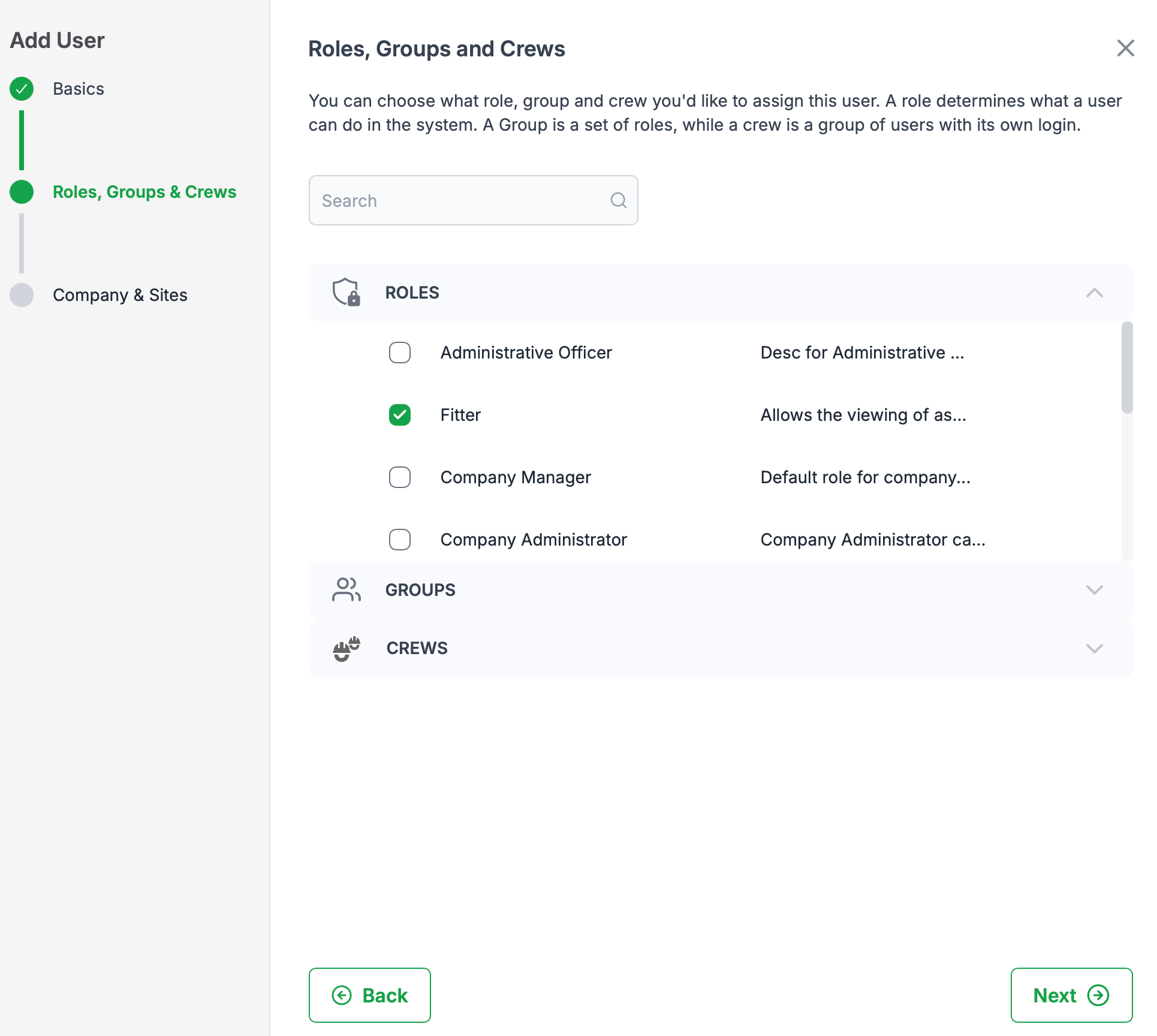
- Step 4: Roles, Groups & Crews wizard page
- Step 5: Company & Sites wizard page
- Step 6: Save to finish and create user
Step 1: Navigate to the Users module and Users sub-module.
Step 2: Click the 'Add' button to start the Add User wizard.
Step 3: Basics wizard page
Basics: Add the user details as shown in the 'User Basics' wizard page.
- You can have the system automatically create a password for you, or you can create your own.
- Select 'Require this user to change their password on first sign' for an additional layer of user protection.
- You can also select to have the users login and password emailed.
- Click'Next' to continue.
Step 4: Roles, Groups & Crews wizard page
Roles, Groups & Crews: Select a single or multiple roles, group and or crew. You must select a minimum of 1 role, or 1 group to continue. Selections made here will determine the users privileges.
Step 5: Company & Sites wizard page
Company & Sites: Select the company and sites the user will have access to. In the event that a user has access to multiple companies and sites, by selecting a default company and site, on login the user will be navigated to these defaults. What you see here will be determined by multiple factors, these are:
- The company's licensing agreement
- The company structure
- The Administrator adding the users privileges and site access.
If the required company or sites are not listed, please contact your 'Company Administrator'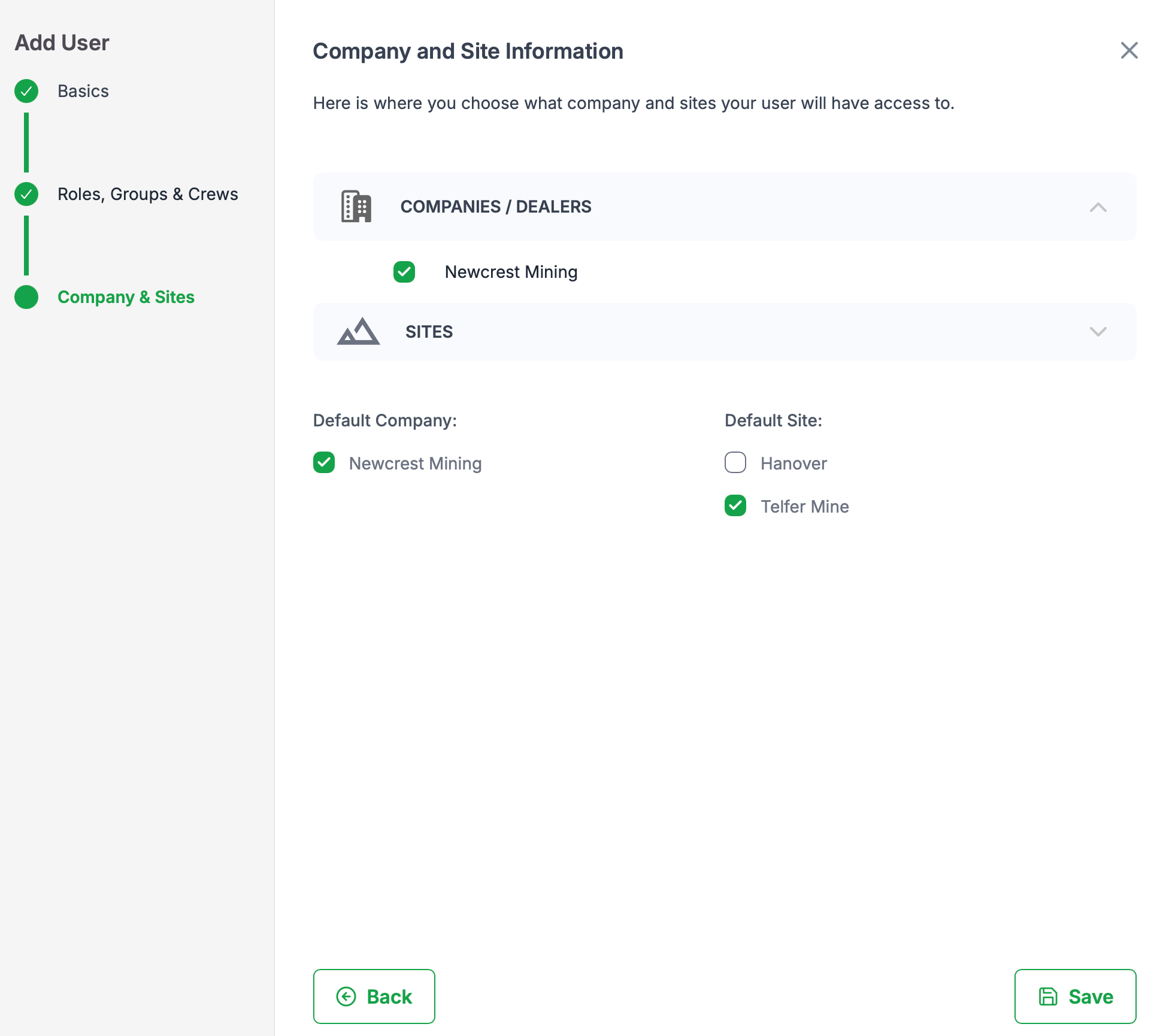
Step 6: Save to finish and create user
Was this article helpful?
That’s Great!
Thank you for your feedback
Sorry! We couldn't be helpful
Thank you for your feedback
Feedback sent
We appreciate your effort and will try to fix the article