TABLE OF CONTENTS
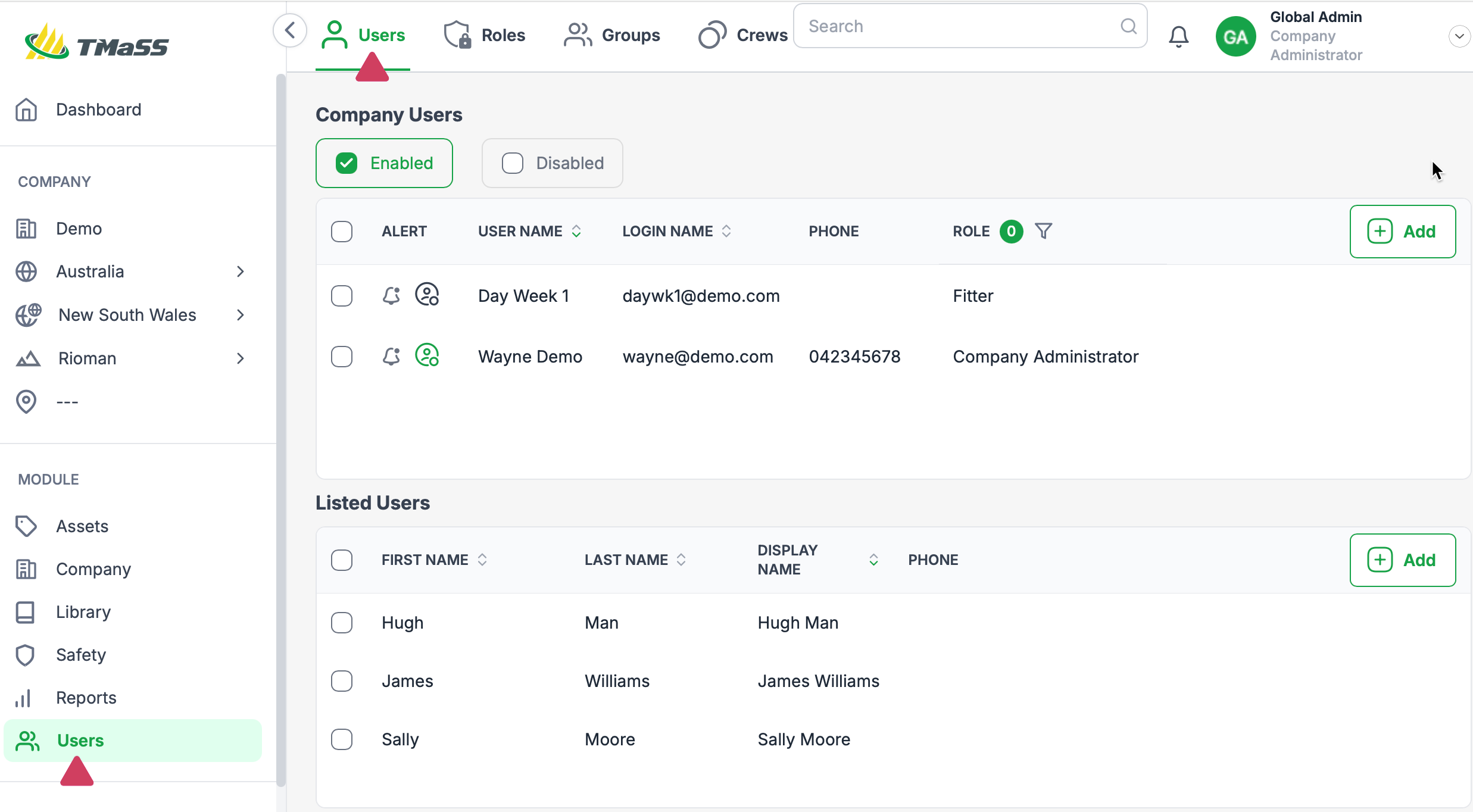
- Step 1: Navigate to the Users module, then to the Users sub-module.
- Step 2: To begin add 'Listed users' wizard click the start button
- Step 3: User Basics wizard page
- Step 4: Company and Sites wizard page
- Step 5: Click Save to finish and create the listed user.
Step 1: Navigate to the Users module, then to the Users sub-module.
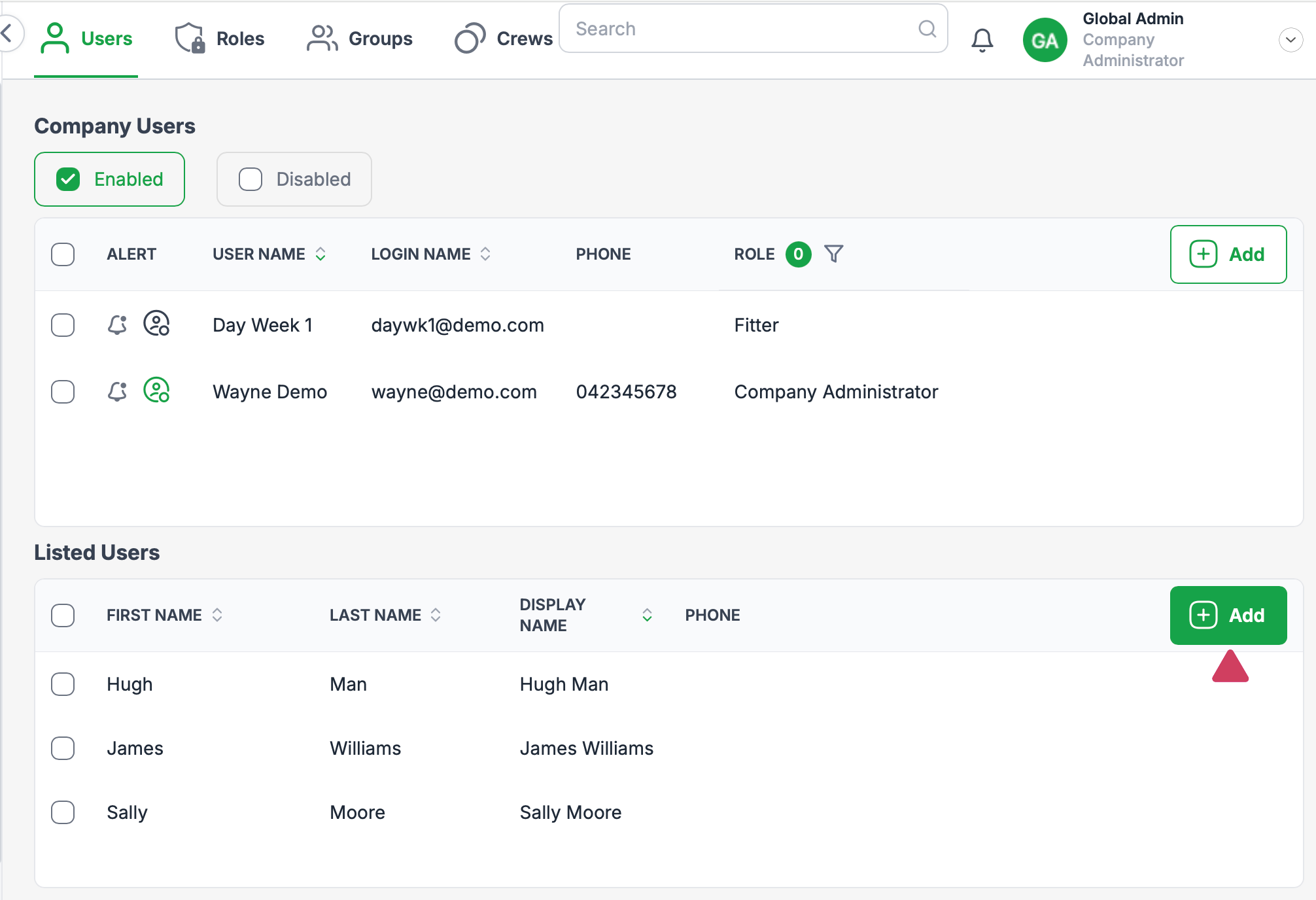
Step 2: To begin add 'Listed users' wizard click the start button
In the 'Listed users section, click the 'Add' button
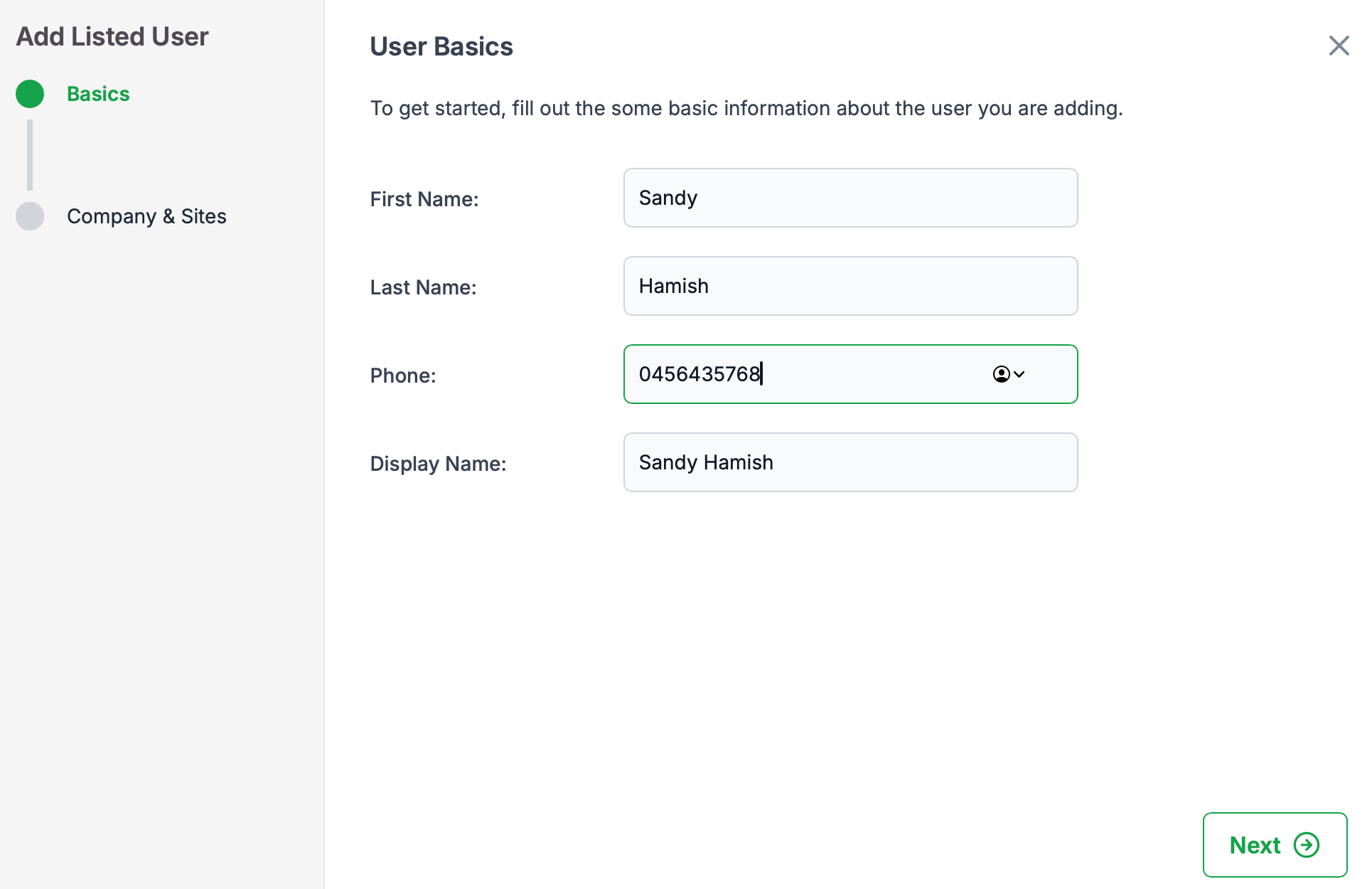
Step 3: User Basics wizard page
Basics: Add the user details as shown in the 'User Basics' wizard page.
- Enter the users first name, last name, phone number.
- The display name will be automatically generated, however, it can be edited if required.
- Click'Next' to continue
Step 4: Company and Sites wizard page
Company & Sites: Select the company and sites the listed user will listed in.
NOTE: If the required company or sites are not listed, please contact your 'Company Administrator'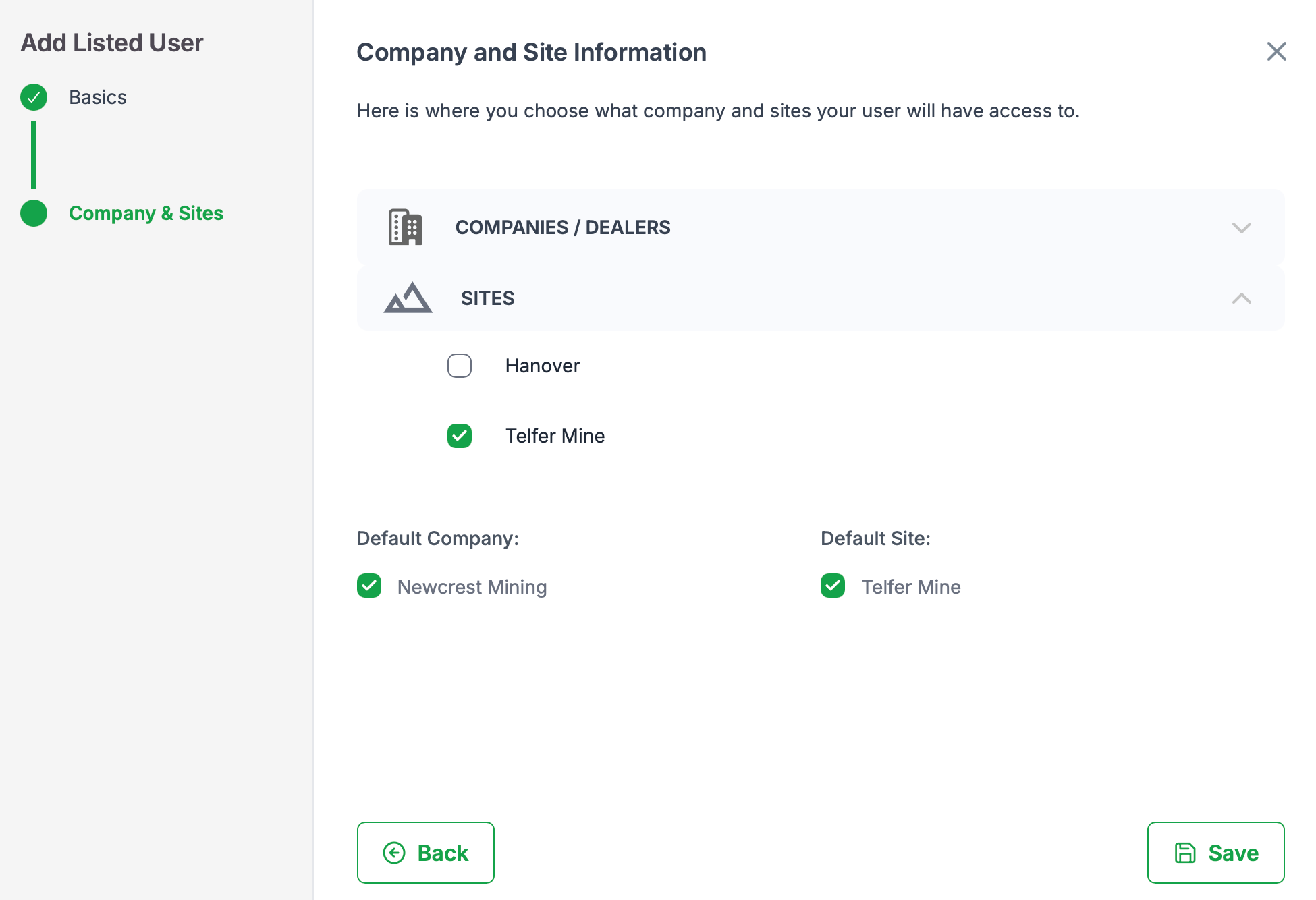
Step 5: Click 'Save' to finish and create the listed user.
Was this article helpful?
That’s Great!
Thank you for your feedback
Sorry! We couldn't be helpful
Thank you for your feedback
Feedback sent
We appreciate your effort and will try to fix the article