Security roles define how different users access different types of records and functions. To control access to data and resources, you can create or modify security roles and change the security roles that are assigned to your users.
A user can have multiple security roles. Security role privileges are assigned based on least privilege. The principle of least privilege in TMaSS security means if a user is assigned two roles and one role has 'Add asset' and the other doesn't, the user will not be able to add an asset.
The below table shows two role assignments and their effective security.
Role 1 Function State | Role 2 Function State | Effective Security |
|---|---|---|
Enabled | Enabled | Enabled |
Enabled | Unassigned | Disabled |
Unassigned | Enabled | Disabled |
| unassigned | unassigned | Disabled |
Default Roles
By default each new company is provided with a selection roles to help you get started. Roles are created based on a set generic staff roles. However, you may edit them if they don't fit your specific application.
We recommend granting users only the minimum access needed to perform their specific tasks. This approach reduces the attack surface and limits the potential damage from a security breach. To do this, in addition to the default roles, create specific roles that best align to your needs. You can create as many roles as you want, and if roles are similar, copy the existing similar role and modify it, this will significantly increase your workflow productivity.
Role sub-module
Roles are located in the User module.
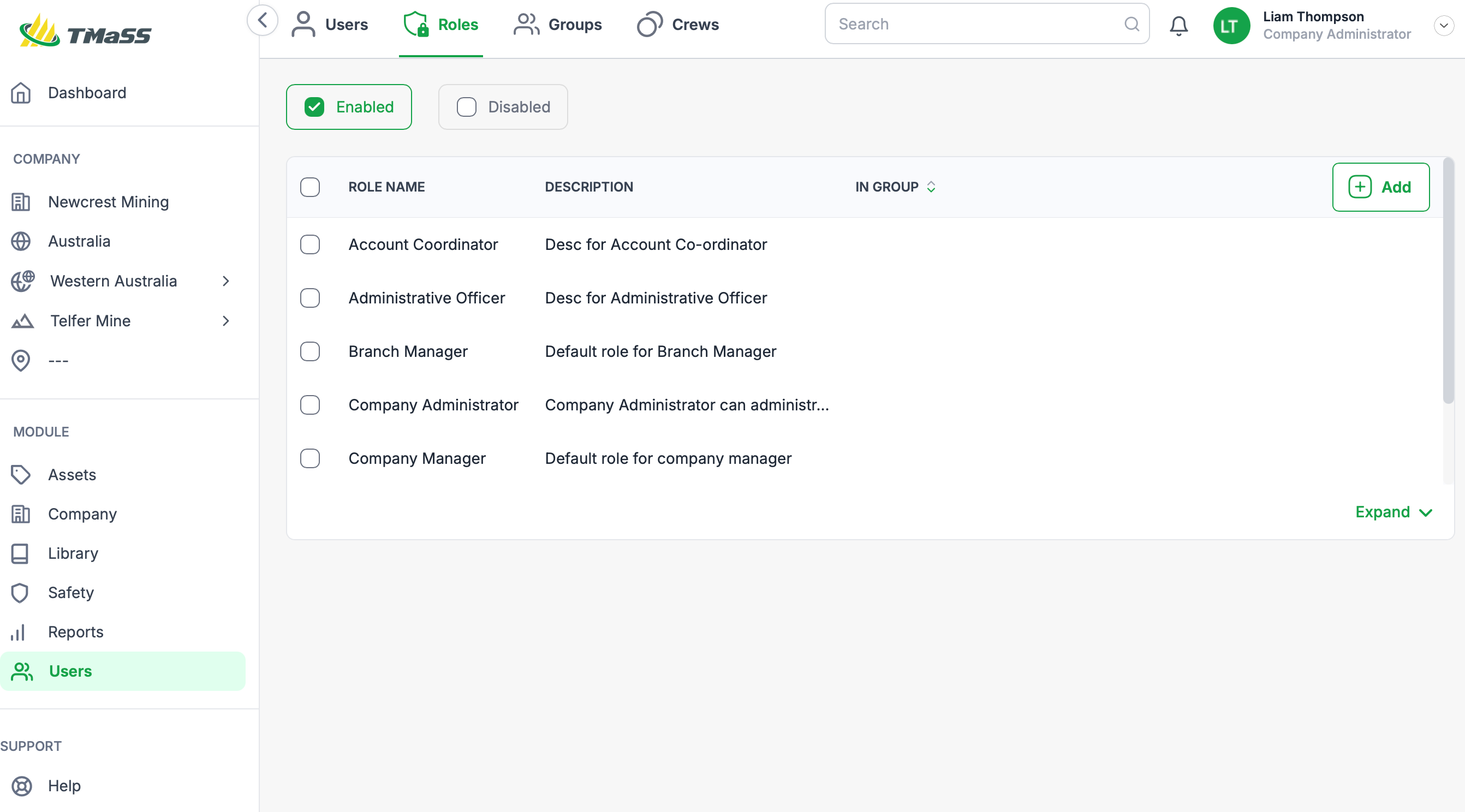
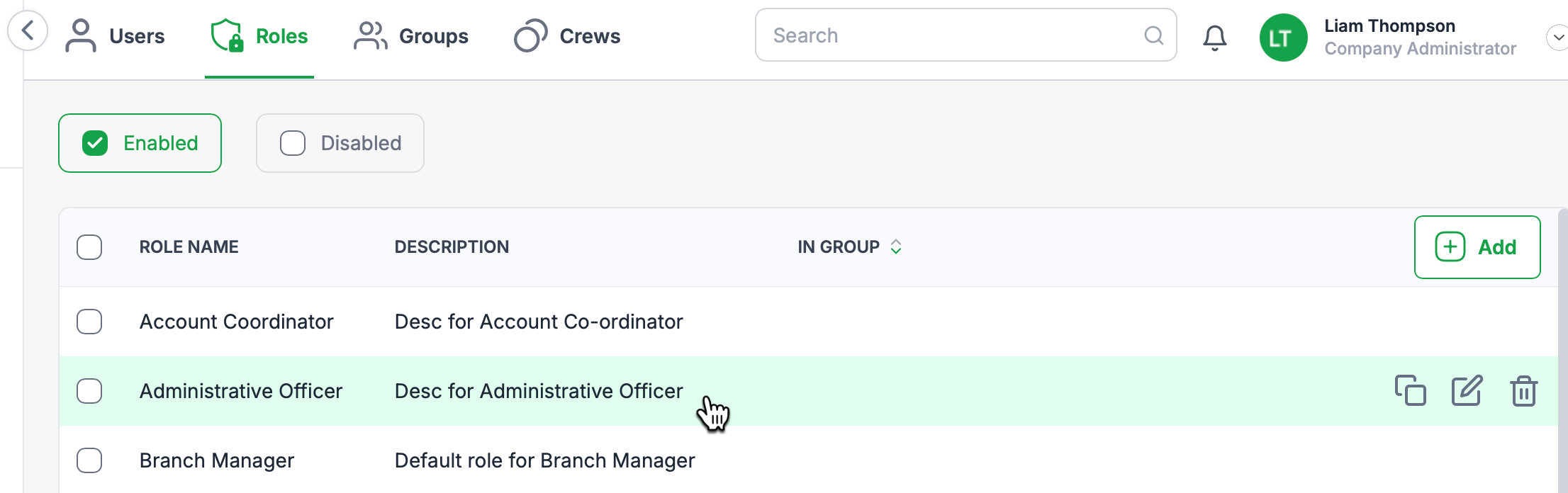
Each role has an associated context menu that is visible by hovering the mouse pointer over it, as shown below.
There are three contextual function associated with roles these are:
- Copy - A quick way to duplicate the role when creating a new role that is similar
- Edit - Edit the role
- Delete - Delete the role permanently
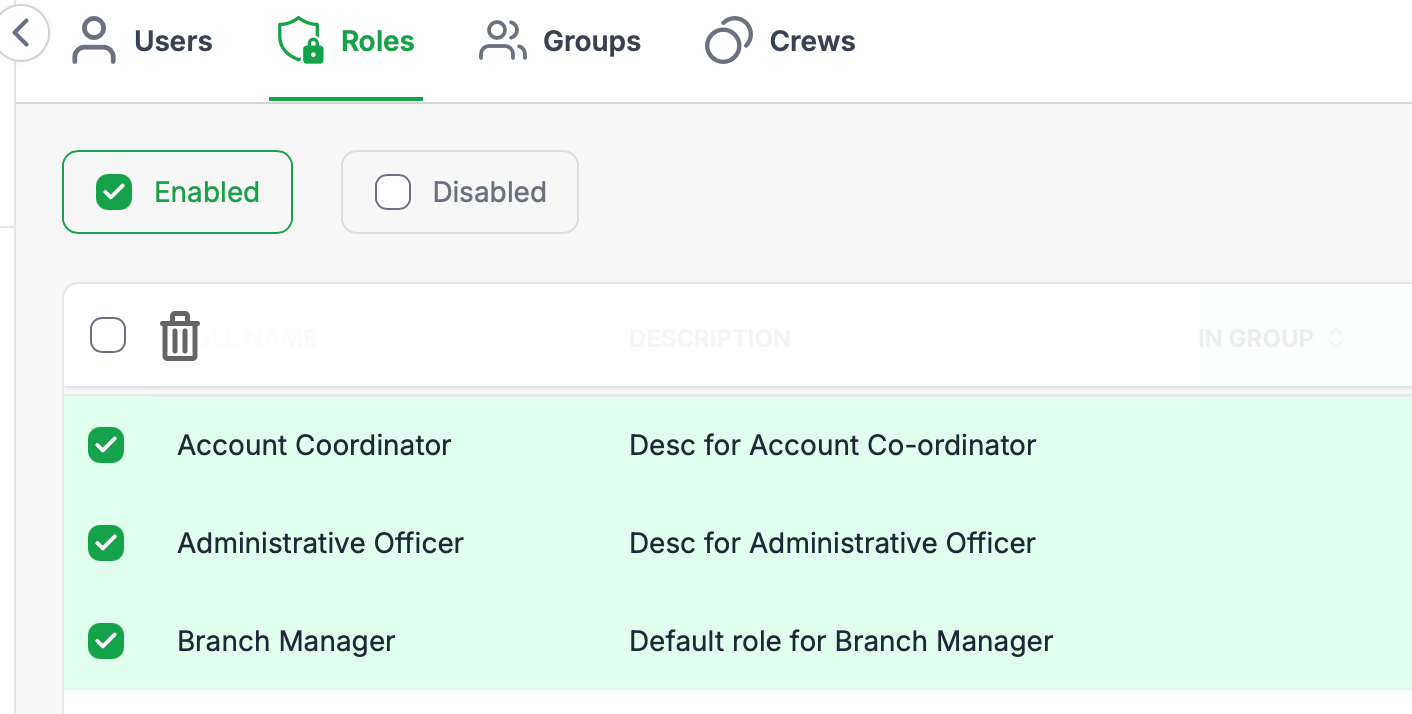
You can also select multiple roles to batch delete.
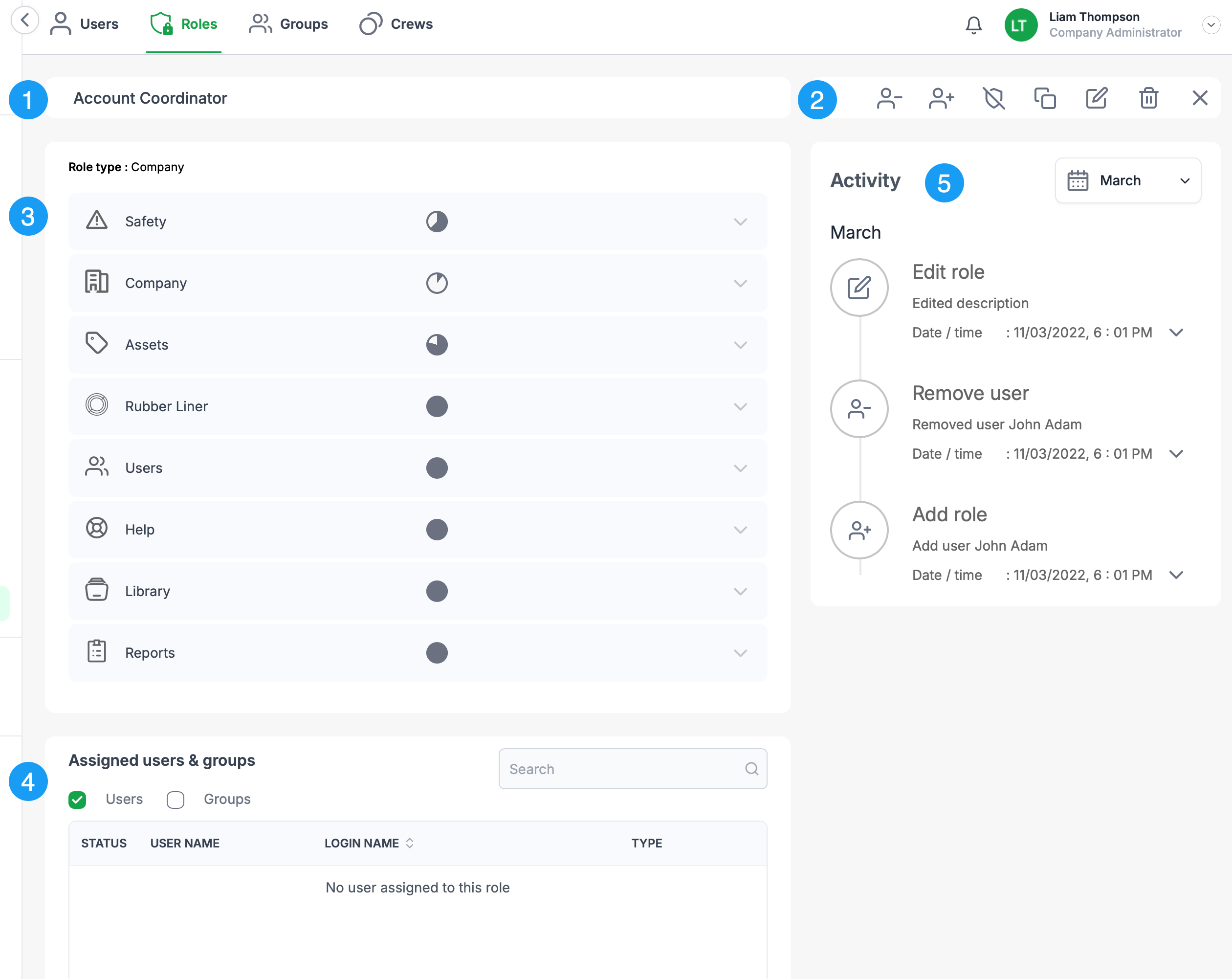
Viewing and editing a role
Clicking on a role will display the role details. This screen gives you a quick peek into its assigned settings.
- Role name
- Available functions
- Assigned functions and security
- Users and groups assigned to the role
- Role activity audit list
Role Functions
| Function | Icon |
|---|---|
| Remove user |  |
| Add user |  |
| Disable role |  |
| Enable role (only visible on context menu of disabled roles) |  |
| Copy |  |
| Edit |  |
| Delete |  |
| Exit |  |
Role details
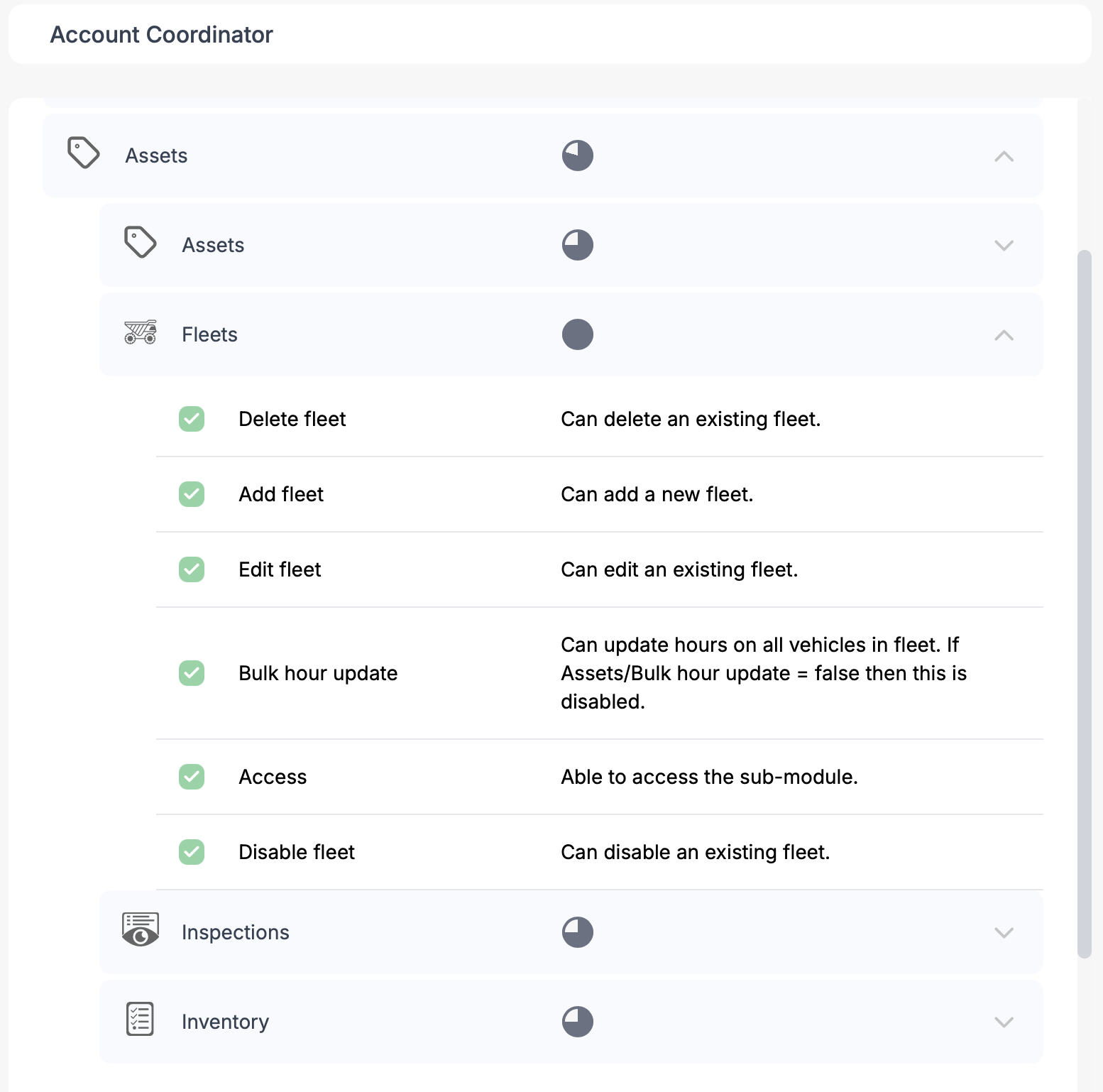
Each role has a module section, submodule sections and their corresponding security and functions. The image below shows the Asset module, the Fleets submodule and its associated security settings.
Assigned users and groups
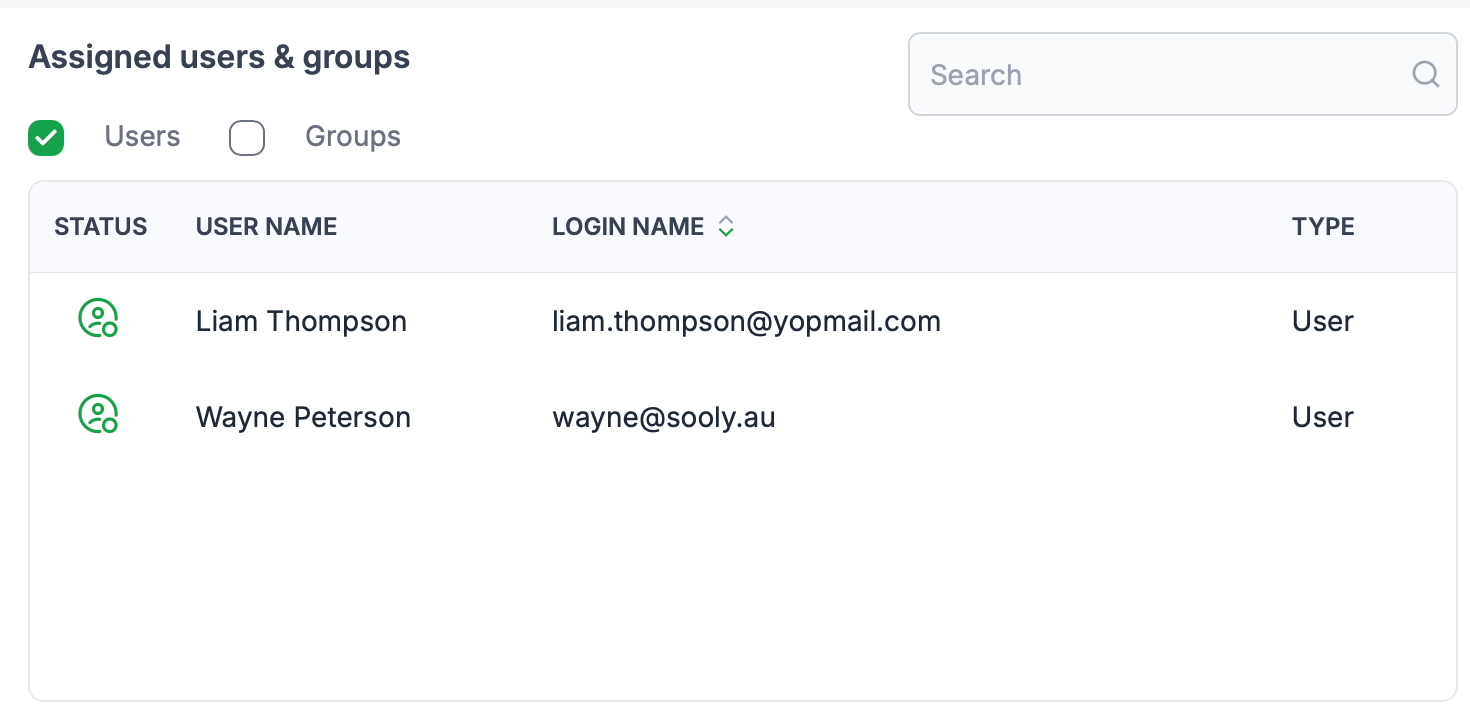
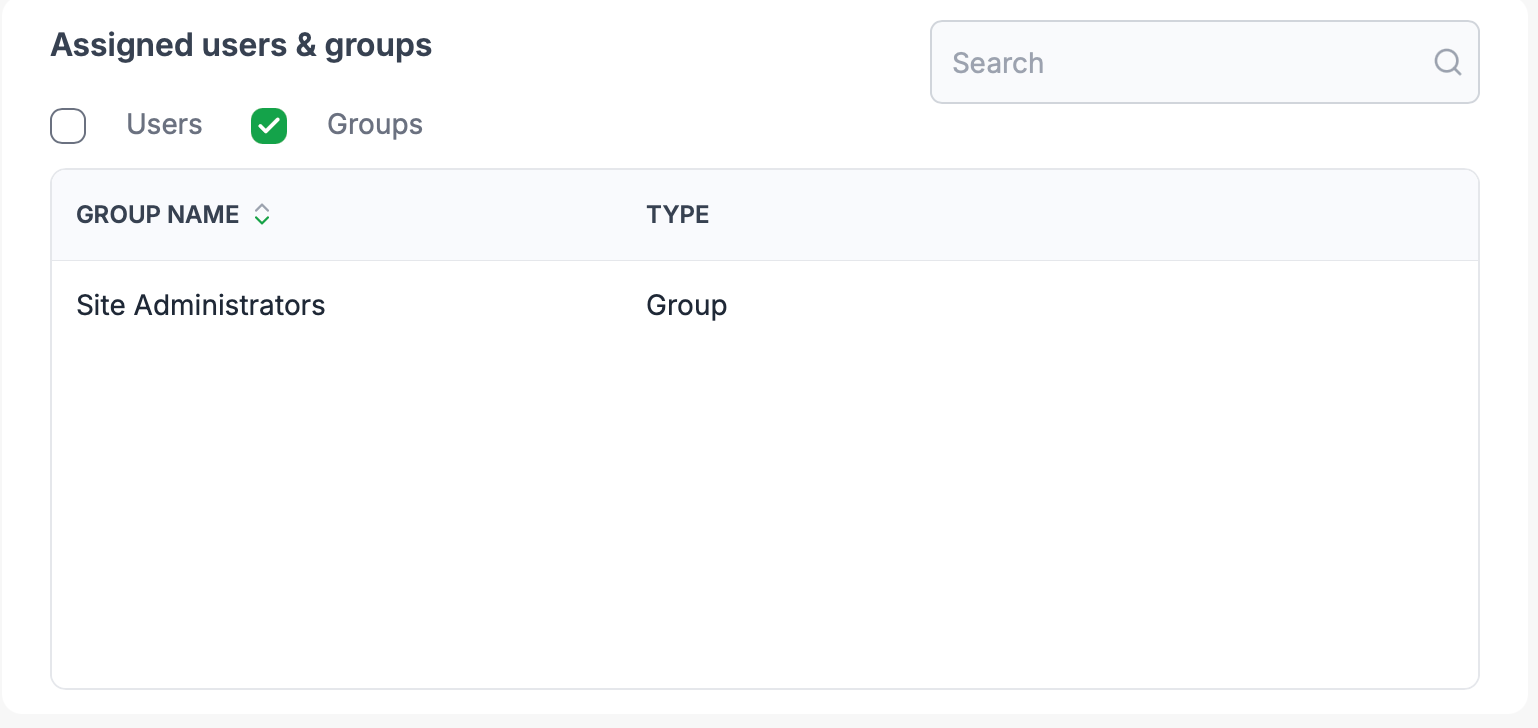
This is where you can see what users and group have been assigned to the role. This greatly enhances administrative workflow by providing a window into where the groups privileges have been applied.
Assigned users
Assigned groups
Activity list
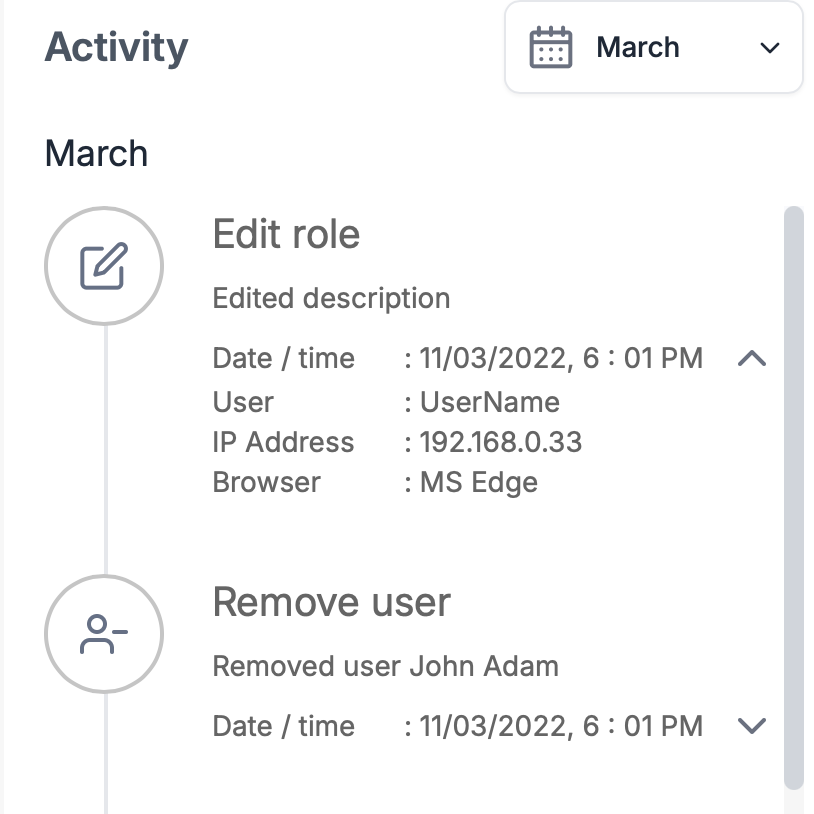
The activity list is a list of all functions that have been applied to the role, it is effetely an audit log. It allows you see when a function has been run, who ran it and from what IP address and browser. This not only enhances security, but provides a mechanism to assist in troubleshooting.
Was this article helpful?
That’s Great!
Thank you for your feedback
Sorry! We couldn't be helpful
Thank you for your feedback
Feedback sent
We appreciate your effort and will try to fix the article