Roles are an important security aspect of TMaSS. A role determines what modules a user sees, and what functions they can complete within those modules. Roles can be complex. TMaSS provides two methods to create a new role.
- Create new role
- Copy existing role
TABLE OF CONTENTS
- Step 1: Navigate to the 'User' module and 'Roles' sub-module
- Step 2: Add a new Role
- Step 3: Click 'Save' to create your new role
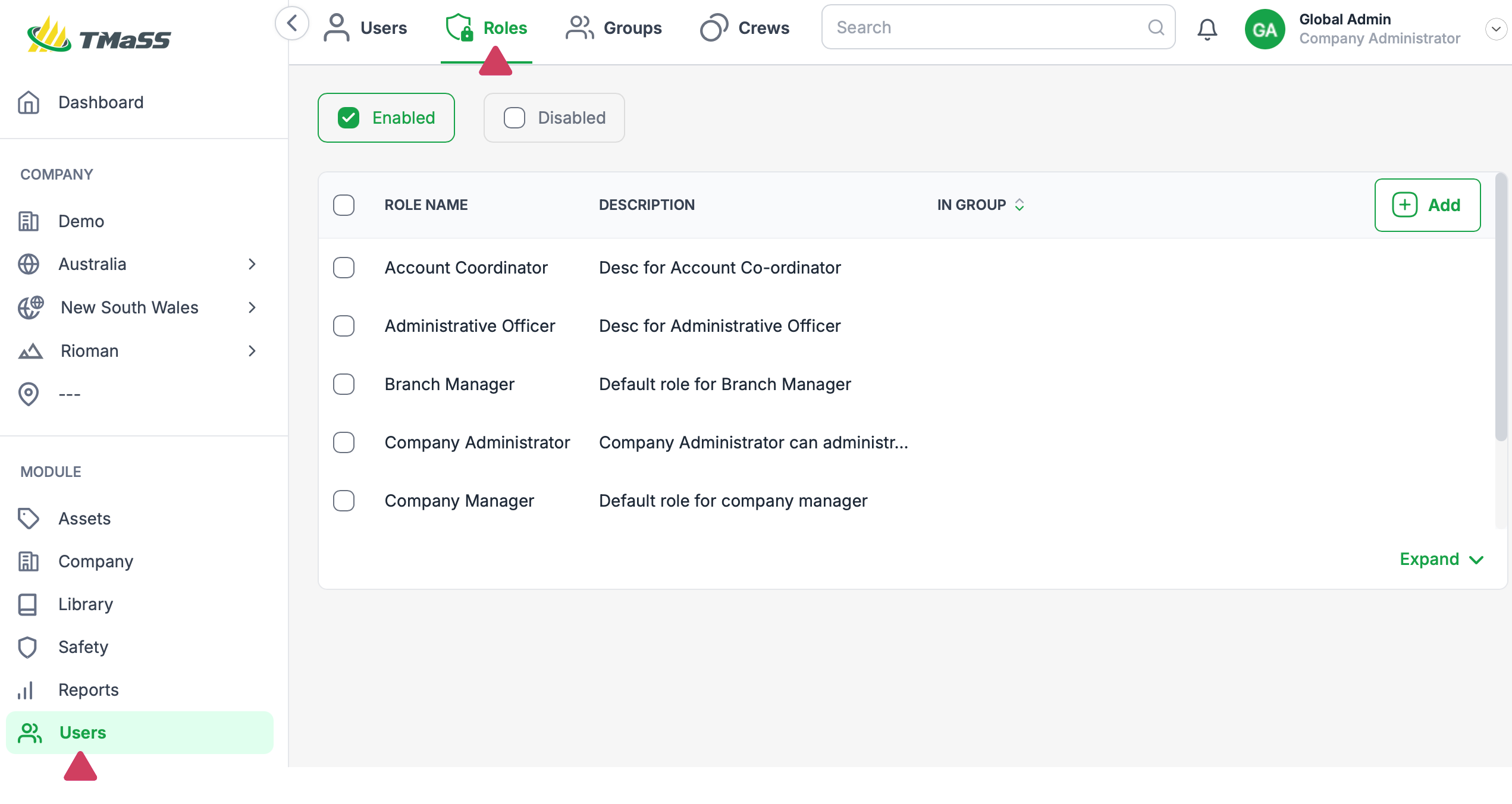
Step 1: Navigate to the 'User' module and 'Roles' sub-module
Step 2: Add a new Role
There are two ways you can create a role:
- By adding a new role by clicking the 'Add' button.
- By hovering over an existing role and copying it.
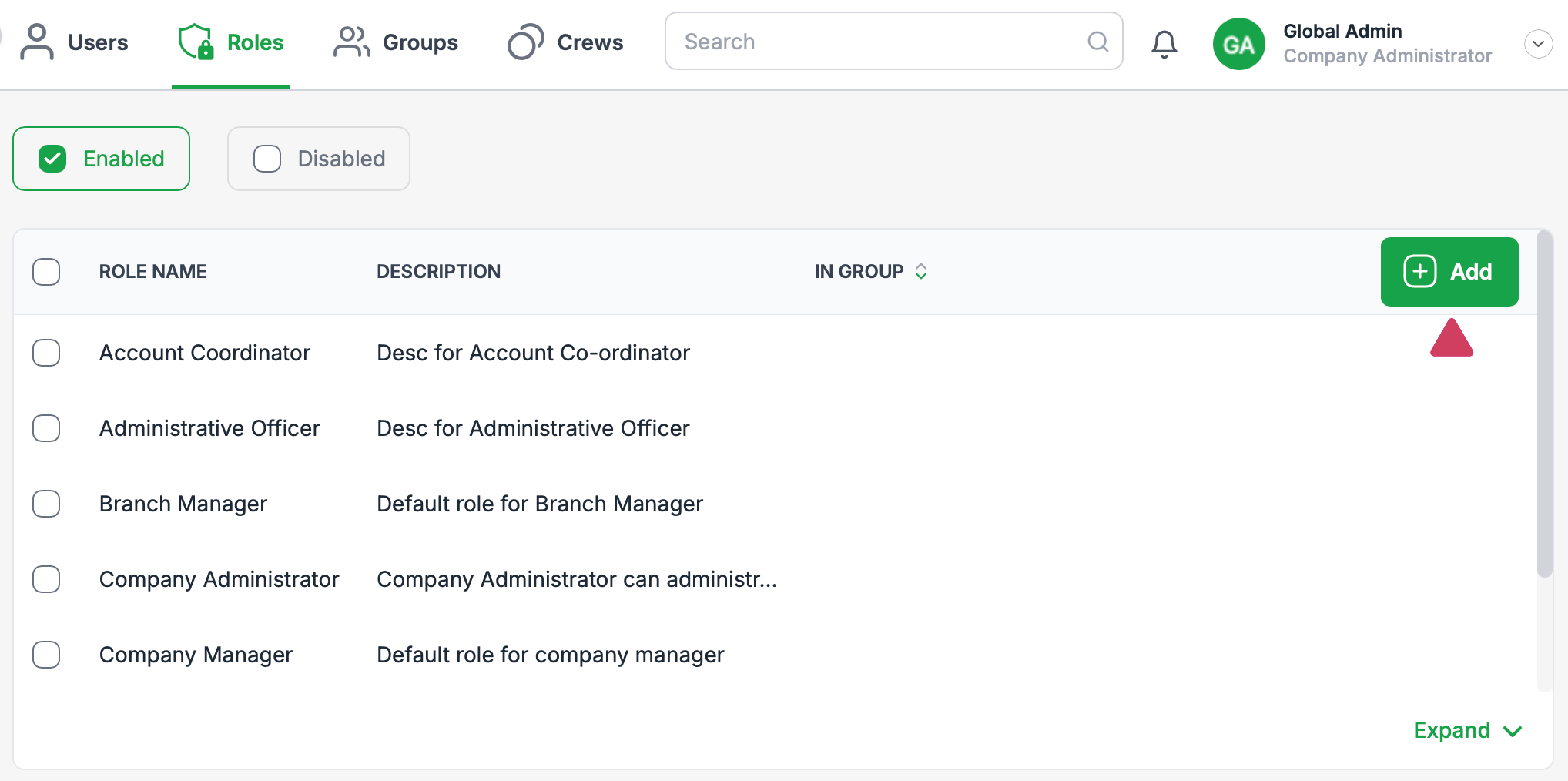
Method 1 - Step 1: Add button creation
To start the 'Create Role' wizard, click the 'Add' button.
There are numerous default roles provided. You can delete or modify these roles if required.
Each role is categorised by module. To select the desired access and functionality, click the modules down arrow to view its options
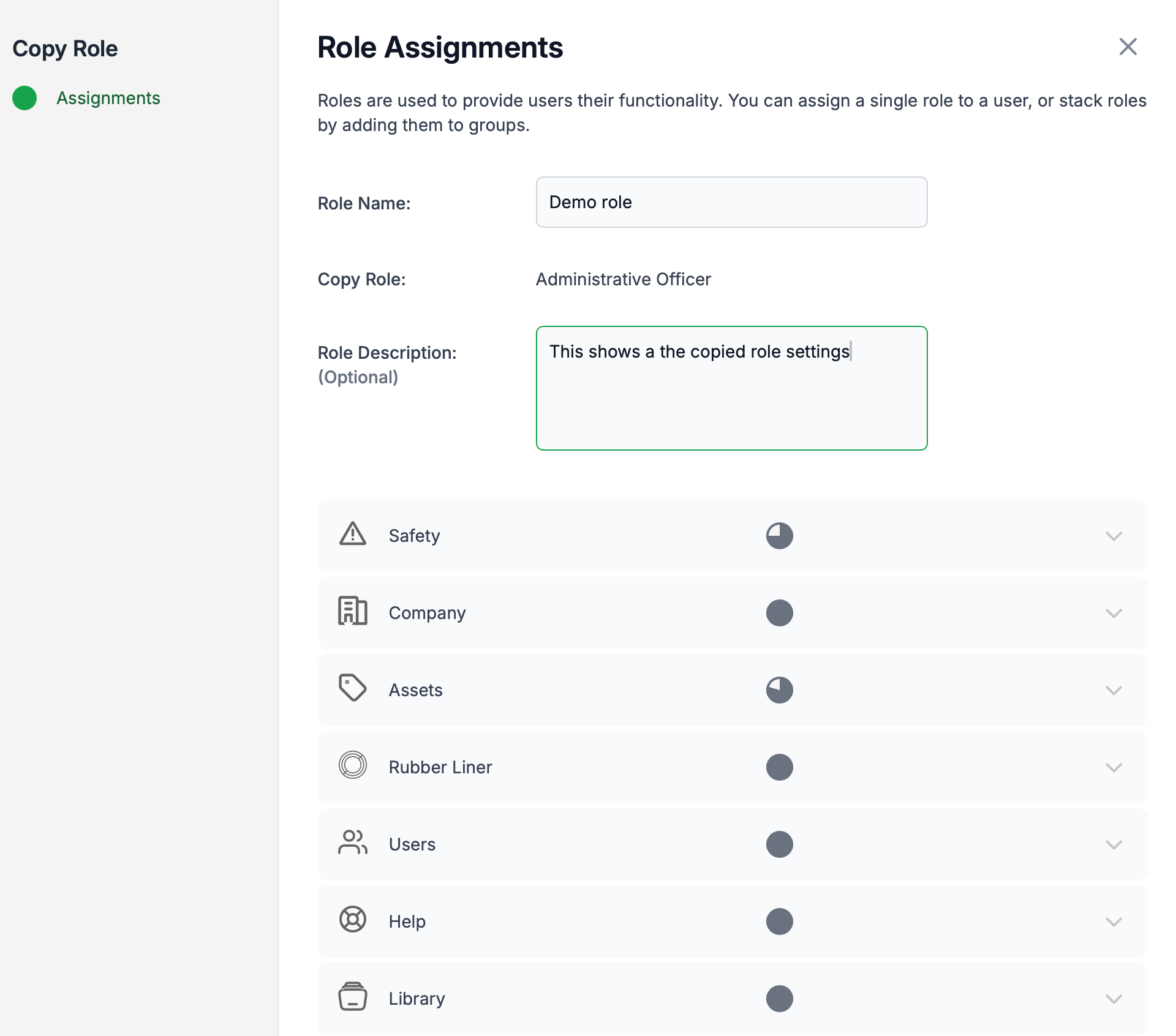
When you select certain roles, TMaSS provides a handy pie graph to quickly show you a a percentage of roles options selected.

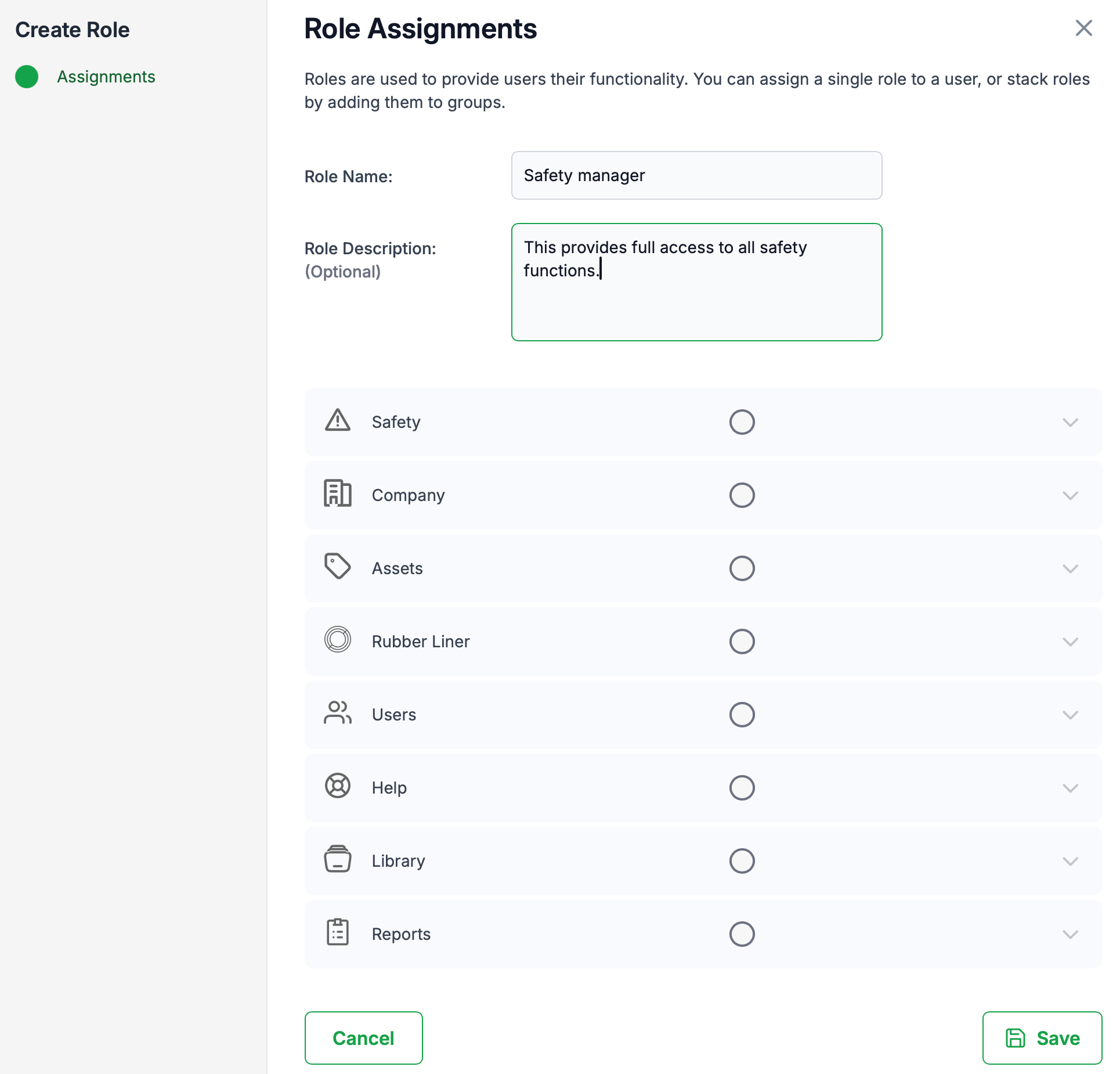
Method 1 - Step 2: Click 'Save' to create your role
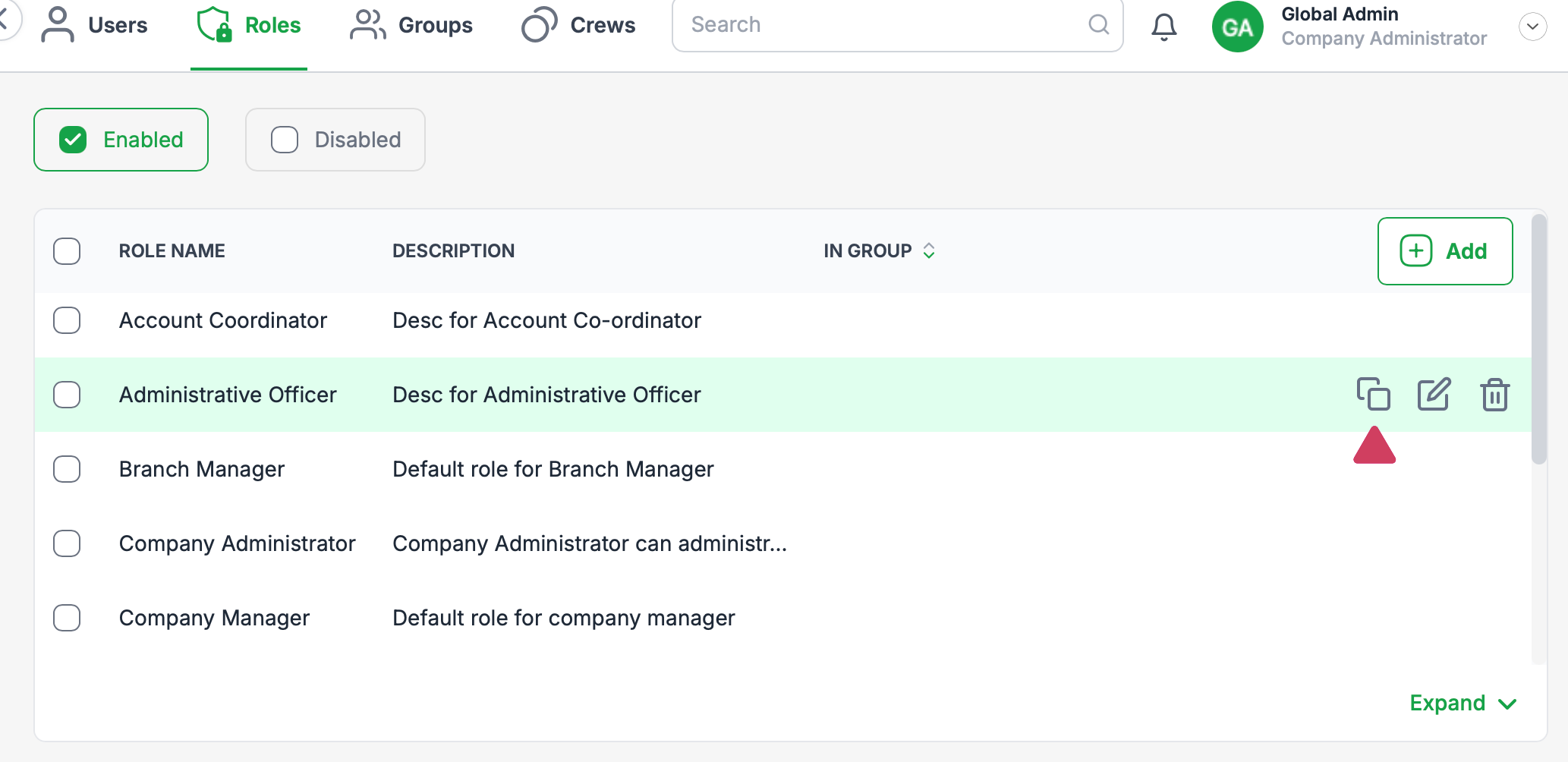
Method 2 - Step 1: Click 'Copy role' to create new role
Roles can be complex. Where roles may be similar, copying an existing role can enhance your productivity significantly.
Copying a role will transfer its settings to a new role.
Method 2 - Step 2: Modify the role assignments.
The Copy Role wizard will open. Enter your new role name, modify the required assignments and save.
Step 3: Click 'Save' to create your new role
Was this article helpful?
That’s Great!
Thank you for your feedback
Sorry! We couldn't be helpful
Thank you for your feedback
Feedback sent
We appreciate your effort and will try to fix the article