Purpose
This guide shows Company Administrators how to create a Group in TMaSS (Tyre Management & Safety System).
TABLE OF CONTENTS
- Purpose
- Quick Visual Tour
- Step-by-Step: Create a New Group
- Field Reference
- Best-Practice Tips
- Common Scenarios
- Troubleshooting
- Next Steps
What is a Group?
In TMaSS, a Group is a reusable set of security roles. Instead of assigning many roles to users one-by-one, an administrator can combine multiple roles into a Group and assign that Group to users (or Crews). Groups make it fast and consistent to apply complex permission sets across the organisation.
Key benefits
Consistency: one defined bundle of permissions that can be used repeatedly
Speed: assign one Group instead of having to add many roles
Governance: easier auditing and change control
Prerequisites
You are signed in with a profile that can manage security (e.g., Company Administrator).
The roles you intend to include in the Group already exist.
Quick Visual Tour
Groups list (empty state with “Add” button):
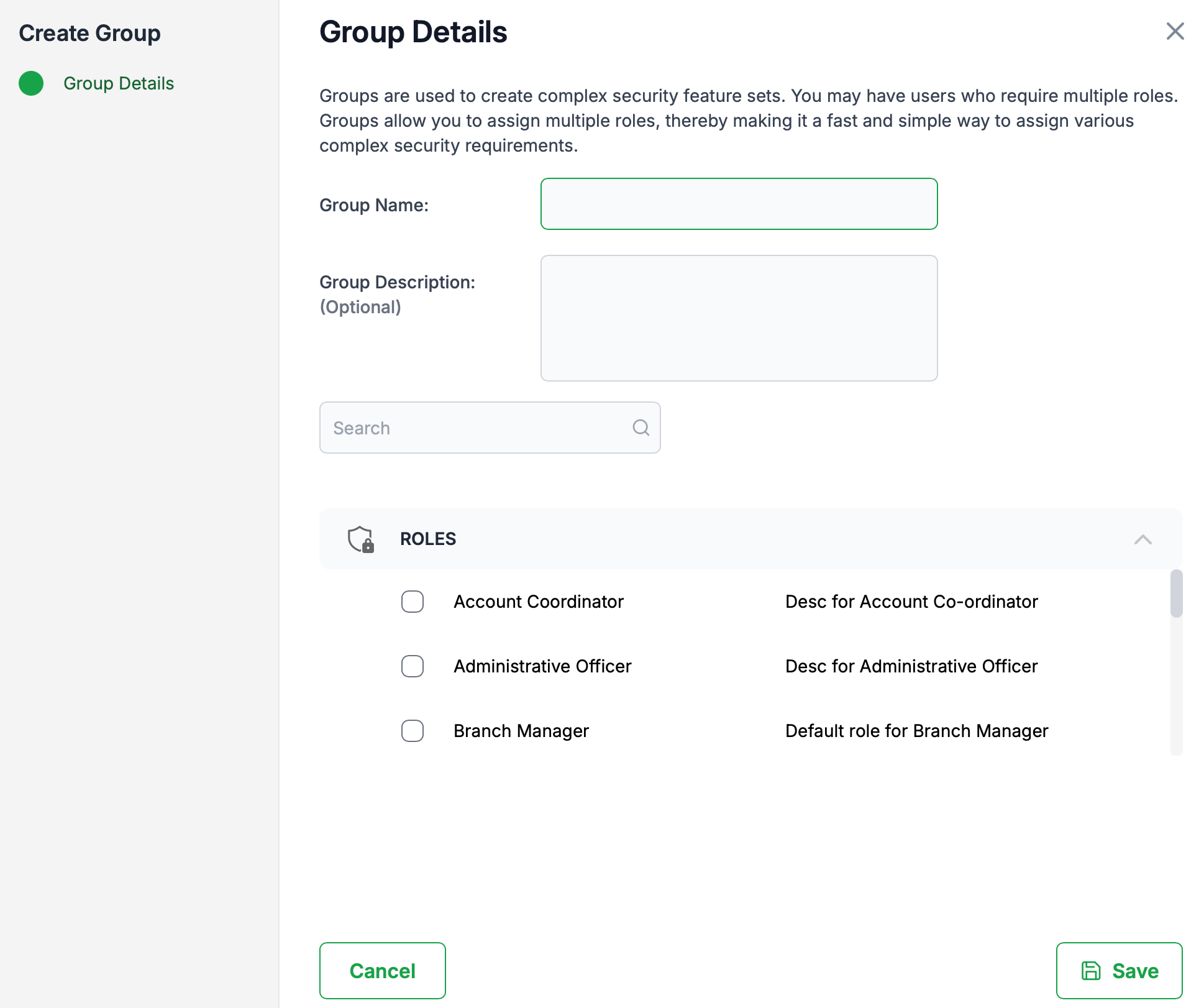
See Figure 1 – Groups pageCreate Group – Group Details modal with fields and role selector:
See Figure 2 – Group Details form
Figure 1 – Groups page (Add new Group)
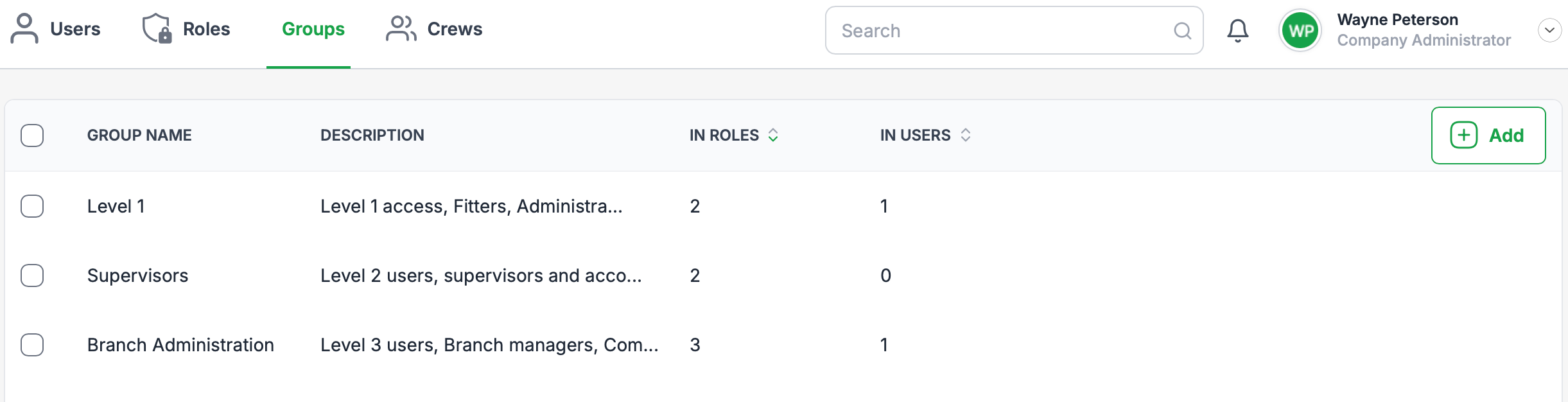
Figure 2 – Group Details form (select roles & save)
Step-by-Step: Create a New Group
Navigate to Groups
From the top navigation of User Administration, click Groups.
You’ll see the Groups table. If you have no Groups yet, it will show “No records found.”
Click Add (green button, top-right).
Reference: Figure 1.
Enter Group Details
In the Group Details panel:
Group Name: Enter a clear, descriptive name (e.g.,
Branch Managers – Read/Write Fleet).Group Description (Optional): Briefly describe the intent and typical assignees (e.g., “Combined permissions for branch managers: fleet maintenance, inspections, reporting”).
Reference: Figure 2.
Select Roles to Include
In the ROLES section, scroll or use Search to find the required roles.
Tick the checkbox beside each role you want to include (e.g., Account Coordinator, Administrative Officer, Branch Manager).
Tip: Choose the minimal set of roles that together grant exactly what the target users need.
Save the Group
Click Save (bottom-right).
A success message will confirm creation and the Group will appear in the Groups list.
Verify
Back on the Groups table, confirm your new Group appears with the correct Group Name, Description, and the expected counts for In Roles and In Users (initially users may be 0).
Field Reference
| Field | Required | Purpose | Good Practice |
|---|---|---|---|
| Group Name | Yes | The display name used across TMaSS | Use a naming convention (e.g., Dept – Capability – AccessLevel) |
| Group Description | No | Context for admins & auditors | Note who should/shouldn’t be assigned, and the business justification |
| Roles (multi-select) | Yes | The permissions bundle the Group provides | Include only what’s needed; avoid overlapping/conflicting roles |
Best-Practice Tips
Name clearly: Make Groups discoverable (e.g.,
Warehouse – Ops – Standard).Least privilege: Combine roles that deliver exactly what’s required—no more.
Avoid redundancy: If two Groups are almost identical, consolidate.
Change control: When updating a Group, document why and notify impacted teams.
Audit readiness: Use descriptions to record purpose and data-access scope.
Common Scenarios
New site or function: Create a Group that bundles the roles needed for that site/function, then assign it to new users quickly.
Role harmonisation: You have several teams performing similar tasks—use one Group to standardise access.
Troubleshooting
I can’t see the Add button: You may not have admin privileges; contact a Company Administrator.
I can’t find a role: Confirm the role exists under Roles. If not, create or request it first.
Users still lack permissions after assignment: Re-check the roles inside the Group; confirm no conflicting restrictions exist in user scopes or other security settings.
Next Steps
Assign the Group to Users or Crews via the Users or Crews submodules.
Periodically review Groups to ensure they continue to meet operational and compliance needs.
Was this article helpful?
That’s Great!
Thank you for your feedback
Sorry! We couldn't be helpful
Thank you for your feedback
Feedback sent
We appreciate your effort and will try to fix the article