The Cancel subscription function is managed from the Licensing sub-module in the Company module.
⚠️ Permissions & payment method
Only users with the appropriate Company / Licensing Administrator security role can cancel a subscription.
Cancelling a subscription is only available for customers paying by Credit Card or PayPal.
If your subscription uses a Direct payment method, please contact TMaSS Support to cancel or change your subscription.
1. Open the Cancel Subscription screen
Go to Company → Licensing for the relevant company.
On the Licensing page, click Cancel subscription.
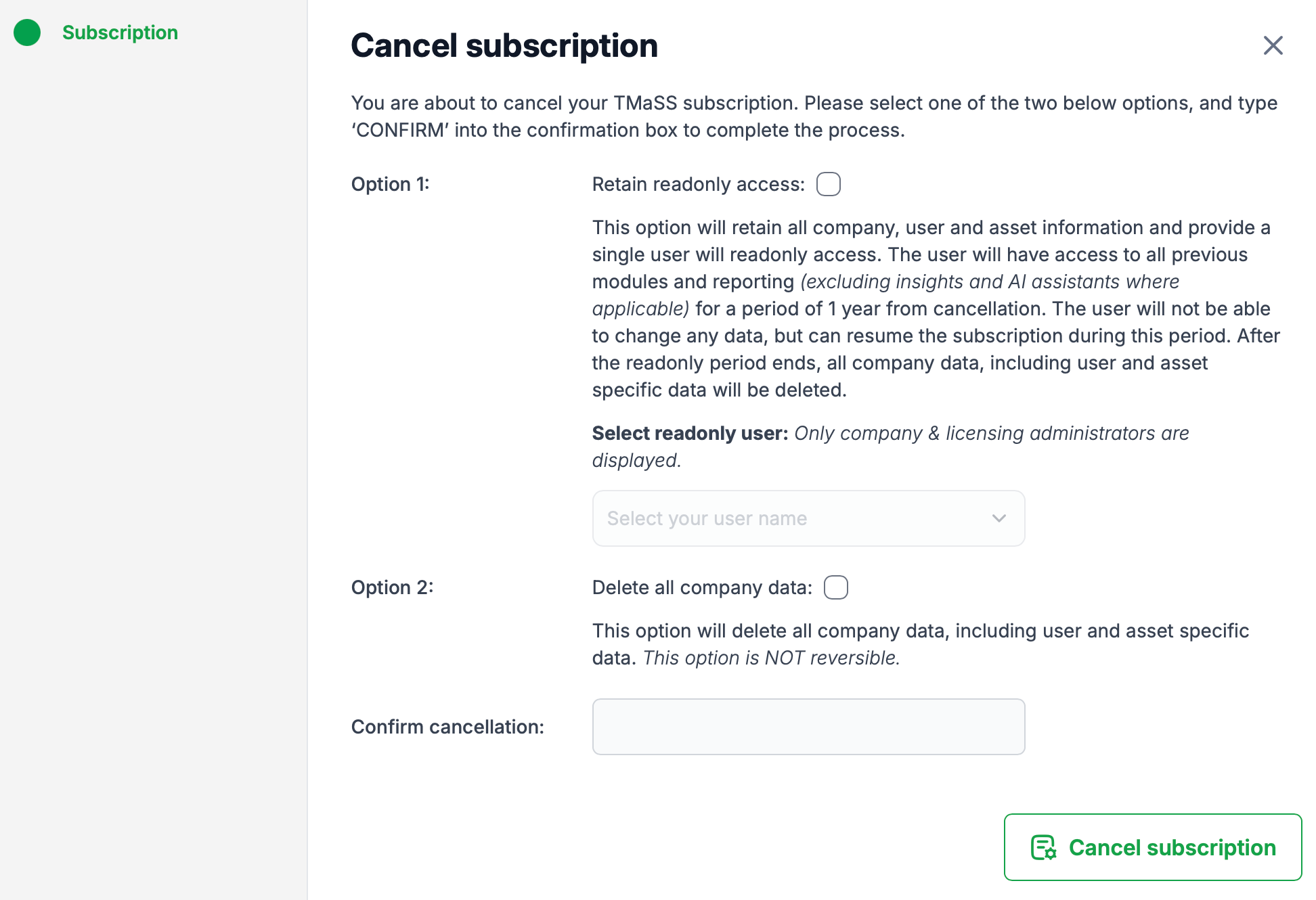
The Cancel subscription dialogue opens (see Image below).
You must choose one of the two options shown before you can proceed.
2. Option 1 – Retain read-only access
Select Retain readonly access if you want to keep your data for reference and have the option to resume your subscription later.
All company, user and asset data is retained.
A single user is granted read-only access:
They can view all previous modules and reporting
(excluding Insights and AI assistants where applicable).They cannot change any data.
Read-only access is available for 1 year from the date of cancellation.
During this period, you may resume the subscription at any time.
After the 1-year read-only period ends, all company data, including user and asset-specific data, is permanently deleted.
Steps for Option 1
Tick Retain readonly access.
In Select readonly user, choose the user who will have read-only access.
Only users with Company & Licensing Administrator access are listed.
Go to Confirm cancellation (step 4 below).
3. Option 2 – Delete all company data
Select Delete all company data if you want everything removed immediately.
All company, user and asset data will be deleted.
This includes all asset-specific and user-specific information.
This option is NOT reversible – the data cannot be recovered once the cancellation is completed.
Steps for Option 2
Tick Delete all company data.
Go to Confirm cancellation (step 4 below).
4. Confirm the cancellation
For either option:
In the Confirm cancellation field, type the word
CONFIRMexactly as instructed.Review your selected option carefully.
Click Cancel subscription.
Your subscription will then be cancelled according to the option you selected:
Option 1: Subscription is cancelled, access becomes read-only for one year, then data is deleted if the subscription is not resumed.
Option 2: Subscription is cancelled and all company data is deleted immediately.
If you are unsure which option is appropriate, we recommend exporting any required reports and data before proceeding, or contacting TMaSS Support for guidance.
Was this article helpful?
That’s Great!
Thank you for your feedback
Sorry! We couldn't be helpful
Thank you for your feedback
Feedback sent
We appreciate your effort and will try to fix the article