The Retorque function in TMaSS allows you to record torque readings for each wheel position on a vehicle. These readings are stored against the vehicle and rims and are visible in the vehicle’s activity log for audit and reporting.
Accessing the Retorque Function
You can start a Retorque from either the Asset list or the Vehicle details screen.
Option 1 – From the Asset list
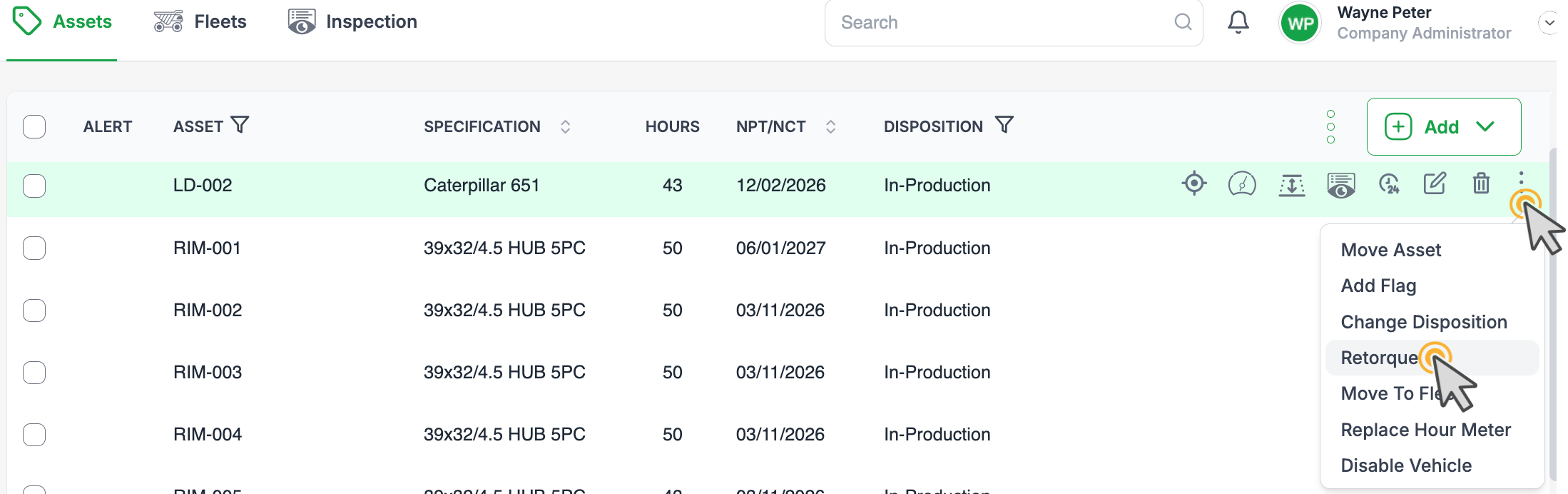
Go to Assets.
Locate the vehicle you wish to retorque.
Hover your mouse over the vehicle row to reveal the context menu.
Click the three dots menu.
Select Retorque.
Option 2 – From the Vehicle details screen
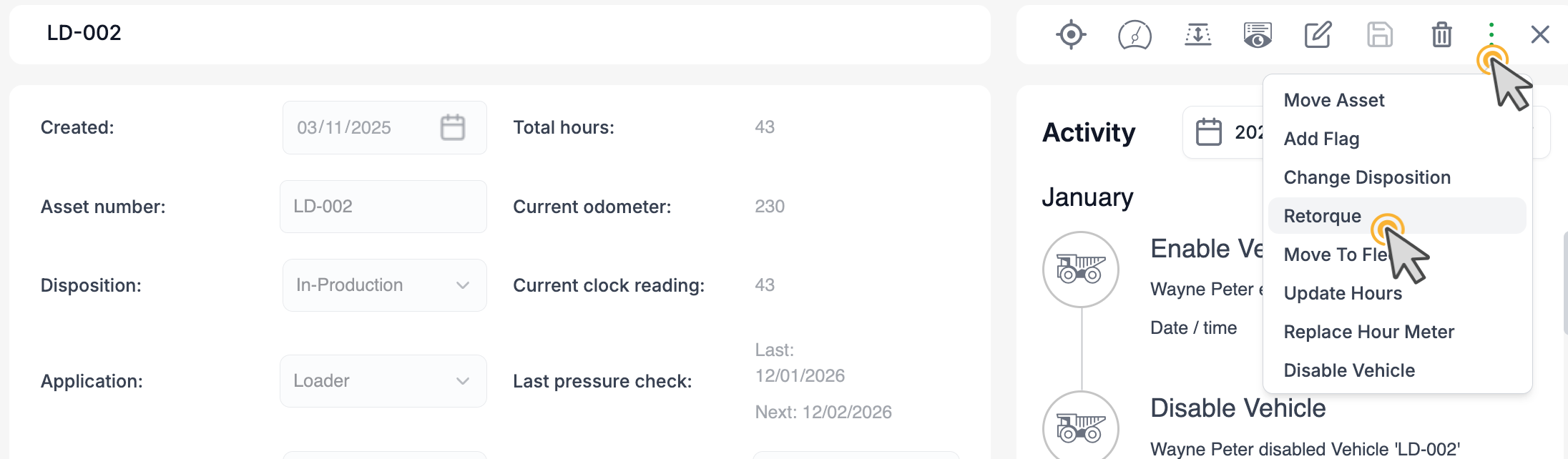
Go to Assets and click the vehicle to open its detail screen.
In the top-right icon bar, click the three dots menu.
Select Retorque.
Both options open the Retorque details dialog.
Completing the Retorque details
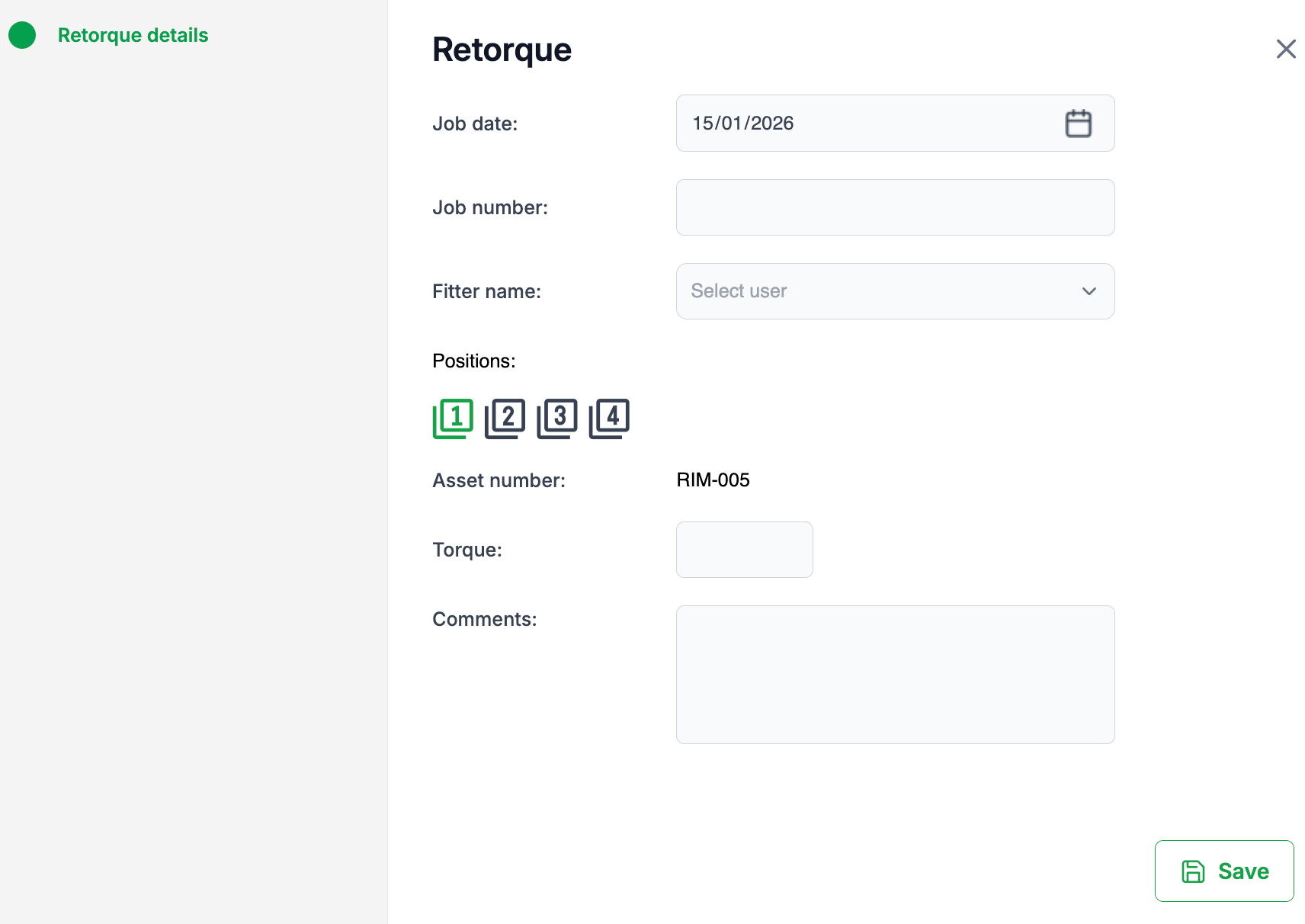
In the Retorque details dialog:
Job date
Enter or select the date the re-torque was completed.
Job number (optional)
Enter the workshop/job number if one is available.
This helps link the Retorque to a work order or job card.
Fitter name
Select the user who completed the re-torque from the dropdown list.
Positions
Click the wheel position number you are recording (e.g. 1, 2, 3, 4).
The Asset number for the rim/position will be shown beneath the position buttons.
Torque
Enter the torque value applied for the selected position.
Repeat for each position
Click the next position button and enter its torque value.
Continue until all required positions have torque readings recorded.
Comments (optional)
Add any relevant notes, such as tool used, torque pattern, or any issues found.
Click Save to store the Retorque record.
Result and Activity Tracking (image 4)
After saving:
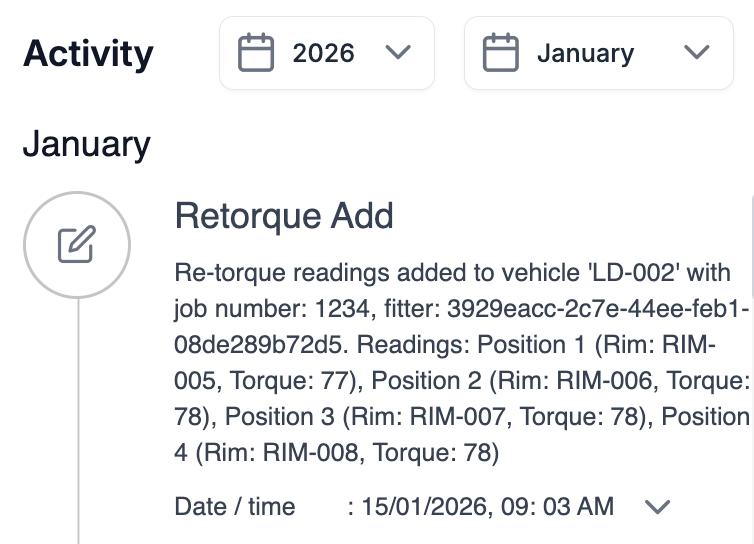
A Retorque Add entry is created in the vehicle’s Activity timeline.
The activity record includes:
Job date and job number
Fitter (user)
Each wheel position, associated rim asset number, and torque value
Any comments you entered
This provides a full audit trail of torque readings for the vehicle and its wheel positions.
Was this article helpful?
That’s Great!
Thank you for your feedback
Sorry! We couldn't be helpful
Thank you for your feedback
Feedback sent
We appreciate your effort and will try to fix the article