The Replace hour meter function lets you update the clock reading on a vehicle when the physical hour meter has been replaced, while preserving the vehicle’s total lifetime hours.
You can access this function from either the Assets list or the Vehicle details screen.
1. Open the Replace hour meter dialog
Option A – From the Assets list
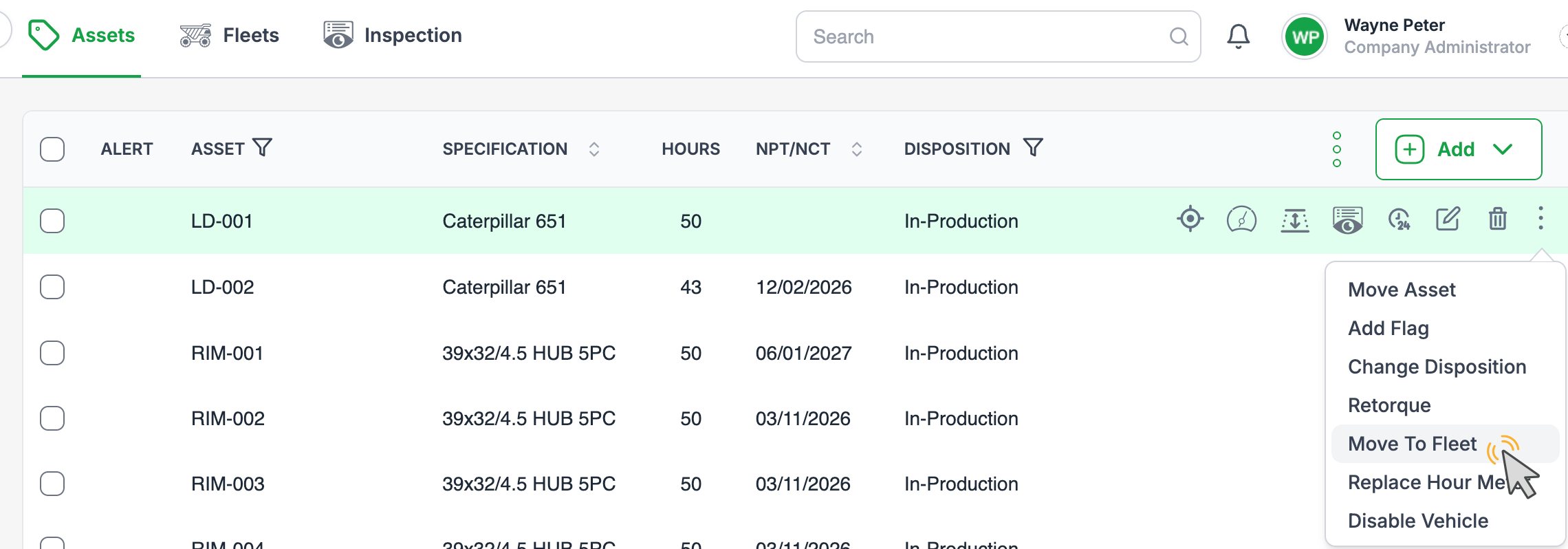
Go to Assets.
Locate the vehicle you want to update.
Hover your mouse over the vehicle row to reveal the context menu (three vertical dots).
Click ⋮ and select Replace hour meter.
Option B – From the Vehicle details screen
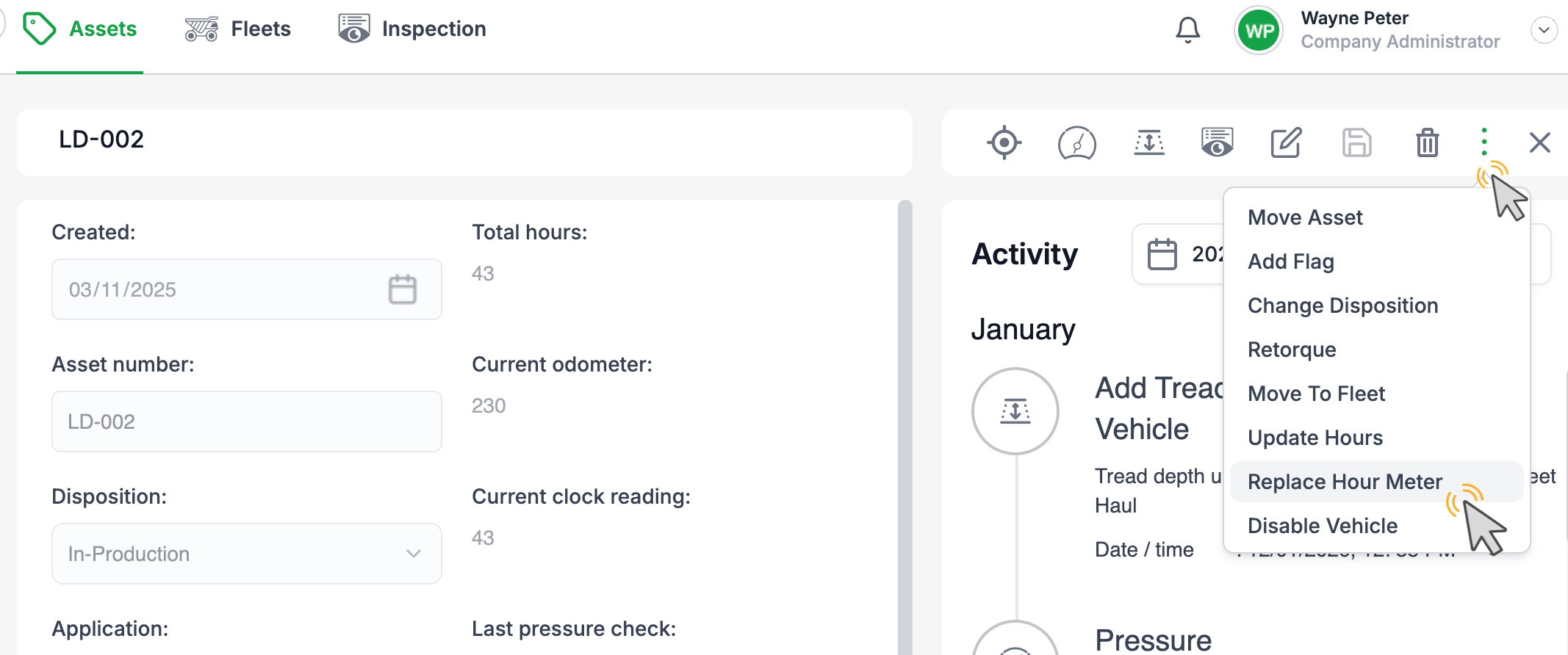
Go to Assets.
Click the vehicle to open its details screen.
In the top-right corner, click the ⋮ context menu.
Select Replace hour meter.
Both options open the Replace hours meter dialog.
2. Complete the Replace hours meter dialog
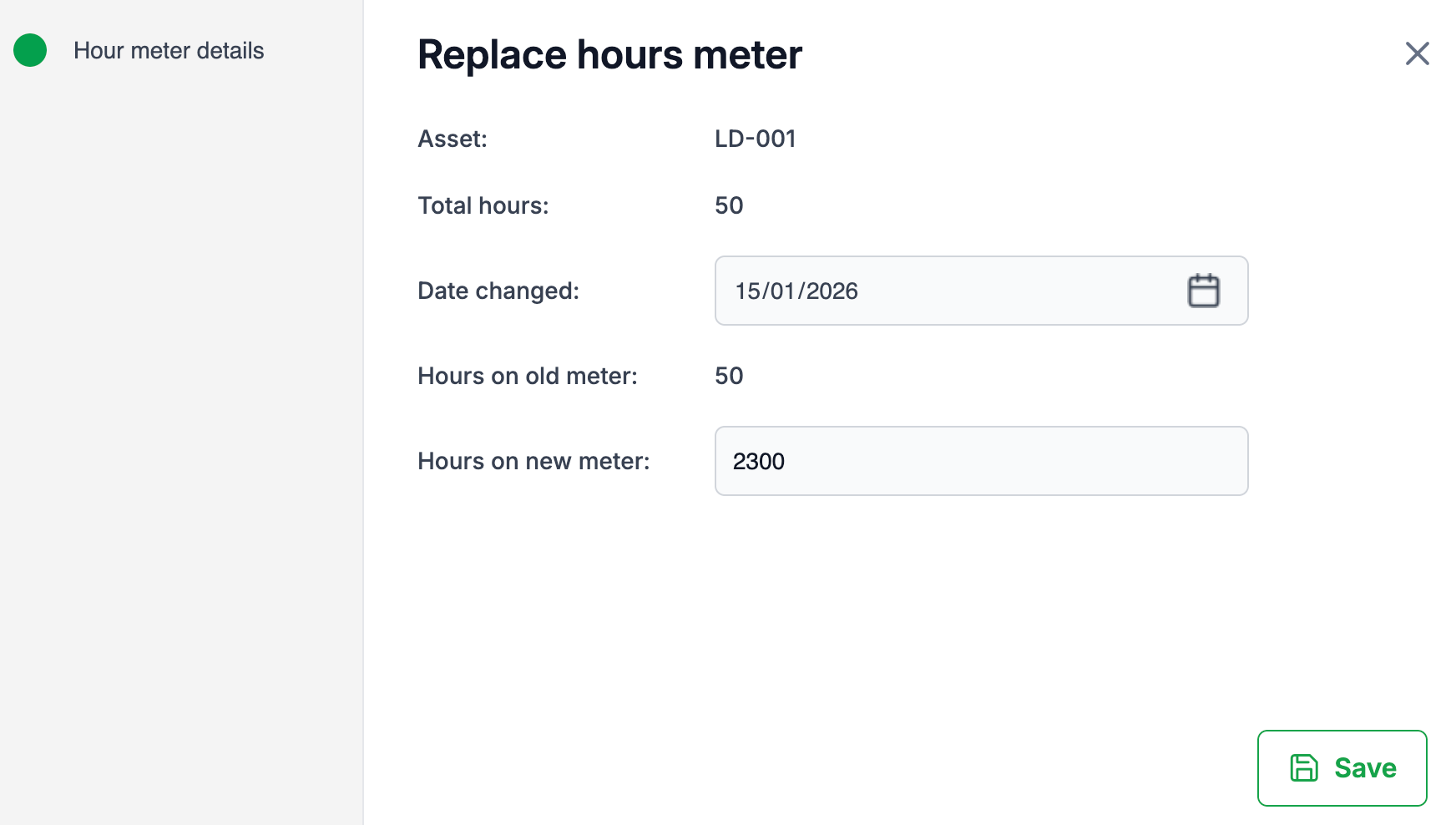
In the dialog you will see:
Asset – The selected vehicle.
Total hours – The vehicle’s existing lifetime hours (unchanged by this process).
Date changed – The date the physical hour meter was replaced.
Hours on old meter – The last reading from the old meter.
Hours on new meter – The starting reading of the new meter (for example,
2300).
Steps:
Set the date in Date changed.
Enter the starting reading of the new hour meter in Hours on new meter.
Click Save.
3. Result on the vehicle record
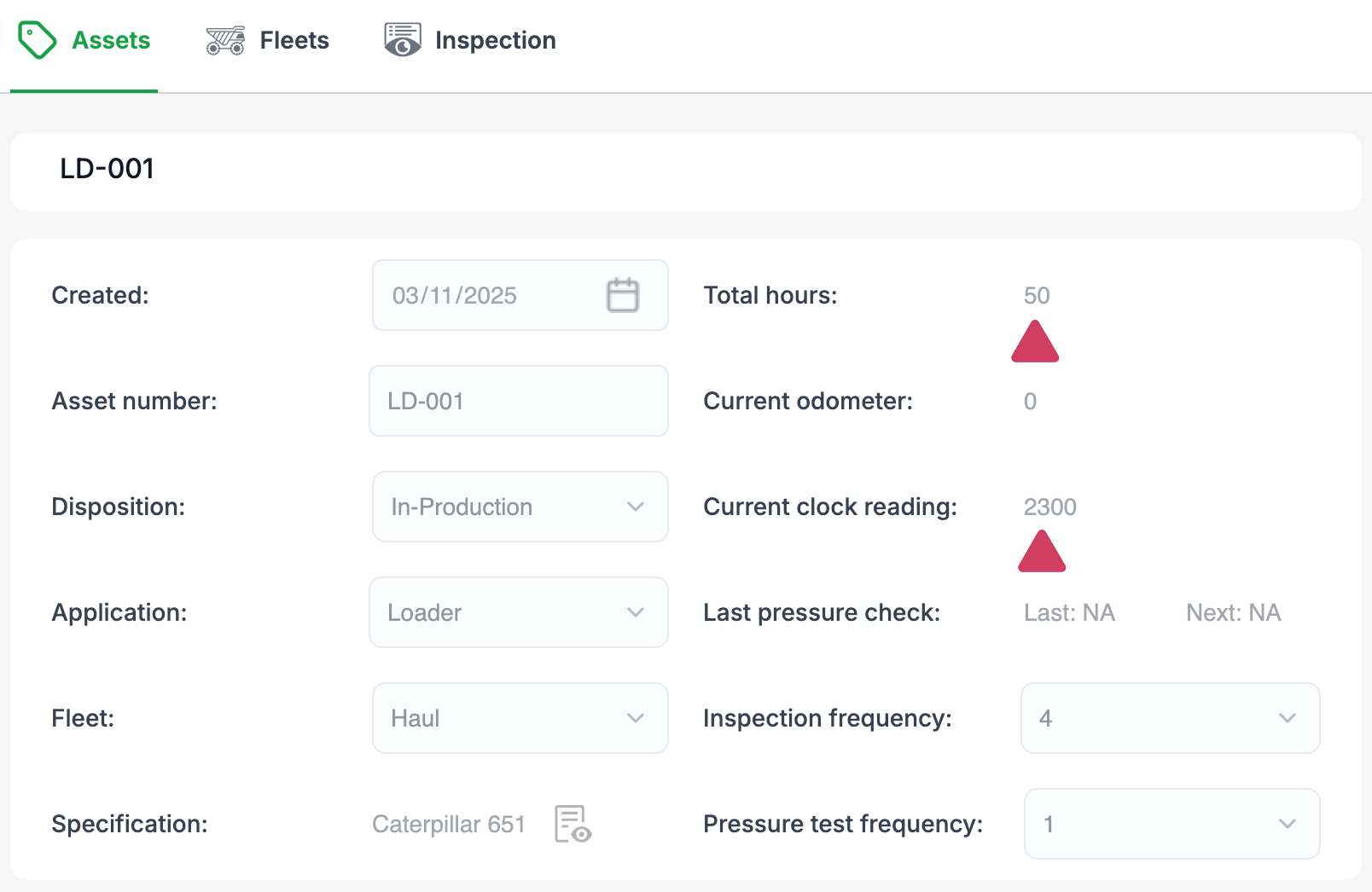
After saving:
Total hours for the vehicle remain the same (the vehicle’s lifetime usage is preserved).
Current clock reading is updated to the new meter value you entered.
The updated clock reading is visible on the Vehicle details screen under Current clock reading.
An entry will be written in the activity list providing details of the change
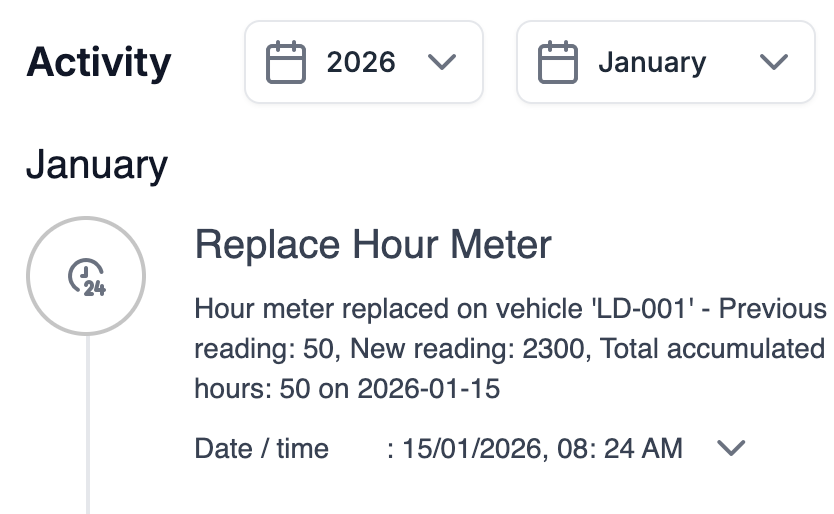
This ensures your vehicle’s hour meter accurately reflects the current physical meter, while keeping historical hours and maintenance data intact.
Was this article helpful?
That’s Great!
Thank you for your feedback
Sorry! We couldn't be helpful
Thank you for your feedback
Feedback sent
We appreciate your effort and will try to fix the article