The Disable Vehicle function is used when a vehicle (and all of its associated assets) is no longer in use but you still want to retain its history for reporting and audit purposes.
When a vehicle is disabled:
The vehicle and its associated assets (tyres, rims, etc.) are disabled together.
They no longer appear in future reports, but remain in the asset list.
The asset disposition does not change (for example, it may still show as In-Production).
The only available actions on the disabled vehicle and its assets are Delete and Enable (see image 5).
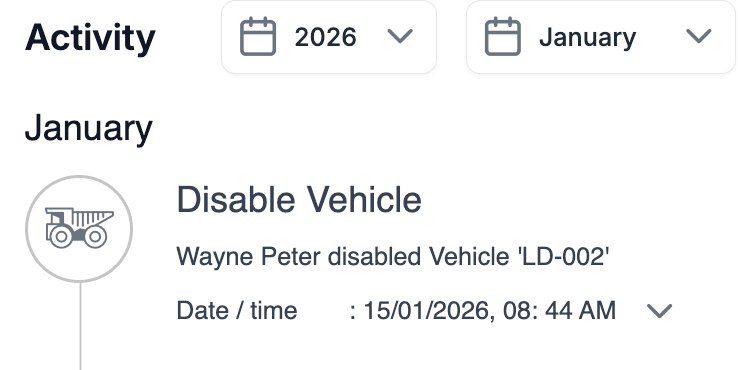
A record of the action is added to the Activity log for the vehicle and each associated asset (image 4).
Note: Only users with the appropriate security permissions can disable vehicles.
Method 1 – Disable from the Asset List
Go to Assets.
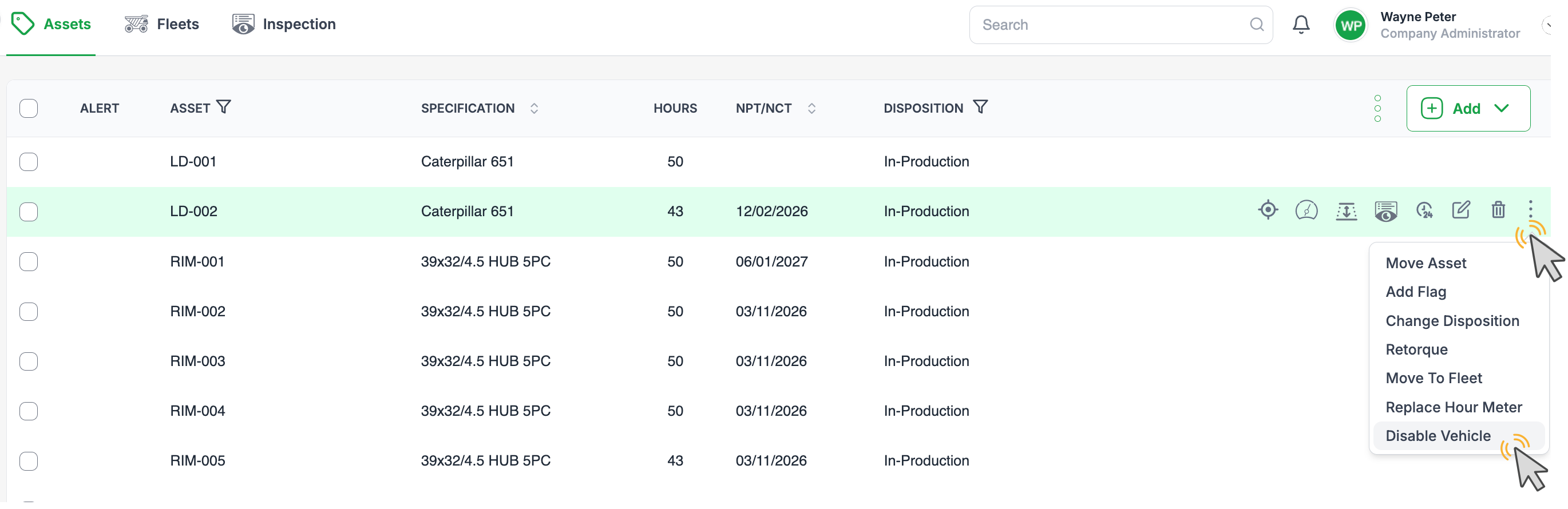
Locate the vehicle you wish to disable in the asset list.
Hover your cursor over the vehicle row to reveal the context icons.
Click the three dots menu at the far right.
Select Disable Vehicle from the menu (image 1).
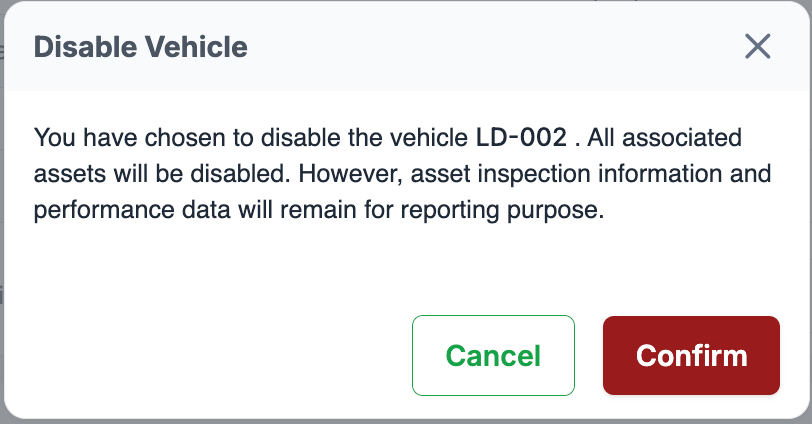
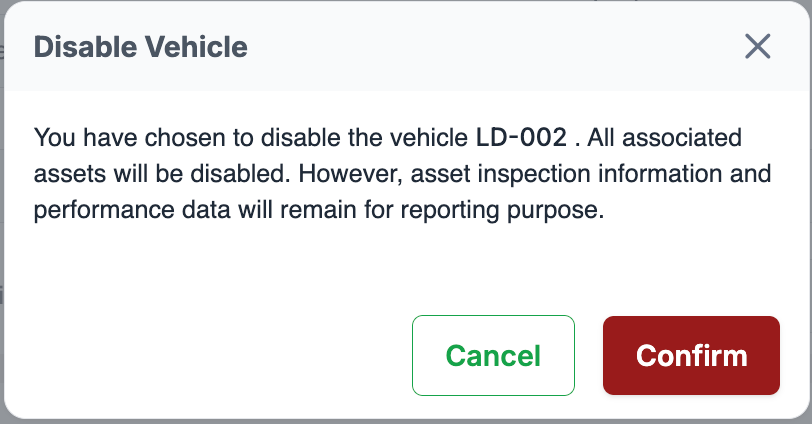
The Disable Vehicle dialog will open (image 3).
Review the message and click Confirm to disable the vehicle.
Method 2 – Disable from the Vehicle Detail Screen
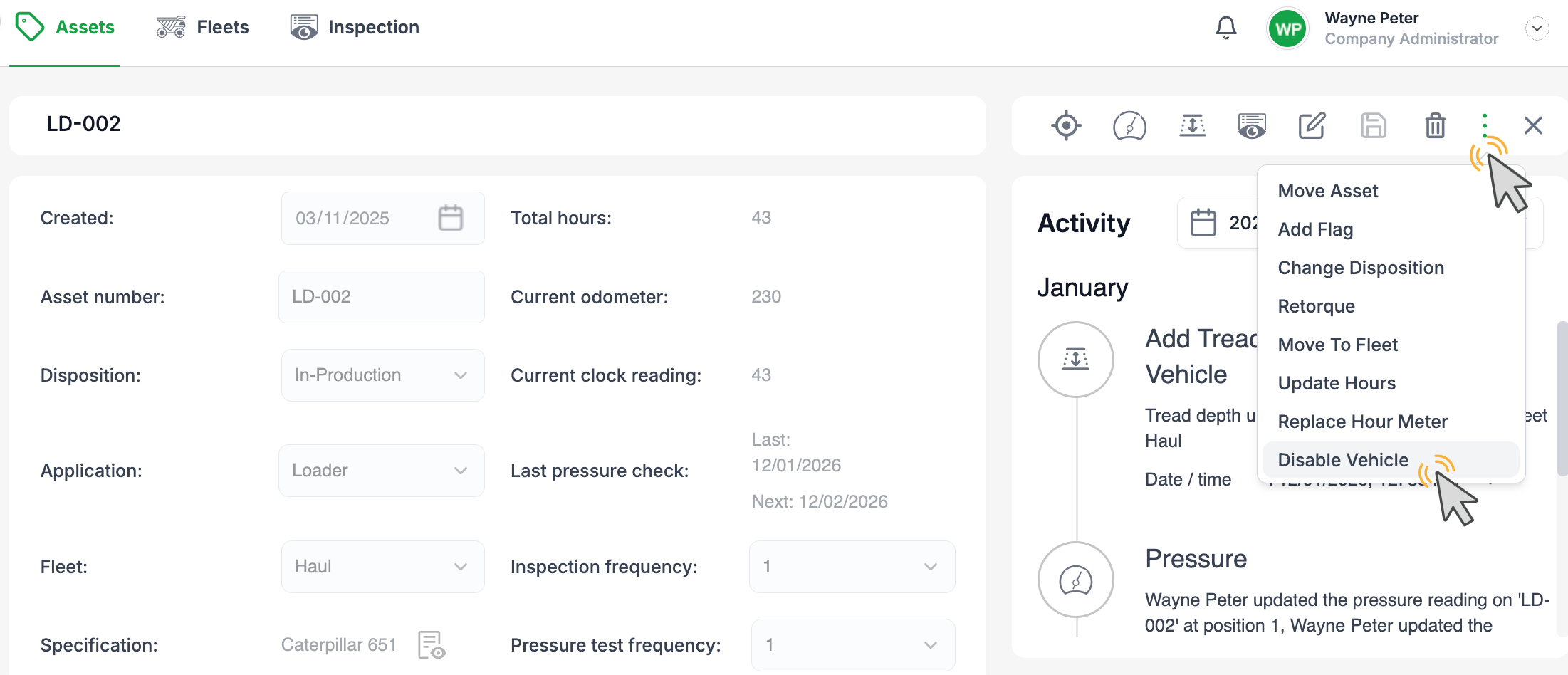
From the asset list, click the vehicle number to open the vehicle detail screen (image 2).
At the top-right of the screen, click the three dots menu.
Select Disable Vehicle.
The Disable Vehicle dialog will open (image 3).
Review the message and click Confirm to disable the vehicle.
What Happens After Disabling
The vehicle and its associated tyres/rims are marked as disabled.
An entry is added to the Activity timeline showing who disabled the vehicle and when (image 4).
The vehicle and associated assets remain visible in the asset list, but:
They will not appear in future reports.
Only Delete and Enable actions are available (image 5).

Re-enabling a Disabled Vehicle
Go to Assets and locate the disabled vehicle in the list.
Click the Enable icon (image 5).
The vehicle (and its associated assets) will be re-enabled and returned to normal reporting behaviour.

This process ensures vehicles that are no longer in use are excluded from operational reporting while still retaining full historical data.
Was this article helpful?
That’s Great!
Thank you for your feedback
Sorry! We couldn't be helpful
Thank you for your feedback
Feedback sent
We appreciate your effort and will try to fix the article