TABLE OF CONTENTS
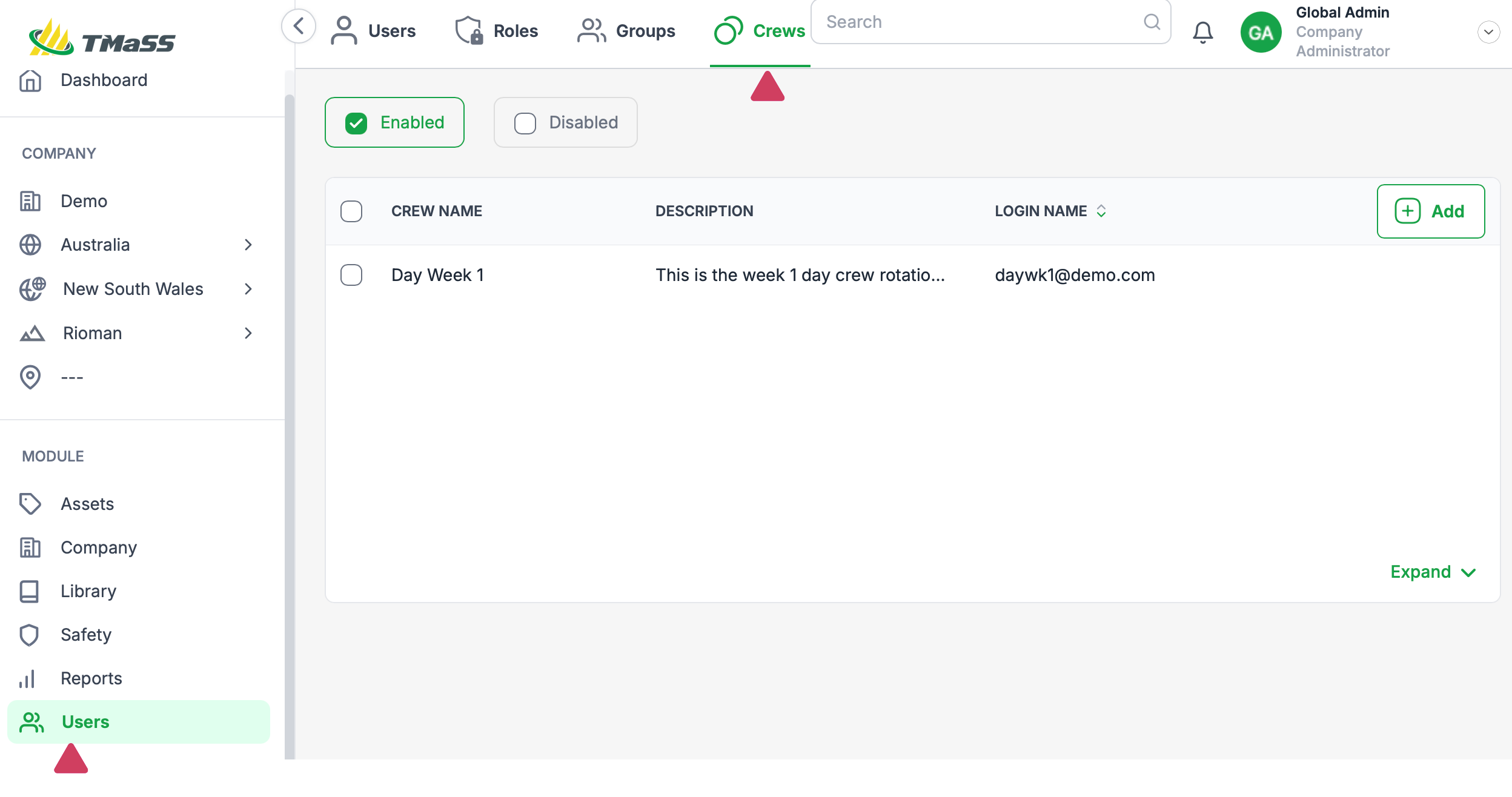
- Step 1: Navigate to the Crews sub-module
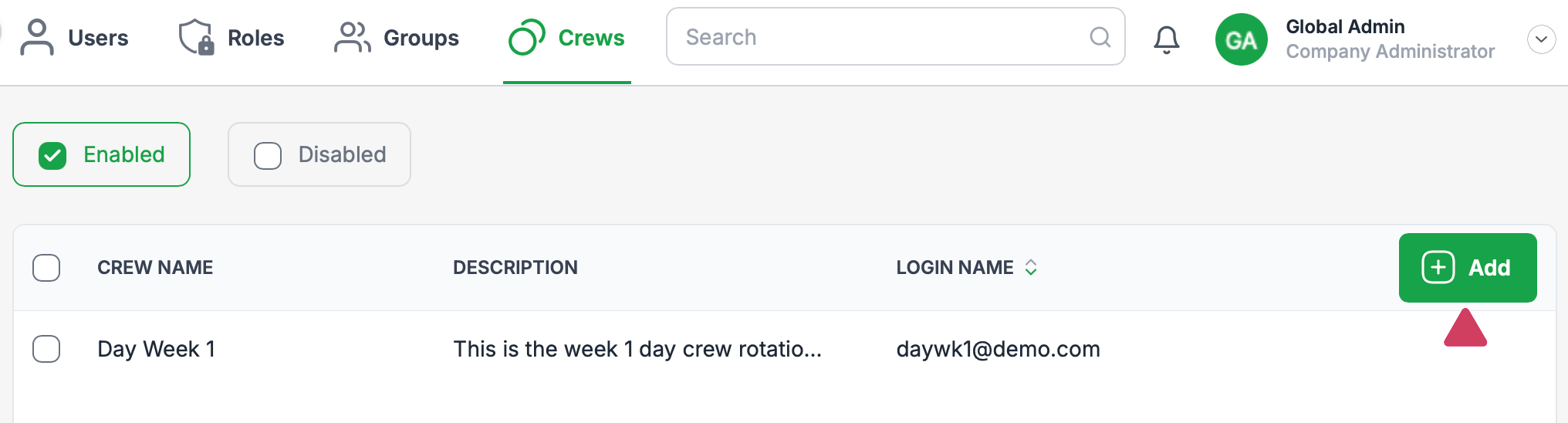
- Step 2: To begin, press the 'Add' button.
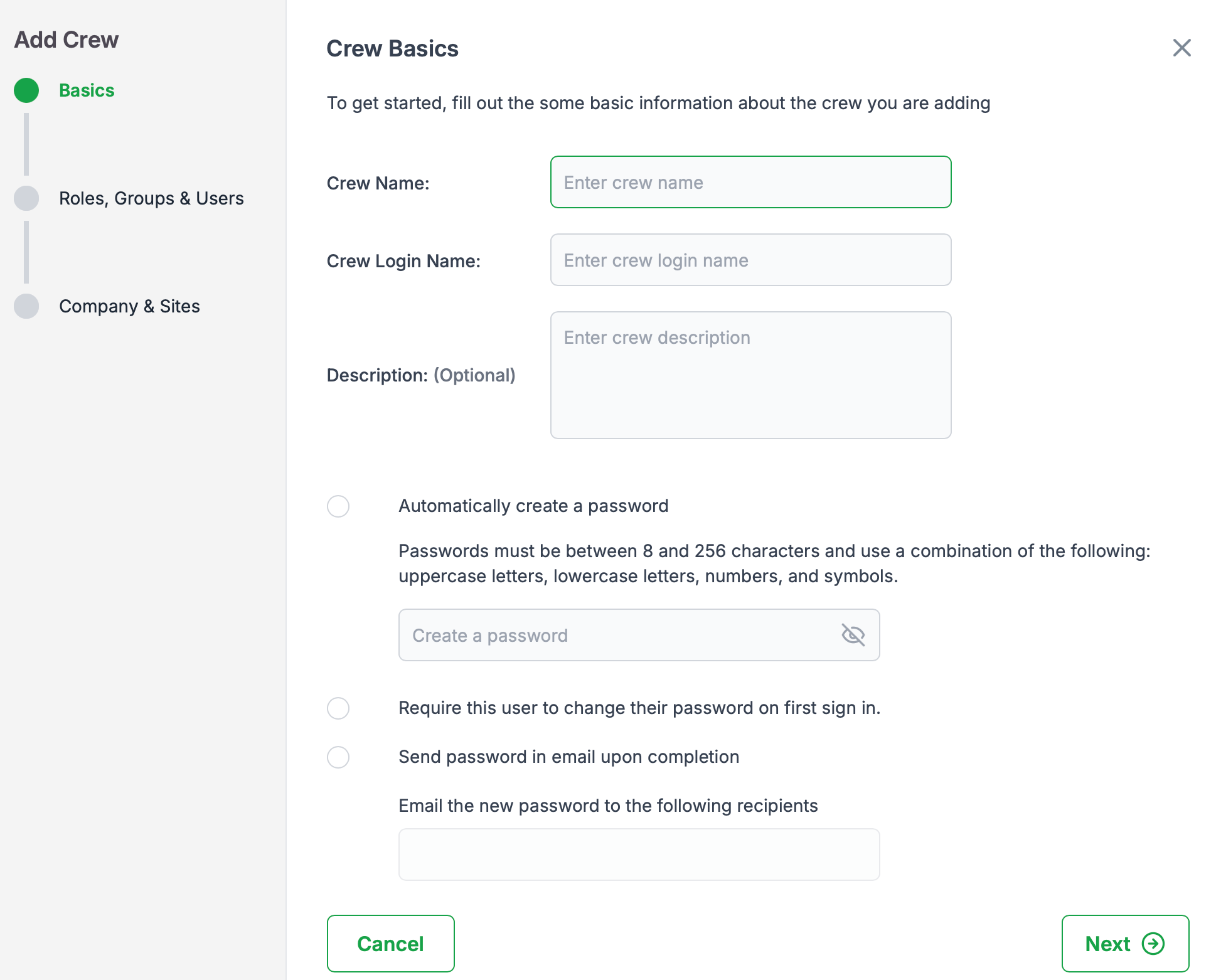
- Step 3: Crew Basics wizard
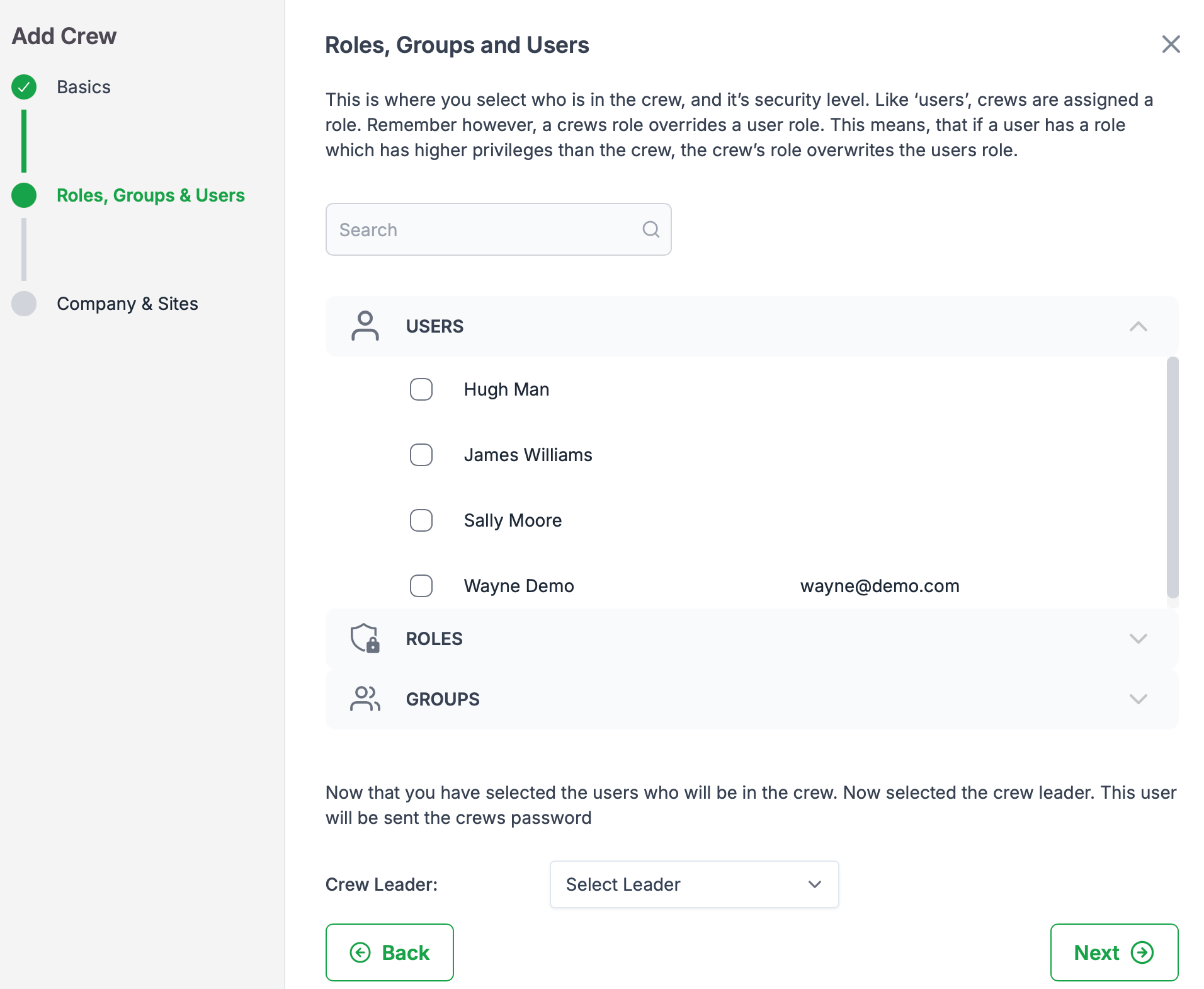
- Step 4: Select the Roles, Groups & Users
- Step 5: Select the crews company & site
- Step 6: Save to create the Crew
Step 1: Navigate to the Crews sub-module
The crews sub-module can be found in the users module.
Step 2: To begin, press the 'Add' button.
When you press the 'Add' button, the Add Crew wizard will be displayed
Step 3: Crew Basics wizard
Fill out the required information and press 'Next' to continue
Recommendations:

- Allow the system to automatically create a complex password for you.

- Require the user to change their password on first login
Step 4: Select the Roles, Groups & Users
Select the users and their roles by assigning the appropriate role and groups.
Each crew requires a role. However, a crew can support multiple roles and groups
The crew leader is a requirement. All alerts and correspondence is sent to the crew leader.
Click 'Next' to continue
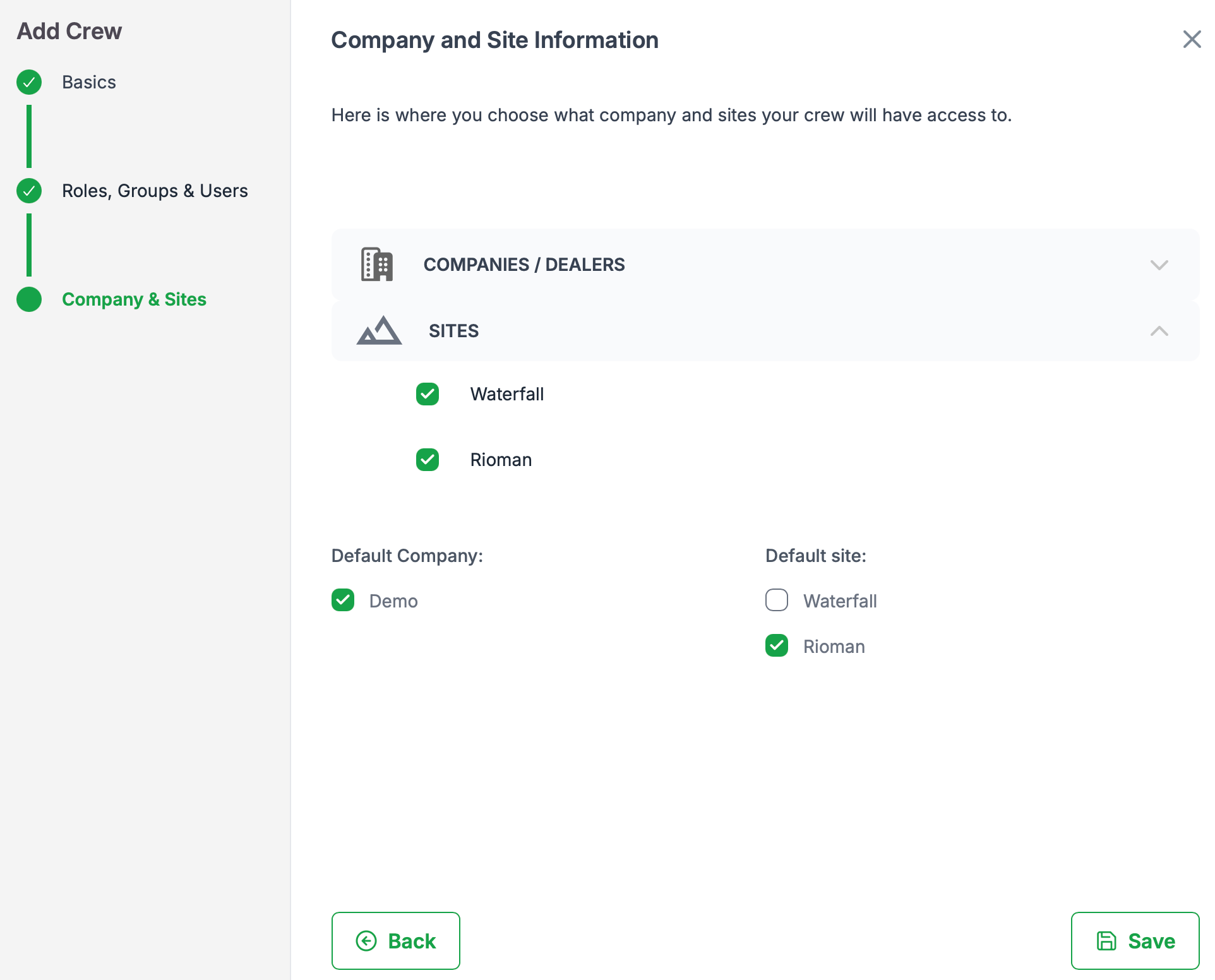
Step 5: Select the crews Company & Site
The company and sites selected here will determine what data the crew has access to. The default company and site determines what site is displayed on first login.
Step 6: Save to create the Crew
Was this article helpful?
That’s Great!
Thank you for your feedback
Sorry! We couldn't be helpful
Thank you for your feedback
Feedback sent
We appreciate your effort and will try to fix the article