TABLE OF CONTENTS
Moving a tyre asset allows you to reassign it to a different site and/or location within your system. This feature is useful for tracking tyre inventory and ensuring assets are accurately located and recorded.
Important Rules
Tyres with a disposition of In-Production cannot be moved.
You can move tyres between sites or between locations within the same site.
Steps to Move a Tyre Asset
1. Open the Move Menu
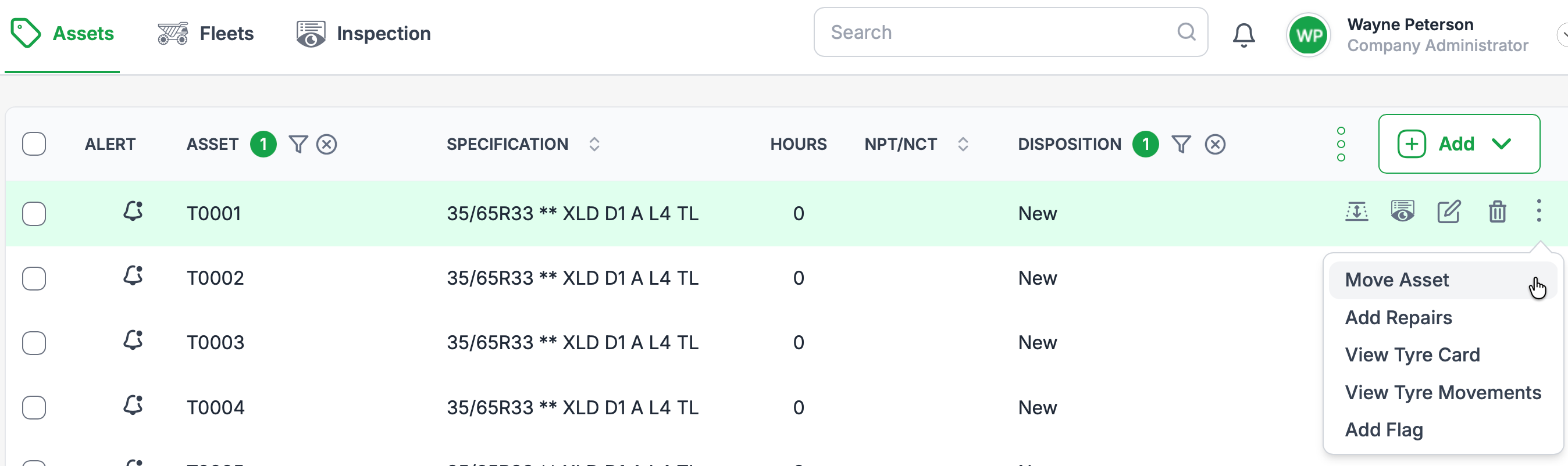
Locate the tyre asset you want to move in the asset list.
Hover your cursor over the asset row to reveal the three dots menu (
⋮).Click the three dots to open the dropdown menu.
Select Move Asset from the menu.
2. Fill in Move Details
The Move Asset dialog will open.
New Site – Select the site where the tyre will be moved.
New Location – Select the specific location within the chosen site.
Comments – Optionally, add a note explaining the move.
3. Save the Move
Once all details are complete, click Save.
The tyre’s site and/or location will be updated in the system.
Tips
Use clear and concise comments for easier tracking.
If the tyre is In-Production, update its disposition before attempting to move it.
You can verify the move by checking the asset’s updated site and location fields.
Was this article helpful?
That’s Great!
Thank you for your feedback
Sorry! We couldn't be helpful
Thank you for your feedback
Feedback sent
We appreciate your effort and will try to fix the article