This article explains how to reset a user’s password in TMaSS using either the Users list or the User Details page.
Note: You must have appropriate administrative permissions (e.g. Company Administrator) to reset passwords.
TABLE OF CONTENTS
- 1. Reset from the Users List (Context Menu)
- 2. Reset from the User Details Page
- 3. Using the Reset Password Dialogue
1. Reset from the Users List (Context Menu)
Go to Users from the left-hand navigation.
Locate the user whose password you want to reset.
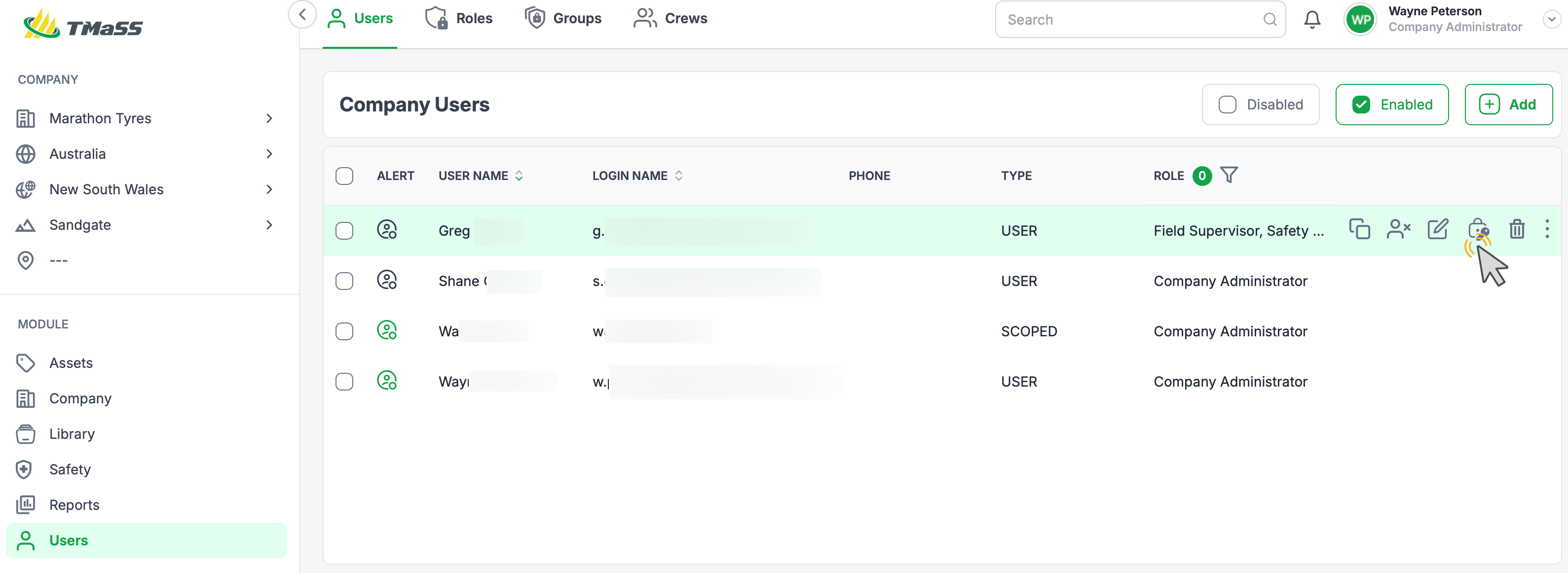
Hover your mouse over the user’s row to reveal the context icons (see Image 1).
Click the Reset password icon (key/lock icon).
This opens the Reset Password dialogue.
Image 1 – Reset password from Users list
2. Reset from the User Details Page
From the Users list, click the user’s name to open their User Details page.
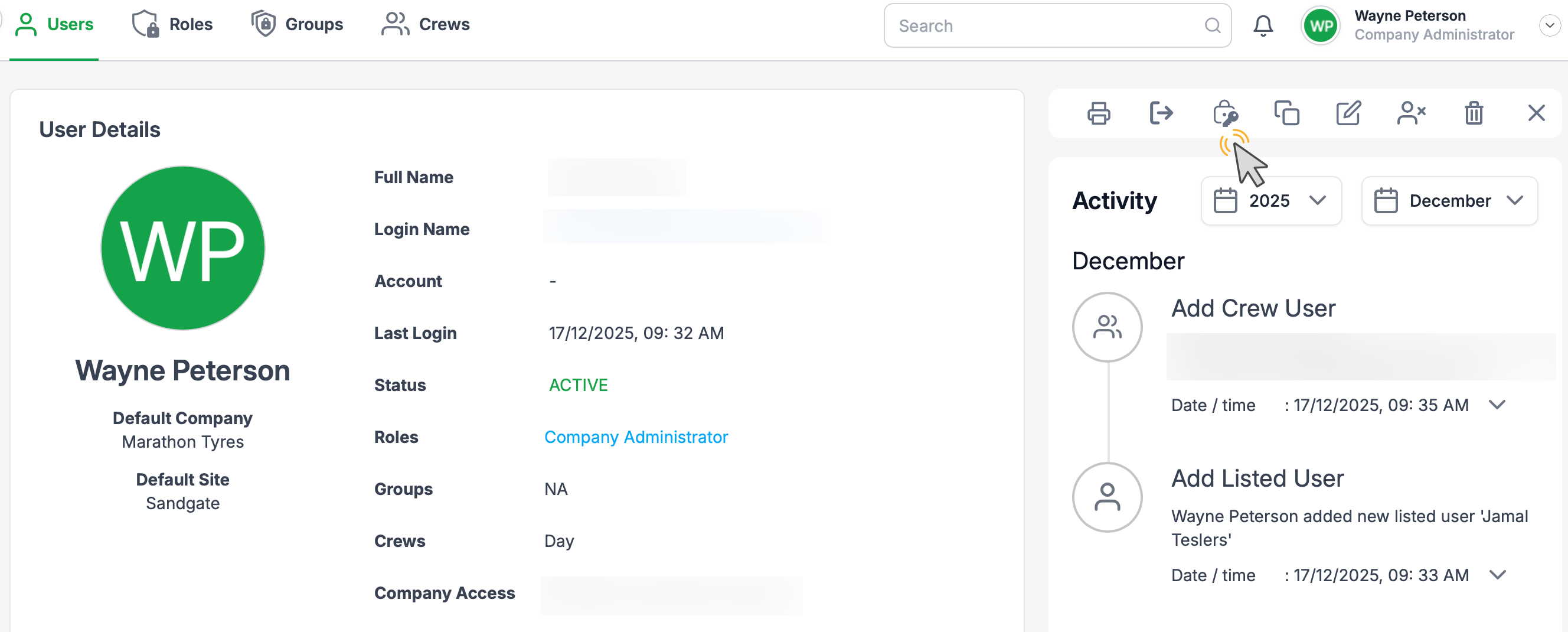
On the top icon bar, click the Reset password icon (see Image 2).
This also opens the Reset Password dialogue.
Image 2 – Reset password from User Details
3. Using the Reset Password Dialogue
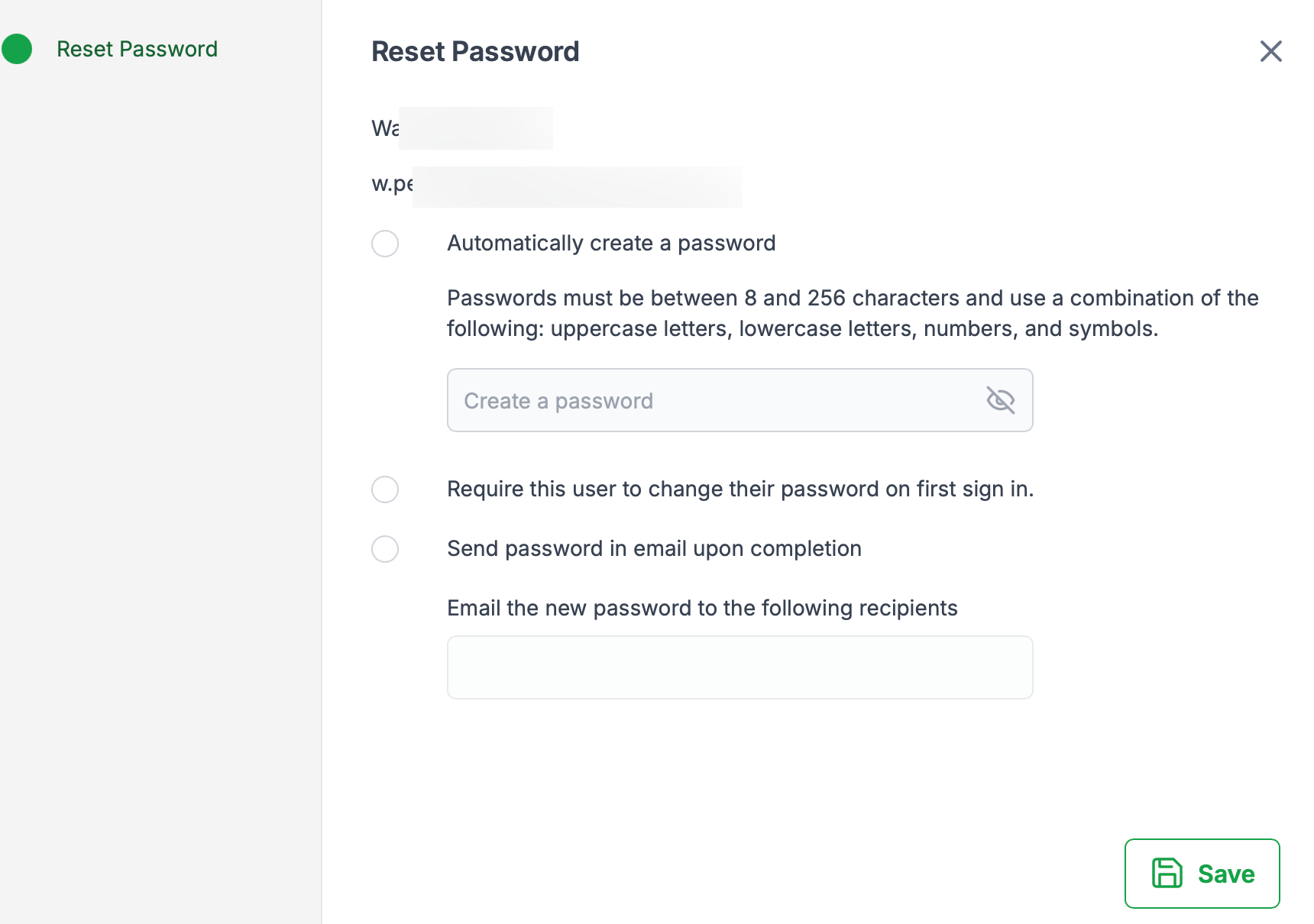
The Reset Password dialogue (see Image 3) provides several options:
Automatically create a password
Select this option to have TMaSS generate a secure password that meets the password rules (length and character mix).
Manually enter a new password
Leave Automatically create a password unselected.
Type the new password into the Create a password field, ensuring it meets the complexity requirements.
Require password change on first sign in
Tick Require this user to change their password on first sign in if you want the user to set their own password the next time they log in.
Password notification recipients
By default, the new password will be emailed to the user.
To send the password to someone else as well (e.g. supervisor, IT), enter their email address in Email the new password to the following recipients.
Click Save to apply the reset.
Image 3 – Reset Password dialogue
Once saved, the user’s old password is no longer valid. They must use the new password (or set a new one on first sign in, if enforced) the next time they log in to TMaSS.
Was this article helpful?
That’s Great!
Thank you for your feedback
Sorry! We couldn't be helpful
Thank you for your feedback
Feedback sent
We appreciate your effort and will try to fix the article