The User Activity Log lets administrators review everything a specific user has done in TMaSS over time, including web and mobile activity.
TABLE OF CONTENTS
- Accessing a user’s activity
- Navigating the activity timeline
- What each activity entry shows
- Printing the activity log
Accessing a user’s activity
Go to Users from the main navigation.
Click the user you want to review.
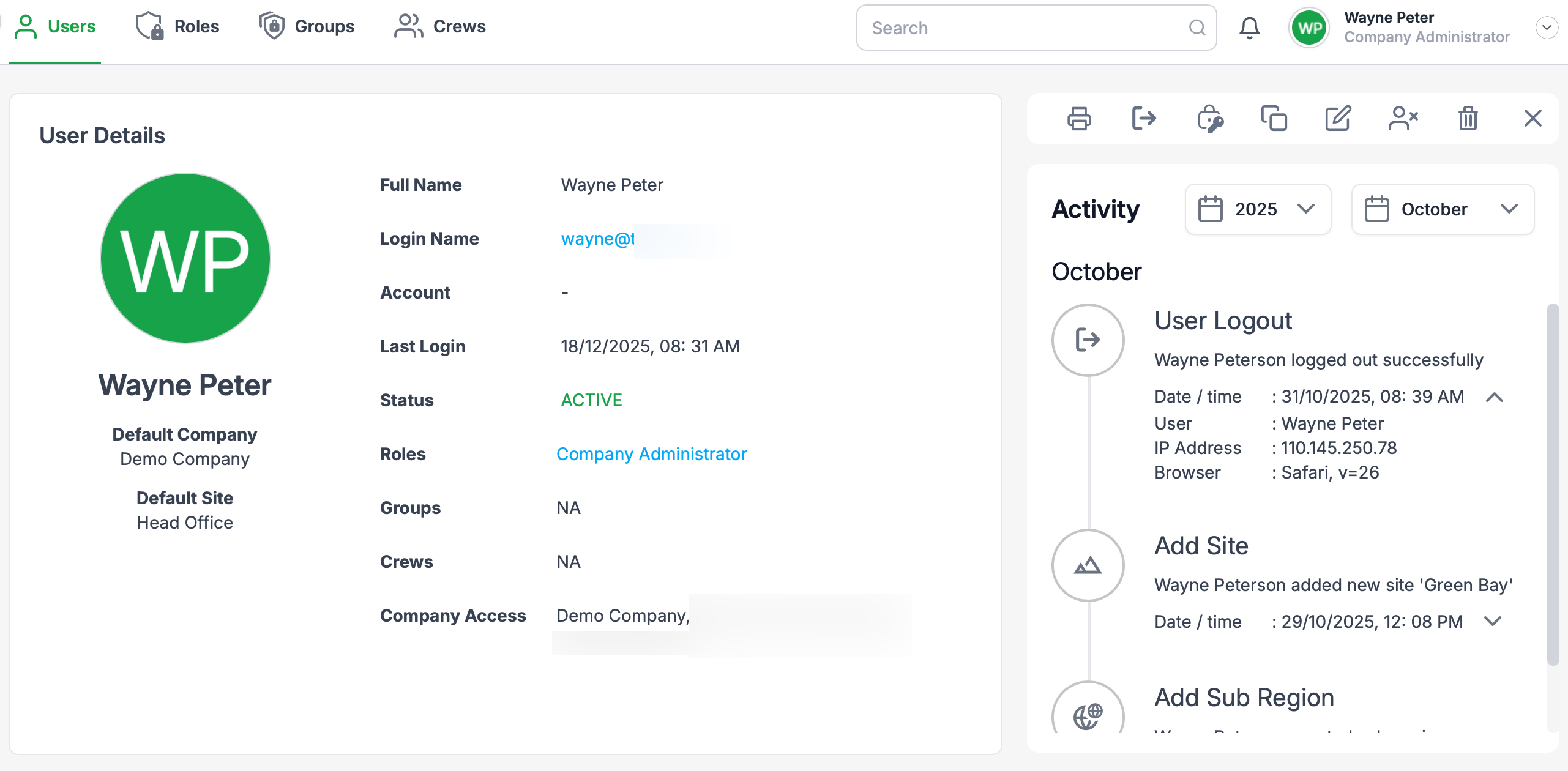
On the right-hand side of the User Details page, locate the Activity pane
Navigating the activity timeline
In the Activity pane you can:
Scroll down the list to see activity in chronological order.
Use the Year and Month dropdowns at the top of the pane to jump to a specific period (e.g. 2025 → December).
Only activity for the selected user, year, and month is displayed.
What each activity entry shows
Each row in the activity timeline shows:
A related icon indicating the type of action (e.g. login, edit, inspection, safety observation).
The activity name or function performed (e.g. User Login, Add Tyre Inspection, Create Safety Observation).
The date and time the action occurred.
The username that performed the action.
The IP address and internet browser / platform used at the time of the action (visible on the exported log and detailed view).
On the printed/exported User Activity Log report, these appear in structured columns such as Date, Time, Event, and Details, with a header showing Compiled By, User Name, and Last Login for the selected user.
Printing the activity log
To generate a printable record of the user’s activity:
With the User Details page open and the required Year and Month selected in the Activity pane, click the Printicon in the top-right icon bar.
A formatted User Activity Log report is generated, which you can:
Print to paper, or
Save as PDF via your browser’s print dialog.
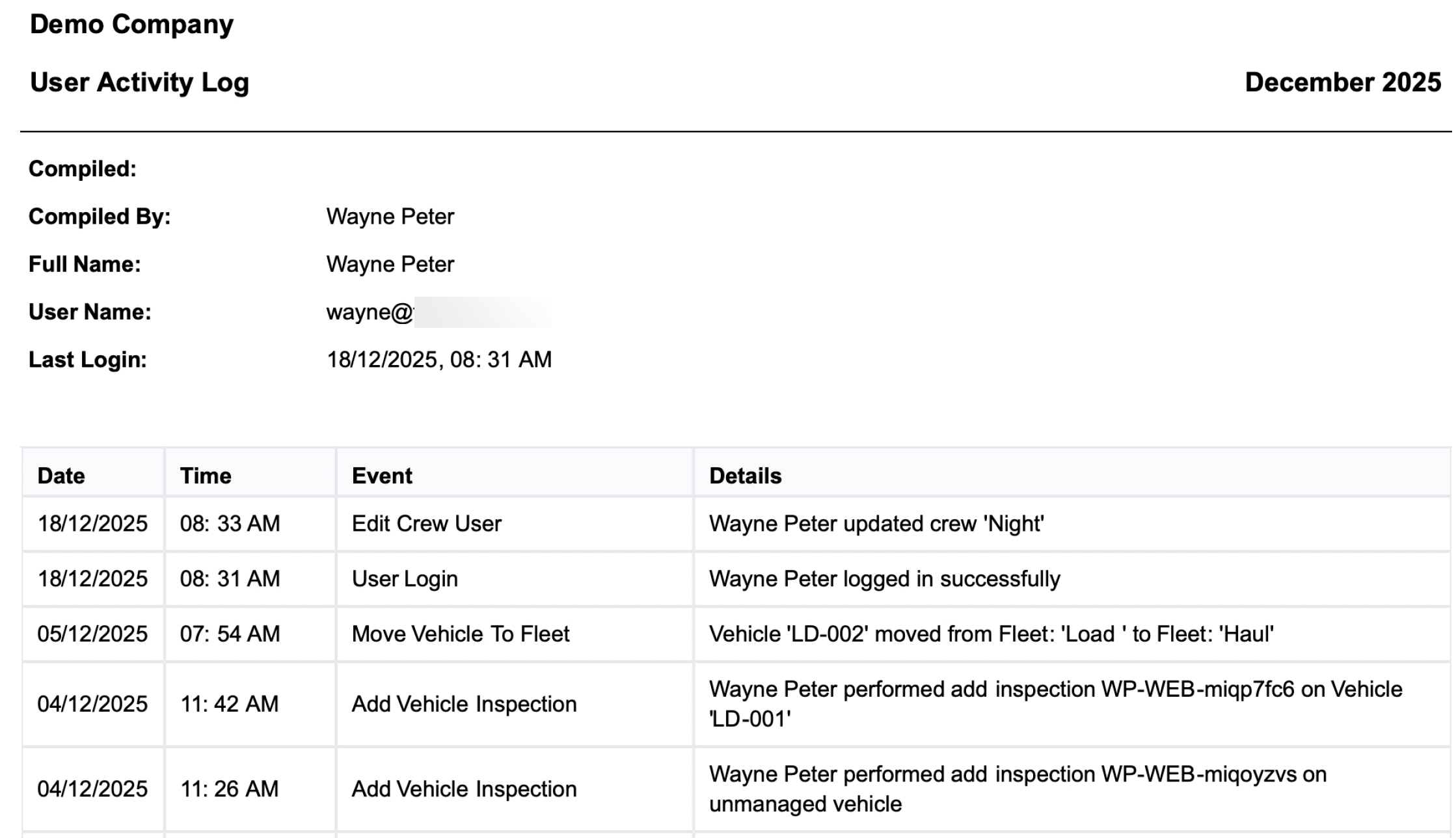
The printed report includes all events for the selected period, in the same order as shown in the Activity pane, along with summary details (company, compiled by, user, last login) for audit and record-keeping.
Was this article helpful?
That’s Great!
Thank you for your feedback
Sorry! We couldn't be helpful
Thank you for your feedback
Feedback sent
We appreciate your effort and will try to fix the article