Manage company settings in TMaSS
Company settings control the choices users see when recording asset work, who receives alerts and how TMaSS uses site operating hours in reports. Each company starts with a copy of the system defaults. Review these at setup and adjust them to match your operations.
Permission required. You need the Edit Settings security role assignment to edit company settings.
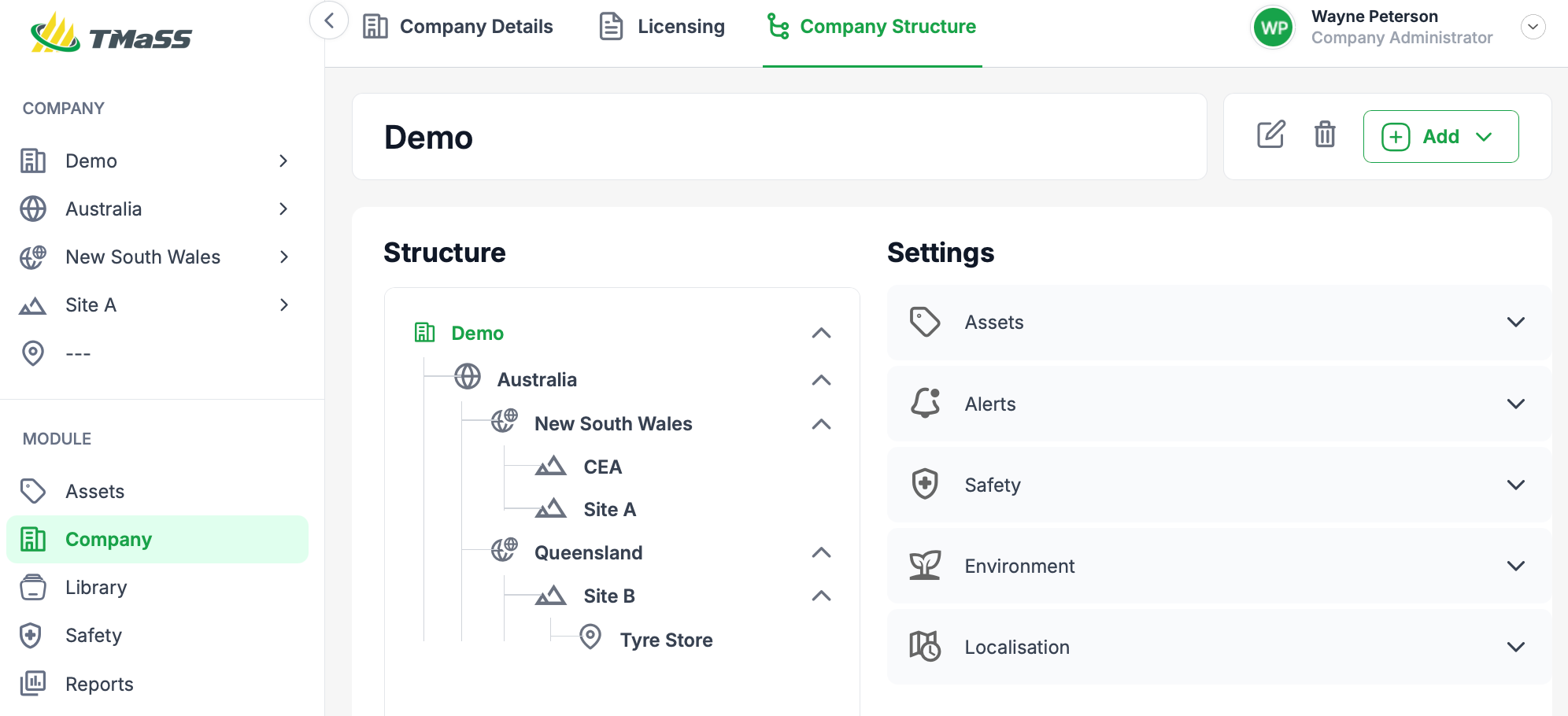
Find settings for your company or site
- Open the Company module and select the Company Structure tab.
- In the Structure tree, select the company to review its defaults. To review a region or site, select its name instead. Check the name at the top of the page.
- In Settings, expand a section, then a subsection, to see its current values.
Decide where a change belongs
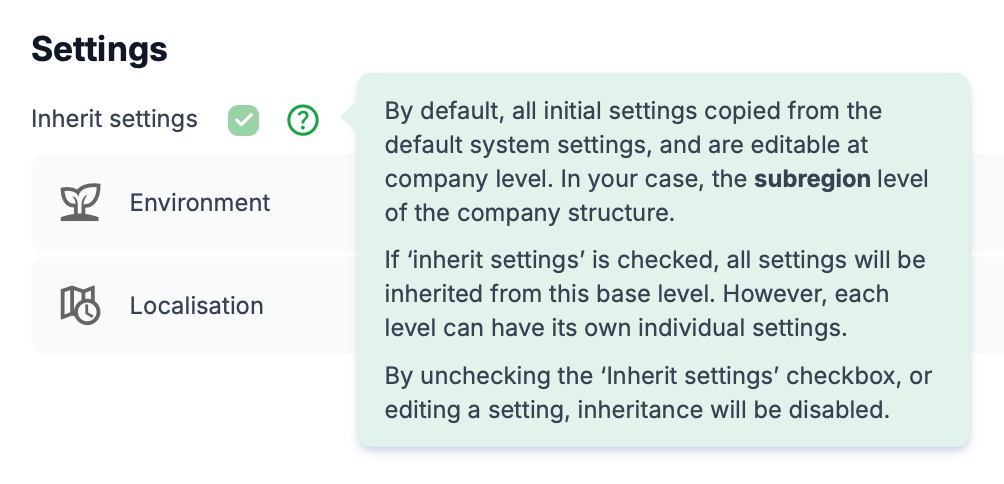
Company settings flow down to regions, sub-regions, sites and locations by default. Keep shared values at company level so teams use consistent terms and receive the same updates. Use local settings where a branch has different operating conditions or alert contacts.
Important. Disabling inheritance is permanent for the selected level. Clearing Inherit settings or editing an inherited setting disables inheritance. Check the selected level before taking either action.
Apply settings at the right level
Change a shared company setting
Select the company name in the structure tree. Expand the relevant section and subsection, then open the setting. Update the value and save the change. Levels that inherit the company settings receive the update.
TMaSS requires some settings or list entries for system functions and restricts editing or removal. The eight asset dropdown lists you can customise are listed on the next page.
Set up a site with different operating conditions
Suppose Site A works in hard rock around the clock and Site B works in soft rock eight hours a day. Applying Site A’s hours to Site B would overstate its operating time. Recording each site’s conditions gives tyre replacement schedules and forecasts a more accurate basis as historical data builds up.
- Check the site. Select Site B in the structure tree. Review Inherit settings and the current values under Environment.
- Decide whether to manage settings locally. If Site B needs its own values, clear Inherit settings. Once disabled, inheritance cannot be re-enabled at that level.
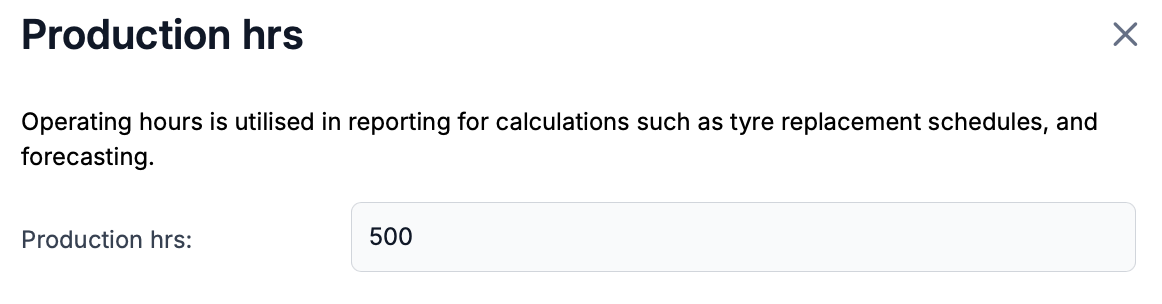
- Record site conditions. Under Environment → Operating environment, open Environment and select Soft Rock. Under Production, update Production hrs to reflect the site’s operating schedule. Save your changes.
- Check local contacts. If a different person handles Site B’s alerts, open Alerts → Contacts and select the appropriate TMaSS user. Check the saved values while Site B is still selected.
Assets
Use the Assets section to review how teams classify equipment and record removals, damage, repairs and scrapping. Shared dropdown terms make it easier to compare the reasons recorded across sites.
Dropdown lists you can customise
General — Asset removal reasons, Damage locations and Dispositions.
Rims — Rim scrap reason.
Tyres — Tyre scrap reasons, Failure mode and Classifications.
Vehicles — Application (for example, forklift, grader or haul truck).
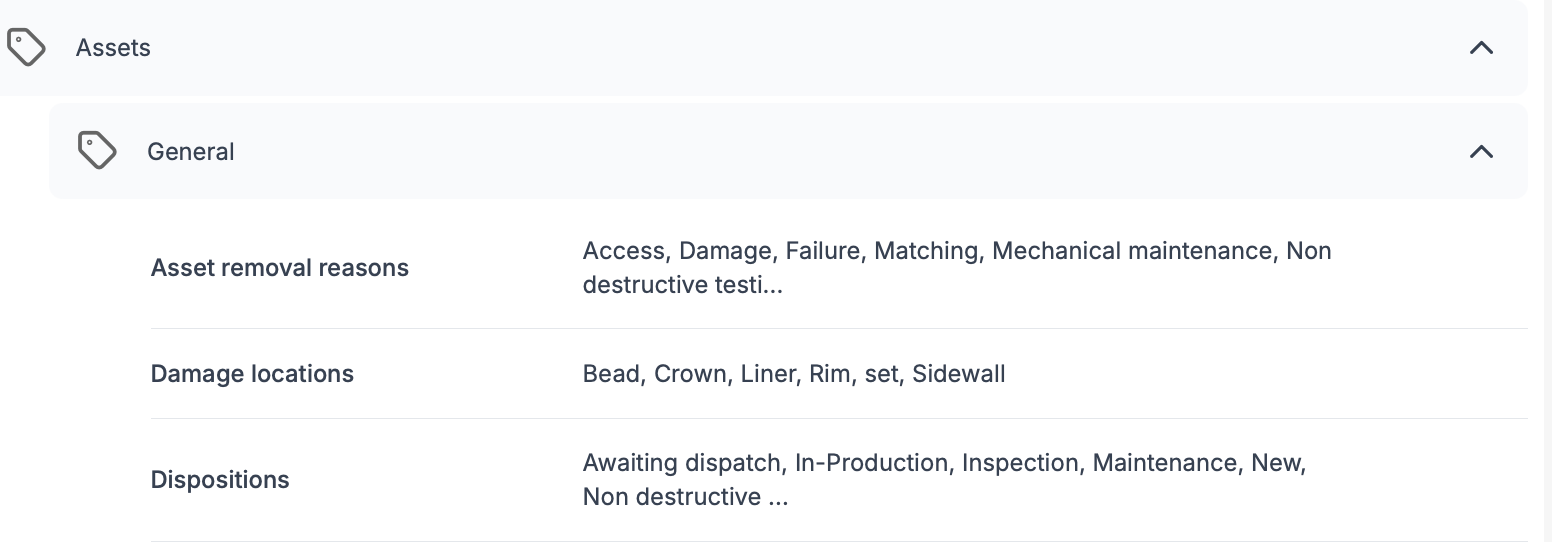
For example, to review where users can record tyre damage, open Assets → General → Damage locations. Check whether choices such as Bead, Crown and Sidewall match the terms your teams use.
Other rim and tyre settings
Rims. Review rim repair reasons, the non-destructive testing (NDT) interval and NDT alerts. The initial alert sets the first notification point. The post-alert interval determines when it repeats. The alert settings include hours, months and distance.
Tyres. Review the rotation policy in hours, percentage of useable tread, scrap average target in hours and front fitment threshold as a percentage of tread. Repair type controls where a repaired tyre can be fitted. When a user selects a vehicle position in Manage Positions, TMaSS lists tyres eligible for that position.
Alerts and safety
Alerts
Review both the delivery channel and the person responsible for each alert. If a site manages its own notifications, select that site before checking these subsections.
Alerts — Enable in-app alerting, email alerting or both as appropriate.
Contacts — Select TMaSS users for the alerts, observation, asset, safety, maintenance, licensing and user alerts manager roles.
Licensing — Review notifications for a disabled company, licensing changes, failed payments, credit card expiry and emailed invoices.
Safety — Choose notifications for completed observations, non-conformances and exceeded observation thresholds.
Users — Choose notifications for user creation, deletion and disabling.
Safety
Use the top-level Safety section to set the timing for observations and reviews. Use Alerts → Safety to choose which safety events generate notifications.
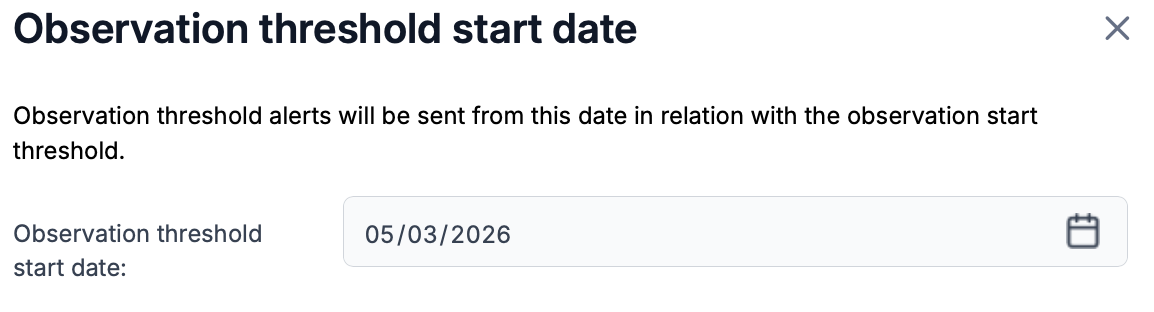
Dates — Set the Observation threshold start date and Review threshold start date. Each date determines when alerts can start for its corresponding threshold.
Thresholds — Review the Observation threshold and Observation review threshold alongside their start dates.
Environment and localisation
Environment
Review these settings at site level so that reports reflect the conditions in which equipment operates.
Flag — Review Flag priorities, such as Critical, High, Medium and Low.
Operating environment — Select the environment that describes the site. TMaSS includes Hard Rock, Soft Rock, Sand / Mineral Sands and Industrial.
Production — Review Production hrs for the site. TMaSS uses operating hours in reporting calculations, including tyre replacement schedules and forecasting.
Localisation
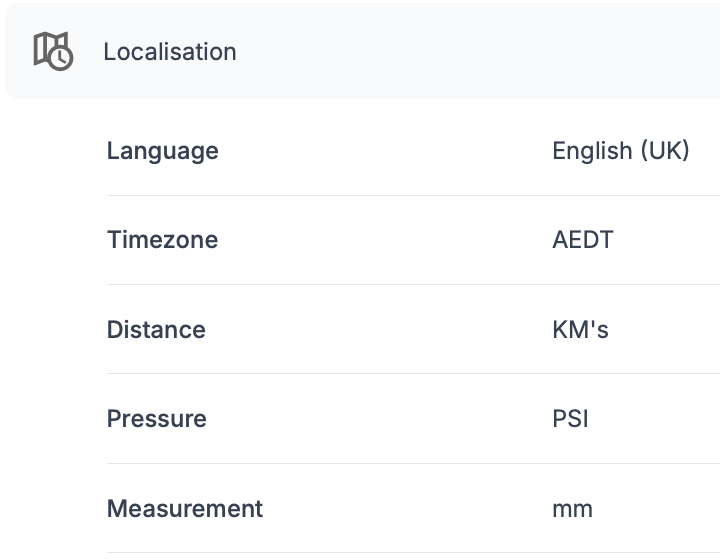
Open Localisation → Localisation to review Language, Timezone and the units for Distance, Pressure and Measurement. Check that the units match those your team uses when reading or recording values.
Settings reference
Expand the named section and subsection in the Settings panel to find each field. The Inherit settings checkbox sits above the sections when viewing a level that inherits settings.
Assets
Subsection | Settings |
General | Asset removal reasons |
Rims | Non-destructive testing interval |
Tyres | Tyre scrap reasons |
Vehicles | Application |
Rim testing alert fields
Open Rims → Non-destructive testing alerts for the six fields below. Initial sets the first alert and Post sets the interval for later alerts.
Measure | Settings |
Hours | Initial NDT alert hours |
Months | Initial NDT alert months |
Distance | Initial NDT alert distance |
Alerts settings reference
Expand Alerts, then select a subsection. Contacts identifies the responsible TMaSS users. Licensing, Safety and Users contain the individual event notifications.
Subsection | Settings |
Alerts | Enable in-app alerting |
Contacts | Alerts manager |
Licensing | Company disabled |
Safety | Observation completed |
Users | User creation alert |
Safety environment and localisation settings
Safety
Subsection | Settings |
Dates | Observation threshold start date |
Thresholds | Observation threshold |
Environment
Subsection | Settings |
Flag | Flag priorities |
Operating environment | Environment |
Production | Production hrs |
Localisation
Subsection | Settings |
Localisation | Language |
Was this article helpful?
That’s Great!
Thank you for your feedback
Sorry! We couldn't be helpful
Thank you for your feedback
Feedback sent
We appreciate your effort and will try to fix the article